Phishing

What is Phishing?

Phishing attacks are intended to collect your personal data, financial information or install viruses/trojans on your machine. They can be delivered by many methods

  • Email: A message containing a link to a malicious website or a faked login form designed to capture your username and password. Typically this mail will offer you something that seems too good to be true (free tokens) or claim you need to visit a link for some urgent reason (to Validate your account or similar)
  • Skype & other messengers: People claiming to be Cam4 staff asking you to do something (private shows, an audition, a problem with your account, etc) or again links that may be malicious or images that may be infected. 
  • Inbox messages: Faked messages saying you received a tip or gift, links requiring login – you may also see these appear in chat

What can you do about it?

  • Don’t reveal personal or financial information in an email, and do not respond to email solicitations for this information. This includes following links sent in email. 
  • Before sending or entering sensitive information online, check the security of the website
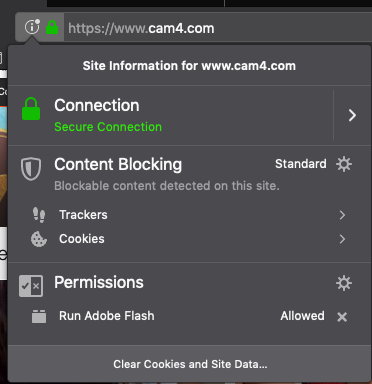
  • Pay attention to the website’s URL. Malicious websites may look identical to a legitimate site, but the URL may use a variation in spelling or a different domain (e.g., .com versus .net). If you look at the site URL in the browser address bar you will see the following

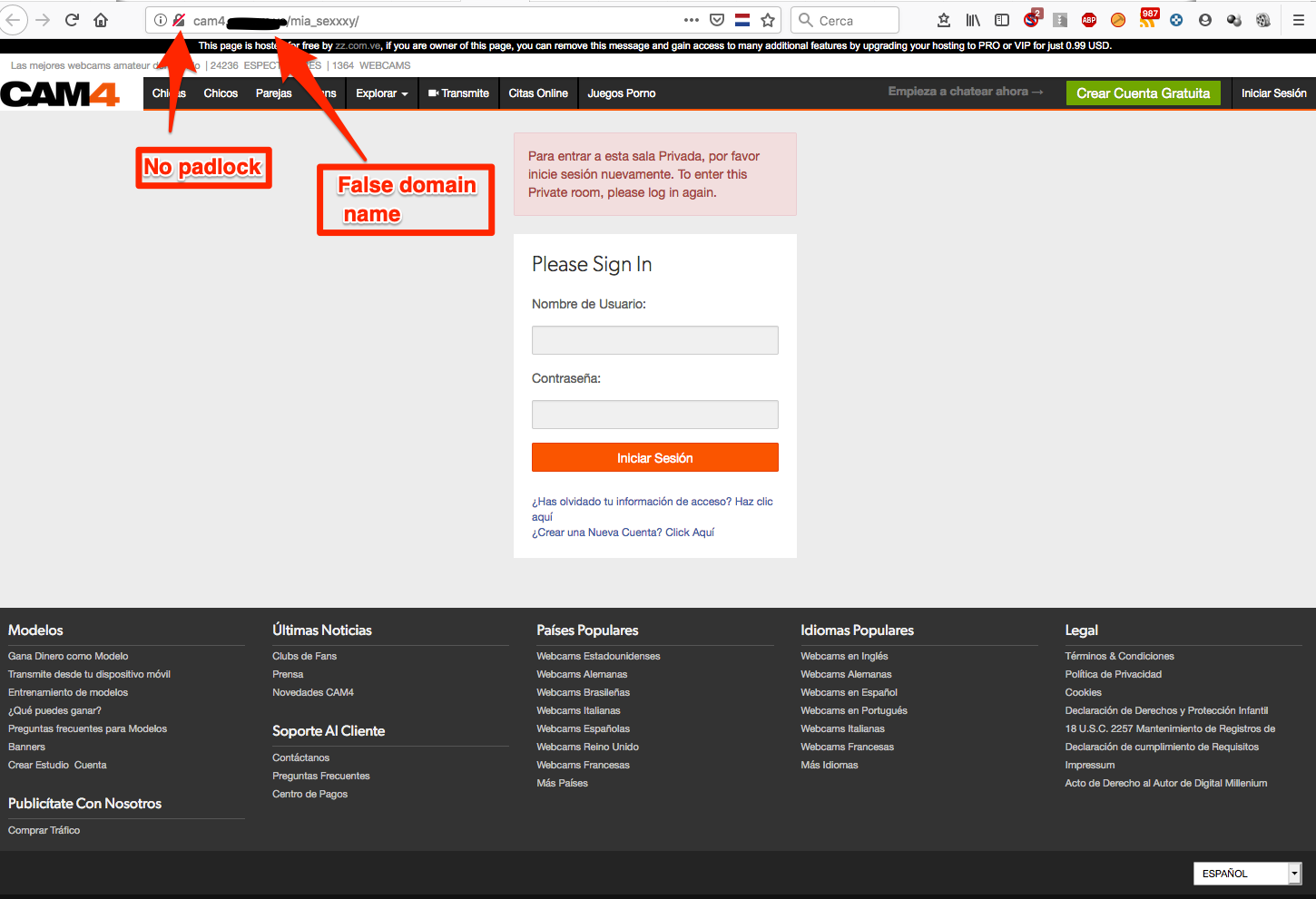
The presence of the padlock to the left of the URL shows that we have the security certificate for the domain and the link is valid. A faked page will not have this. See the example below

  1. The padlock shows with a red line through it, showing this is not a secure site
  2. Note the domain name does include cam4 but is not cam4.com.

Please pay attention to links like this provided through any method, particularly those asking you to login or provide personal information

Protect yourself

  • When in doubt, throw it out: Links in email, tweets, posts, Skype etc are often how information is compromised. If it looks suspicious, even if you think you know the source, it’s best to delete or – if appropriate – mark it as junk.
  • Think before you act: Be wary of communications that ask you to act immediately, offers something that sounds too good to be true or asks for personal information. If you want to check if the request is valid, please contact us directly at support@cam4.com, do not use the link you received.
  • Use a strong password: Make sure you do not use the same password for everything. Some tips on using a good password can be found here
  • Lockdown your account: In addition to a good password, make sure to add your security questions for additional protection. You can also add 2-factor authentication by using our SMS verification system

SMS & Email Verification (Two-Factor Authentication)

To protect your account and comply with security requirements, CAM4 uses Two-Factor Authentication (2FA). You can choose between SMS Verification or Email Verification as your 2FA method.

Setup

  1. Login to CAM4 and click your circular profile avatar at the top right of the page
  2. Within the drop-down menu, choose My Account
  3. Select the Account Settings tab
  4. Click on Security and scroll down to the verification options
  5. Choose either SMS Verification or Email Verification

SMS Verification Setup

  1. Select your country from the dropdown
  2. Enter your cell phone number
  3. Enter your CAM4 password
  4. Click Submit – a code will be sent to your phone
  5. Enter the code on CAM4 to complete setup

Email Verification Setup

  1. Your primary email address will be used
  2. Enter your CAM4 password to enable
  3. Verification codes will be sent to your email when required

Frequently Asked Questions

Can I disable 2FA (SMS or Email Verification)?

For Broadcasters and Members who make purchases: Two-factor authentication is required for your security and cannot be fully disabled. However, you can switch between SMS and Email verification methods at any time through your Security settings. This requirement helps protect your account and earnings.

For other account types: You may be able to disable 2FA, but we strongly recommend keeping it enabled for additional security. If you cannot disable 2FA or have questions about your account type, please contact support@cam4.com.

Can I switch between SMS and Email Verification?

Yes! You can switch between SMS and Email verification at any time:

  1. Go to My Account > Account Settings > Security
  2. Edit your current verification method
  3. Choose the alternative method (SMS or Email)
  4. Complete the setup process

Note: Only one 2FA method can be active at a time. Enabling Email verification will disable SMS verification, and vice versa.

Can I change my phone number?

Yes, you can update your phone number by editing the details in Security settings where you originally set up SMS verification.

What if I lose my phone or can’t access my email?

Please contact support@cam4.com immediately for assistance. Have your username ready. Our support team will help you regain access to your account through a secure verification process.

What if I don’t receive my verification code?

  • For SMS: Check your phone signal, wait 2-3 minutes, and try clicking “Resend Code”
  • For Email: Check your spam/junk folder
  • If you still don’t receive a code after 10-15 minutes, contact support@cam4.com with your username, phone carrier (if SMS), and country

Important Security Notes:

  • Verification codes are valid for 15 minutes
  • There is a daily limit of 15 codes per account for security
  • 2FA is triggered for sensitive actions like password changes, email updates, cashouts, and purchases
  • Use your actual mobile carrier number for SMS (VOIP numbers may not work reliably)

Fraud Awareness

There is no way to tell if someone tipping is fraudulent, but there are things you can look for to protect yourself that will help keep it to a minimum and also benefit your fellow broadcasters.

New Members

You can see when someone became a member of CAM4 by checking their profile. Brand new users tipping large amounts may be an indicator of fraud.

Please keep in mind that not all new members are fraudulent. Someone with a longer history at CAM4 does tend to be safer but there is always a possibility of a member contacting their bank and stating they did not make the purchases (chargeback).

Tipping Behavior

There are things you can look for during your show that should be a red flag as possible fraud. Here are a few:

  • If you are chatting while clothed (not performing) and someone tips you – especially large amounts and they are not a regular.
  • Someone tipping you more than requested.
  • Someone tips without chatting or making a request – especially if “requests” is one of your goals.
  • Someone tips and then immediately leaves the room.

Most tippers, especially new ones, will tip in small numbers to see if a broadcaster will follow through with goals or requests.

Rule of thumb: someone spending money wildly may not be spending their own.

Track Your Fraud

If you have repeat fraud from a particular country it may be time to add that country to your block list.

What Do I Do If I Suspect Fraud?

If at any time you feel someone is fraudulent and wish to refuse their tip, please notify us at fraud@cam4.com and we will take care of that for you.

Please keep in mind that all tokens tipped are purchased through one of our processors. Voids are tokens that were purchased with a stolen credit card or the tipper contacted their bank stating they did not make the purchase.

There is no such thing as ‘fake tokens’. Token adders are exe files that are designed to steal your log-in and compromise your account and should never be clicked on. If you find a link to a token adder please report it to us at: technical@cam4.com so we can have it removed.

My show was recorded and uploaded

Whether you broadcast or post images online, you run the risk of someone reposting your content. If you find your CAM4 videos/images uploaded to another website, you can report them through CAM4’s DMCA takedown service and we will be pleased to try and help you get them removed.

How to Submit a DMCA Request

If you have an active CAM4 account:

  1. Go to your Broadcaster Dashboard
  2. Locate and click on the DMCA Request option
  3. Complete the form by providing the exact URL(s) where your stolen content appears
  4. Submit the form

CAM4 will contact the parties involved and work on getting your content removed. Major platforms and hosts take DMCA requests seriously, so reporting quickly means faster removal.

If you do not have an active account:

Send a list of links to each of the videos/images you wish to have removed to dmca@cam4.com.

Important Notes

Please note the following:

  • While every effort will be made to have your content removed, please be aware that not all websites will honor a DMCA Takedown request.
  • Provide the direct link to each of your videos/images that you wish to be removed, not a Google search result or just the name of the website involved.
  • All images/videos must contain a CAM4 or DMCA logo for action to be taken. The DMCA logo can be found in the top-right of the stream (on PC) or top-left for Mobile.

Broadcaster Privacy & Security Best Practices

Protecting your privacy while broadcasting is essential. This guide covers key security measures to help you maintain your anonymity and personal safety on CAM4.

Geographic Blocking

Block Regions from Viewing Your Cam

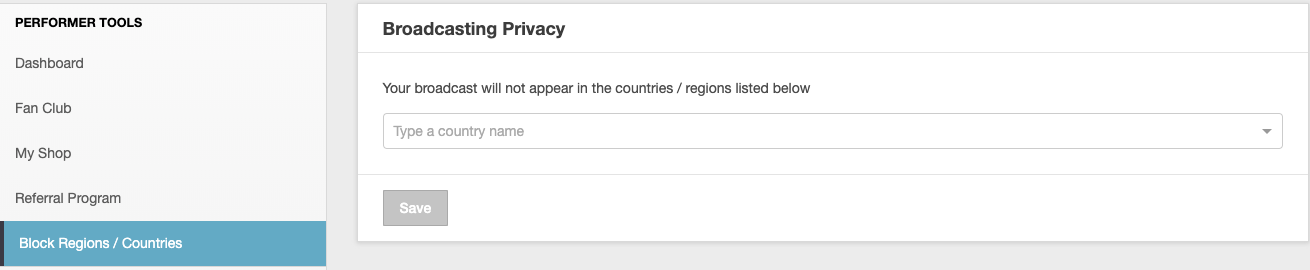
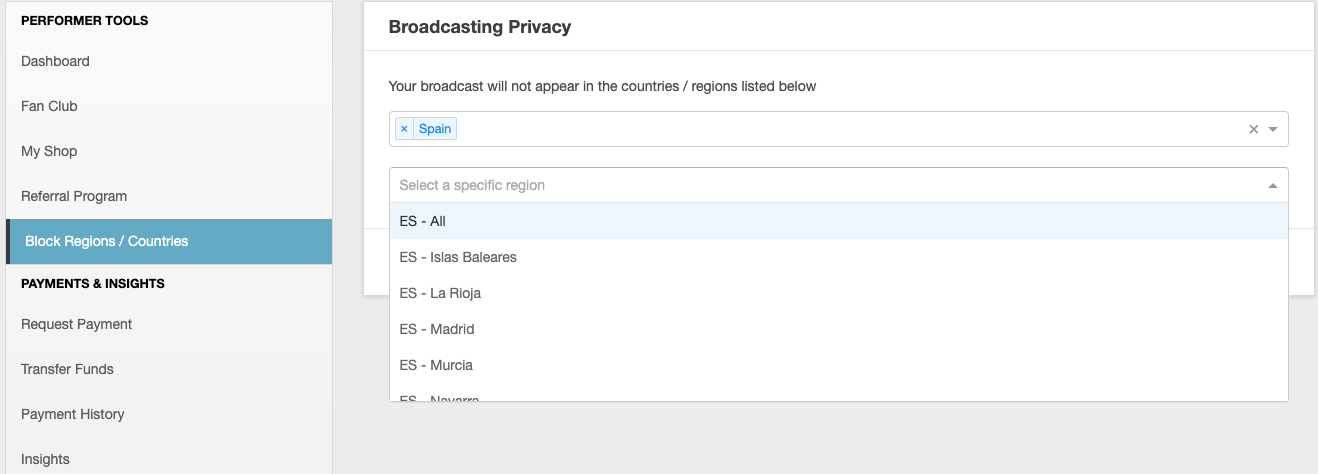
Important Update: There is no longer a limit of 3 countries you can block. You can now block as many countries, states, and provinces as needed to protect your privacy.

How to set up blocking:

  1. Log into your Broadcaster Dashboard
  2. Select “Block Regions / Countries”
  3. Choose the countries, states, or provinces you want to block
  4. Click Save after making your selections

What blocking does:

  • Prevents users from blocked regions from viewing your profile
  • Removes you from directory listings in those locations
  • Blocks access to your broadcasts from specified regions

Note: Remember to save your changes after selecting regions to block.


Browser & Online Privacy

Use Separate Browsers or Profiles

Best Practice: Keep your broadcasting life separate from your personal online activities.

Option 1: Two Different Browsers

  • Use one browser exclusively for camming (e.g., Chrome for work)
  • Use another browser for personal browsing (e.g., Firefox for personal)
  • This prevents confusion and accidental exposure

Option 2: Separate Browser Profiles

  • Create a dedicated “Work” profile in your browser for broadcasting
  • Create a “Personal” profile for everything else
  • Each profile maintains separate bookmarks, passwords, and browsing history

Social Media Safety

Create Separate Broadcasting Profiles

For Twitter, Instagram, and other platforms:

  • Create accounts using your broadcasting name only
  • Never include your real name, location, or personal information
  • Use a separate email address for these accounts (see Email section below)

Disable Location Sharing

Critical: Turn off location services on all social media platforms:

  • Twitter/X: Settings → Privacy and Safety → Location Information → Disable
  • Instagram: Settings → Privacy → Location Services → Disable

Why this matters: Even a single post with location data can reveal your real-world location.


Email Security

Use a Dedicated Broadcasting Email

Setup:

  1. Create a new email address specifically for your broadcasting career
  2. Use this email for:
  • CAM4 account registration
  • Social media profiles (broadcasting personas)
  • Fan communications
  • ID verification on messaging apps

Never mix this email with your personal accounts

Recommended: Use a privacy-focused email provider or create a new Gmail/Outlook account with no connection to your real identity.


Domain Names & Websites

Protect Your Identity When Registering Domains

If you create your own website or custom domain:

Essential Step: Purchase domain privacy protection from your registrar.

Why? Without privacy protection:

  • Your real name appears in public WHOIS records
  • Your home address is publicly searchable
  • Anyone can look up this information online

How? Most domain registrars offer privacy protection as an add-on service during checkout (typically $5-15/year). This substitutes the registrar’s information for yours in public records.


Google Alerts & Monitoring

Set Up Self-Monitoring

For your real name:

  • Visit google.com/alerts
  • Create an alert for your real name in quotes: “Your Full Name”
  • This notifies you if your real identity appears online
  • Helps you catch privacy breaches early

For your broadcasting name:

  • Set up alerts for your performer names
  • Monitor your online presence and reputation
  • Track where your content is being shared

Review frequency: Check alerts weekly to stay informed.


Audio & Phone Call Safety

Protect Your Privacy During Broadcasts

During phone calls:

  • Mute your microphone before answering any calls during a broadcast
  • Better yet: Leave the room entirely to take calls
  • Never let room viewers hear personal conversations

Background audio:

  • Turn off or mute televisions and radios during broadcasts
  • Local news, weather reports, and radio stations can reveal your location
  • Even ambient sounds can contain identifying information

Camera & Background Awareness

What Your Camera Reveals

Inspect your background carefully:

  • Power outlets: Different countries use different plug designs
  • Wall clocks: Can reveal your timezone
  • Windows: Sunrise/sunset times vary by location and season
  • Landmarks: Even partially visible buildings or signs can identify locations
  • Mail/packages: Address labels must be hidden
  • Personal documents: Keep all paperwork out of view

Keyboard & Screen Safety:

  • Position your keyboard out of camera view
  • Never let viewers see your monitor displaying:
    • Personal emails
    • Real names
    • Addresses
    • Banking information
    • Your real social media accounts

Multiple Camera Angles

While variety is great:

  • Multiple angles keep viewers engaged
  • BUT: Each angle must be checked for privacy risks
  • Review every camera position for identifying information
  • Test angles before going live

Account Security Best Practices

Strengthen Your Account Security

Use strong passwords:

  • Create unique passwords for your CAM4 account
  • Don’t reuse passwords from other sites
  • Consider using a password manager

Enable Two-Factor Authentication (2FA):

  • Available in your Account Settings
  • Adds an extra layer of security
  • Protects against unauthorized access

Regular security checks:

  • Review your account settings monthly
  • Update your blocked regions as needed
  • Check connected devices and sessions

Privacy Checklist

Before each broadcast, verify:

  • Geographic blocking is configured and saved
  • Background is clear of identifying information
  • Personal documents are out of camera view
  • Location services are disabled on all devices
  • Phone is on silent or in another room
  • TV/radio is off or muted
  • Multiple camera angles have been tested for privacy
  • Using dedicated browser/profile for broadcasting
  • Personal email accounts are closed

Need Help?

If you have questions about privacy settings or need assistance:

  • Contact CAM4 Support: [support link]
  • Visit the Knowledge Base for detailed guides
  • Reach out to Customer Service for personalized help

Remember: Your privacy and safety are paramount. Take time to properly configure all privacy settings before broadcasting.