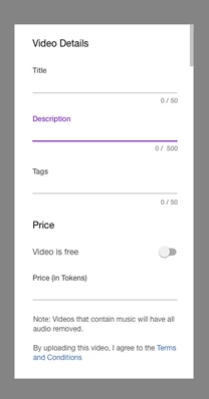
CAM4 Tube Content

CAM4 has partnered with multiple tube sites (Pornhub, xHamster, etc.) to create channels featuring recorded content from CAM4 creators like you! Tube sites allow for your content to be visible to a new audience.

  • Who will be featured on the channel?
    All CAM4 creators are welcome to submit content to be purchased for the CAM4 tube channels.
  • What do performers get for being featured on the channel?
    The goal of the CAM4 tube channels is to help creators grow their brand and audience by showcasing them across these platforms. All content will be purchased directly from you (the creator). Additionally, your CAM4 username will be embedded into the video to increase the visibility of your CAM4 profile.
  • How do I get my content featured on a CAM4 tube site?
    Just contact us at video@cam4.com or reach out to your regional manager
  • Will the videos be used anywhere else?
    The video content submitted will be used across CAM4’s dedicated tube sites. It will be watermarked with the CAM4 logo to prevent reproduction.
  • Will CAM4 keep the recordings?
    The original content you submit will be regularly deleted from our storage. The final videos we upload to Tube sites will be stored in our secure database.
  • Who gets the ad revenue?
    Ad revenue is not the goal of these partnerships – our goal is to drive traffic back to CAM4 and your profiles.
  • Can you tag my porn star or model profiles in the videos?
    Absolutely. By tagging your profiles and social channels, new viewers and fans can connect with you further. Viewers will be able to find your dedicated pages and featured live shows. Need a profile? We will work with you to get your profile set up within CAM4!
  • Do the videos need to be just me? Or can I record something with a partner?
    We accept either! The content is purchased and paid out according to how many performers are in the video.
  • What type of videos are you looking for?
    The style of the video should feel intimate and cam-like. We love seeing content that reflects the people we see on CAM4. Content that feels homemade (but not low quality) does very well. Additionally, content that is not in a traditional cam location (on a bed; in a bedroom) does well outside, in a car (when stationary), bathroom, etc.)
  • Are any other specifications required?
    The content must be High Definition (1080p minimum) but can be filmed horizontally or vertically. The length required is 15-20 minutes, and it must end in a cumshot or orgasm.
How to use iOS Broadcaster

General requirements:
  • Apple iPhone/iPad running iOS 11 and up
Step by step instructions for broadcasting using an Apple device
  1. Open Safari on an Apple iPhone/iPad running iOS 11 and up
  2. Go to https://www.cam4.com/
  3. Make sure you are logged in.
  4. Access the menu and tap on “Broadcast”
  5. Press “Allow” when prompted for access to the camera and mic
  6. Once the app has loaded, you can:
    1. Add a status message, tip message and tip goal in the top part of the screen. Don’t forget to press “Save” in order for these to be used.
    2. Switch to a different camera
    3. Press “Start Broadcast” in order to start a show
  7. Once a show has started the app shows the following:
    1. Received token count and Viewer count
    2. A “stop broadcast” button
    3. Chat message list
    4. Chat input

Latest updates

  • Landscape support for iPhone X
  • Private Show queue – As a broadcaster you now have the ability to either accept or reject a private show request immediately. Docking it to the side temporarily, enables you to wrap up what you were doing before addressing the request.
  • Private show settings – These can now be changed within the app.
Troubleshooting
Error messages

message: “Due to new technologies being made available in iOS 11, this app only works on Safari 11 and up. Please update in order to run the app.”

explanation: The app only works on Safari iOS 11 and up. This is due to new technologies that have been enabled by Apple on iOS 11. Updating to iOS 11 and then opening https://www.cam4.com in Safari will remove this error.

message: “Please refresh the page and tap “Allow” when asked to access the Microphone and Camera.

explanation: iOS will ask for permission when accessing the camera and microphone of the device. Pressing “Allow” when asked will get rid of this error.

How to Use Our New Ranking System

We wish we could have all your shows on the homepage – so how can you keep your ranking up or improve it with these changes?

Get Technical

  • Test your internet speed at https://speedtest.xcdnpro.com/, this checks your connection speed to the CAM4 servers and is the most accurate
  • Upgrade your webcam
  • Ensure your video quality is good
  • Make sure you have good lighting

Broadcast regularly and be engaging with your viewers

  • Schedule your shows and be consistent with the times spent on cam
  • More frequent shows that people tip in will help you rank higher on the homepage
  • Enable chat tipping games (Roll the Dice, Spin the Wheel, Token Keno)
  • Give viewers something to talk about by using toys and props
  • Change your camera angles and/or use multiple webcams at once
  • Get creative with your broadcasts in numerous ways: using OBS, themes, outfits, different locations, and backgrounds

Please see https://www.cam4.com/training  for more performer tips, tricks, and training modules.

C4 Broadcaster FAQ

What is C4 Broadcaster?

C4 Broadcaster is an Android app that lets you broadcast live to CAM4 from your mobile device! Find out more about it here. https://www.cam4.com/app/broadcasting 

How do I download C4 Broadcaster?

You can download C4 Broadcaster to your Android device from the Google Play store

What devices does C4 Broadcaster work on?

Any Android device running Android version 4.4.2 or higher can install and use C4 Broadcaster.

What is allowed outside on CAM4?

You can get a reminder on what is allowed on cam outdoors here: https://www.cam4.com/training/legal-stuff/whats-allowed-on-cam-outdoors

Can I broadcast in both landscape and selfie modes?

Yes you can!

C4 Broadcaster landscape mode

Can I record my show?

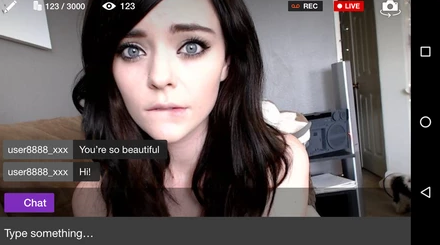
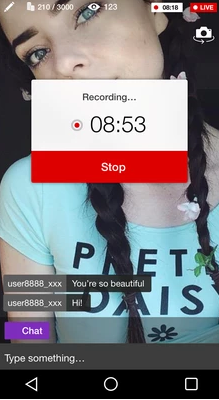
Yes, you can record parts of your shows, just tap the record button located next to the start broadcast button. You can start/stop recording at any time during your broadcast. Once your are finished you can either save or discard the video. Any videos you save will be stored directly on your phone gallery, so you don’t need to interrupt your show.

record

Can I upload videos?

Yes you can upload these videos and any others on your phone directly from the app

myshop-upload

Once you’re finished you can go to Cam4, check the approval status, manage your profile and edit the video information in MyShop.

What Is External Encoding?

Video encoders are software that allows your digital video to be broadcast live!

CAM4 uses its own encoder, so you just need to click Broadcast to go live on the site. Some sites, like Twitch or YouTube Livestreaming, require you to download external encoders before you can broadcast.

External Encoders can be technical to configure, but they give you many more options for setting up and running your broadcast. With an external encoder, you can fine-tune your video quality, add images or videos to your broadcast, stream video games live, and so much more. Savvy users may even be able to add scrolling lists of top tippers or favorite gifts!

CAM4 has added support for an external encoder to the broadcast window – Open Broadcaster Software (OBS).

You can download OBS (Open Broadcaster Software)here for free.

Related Articles:

Live show Scheduling: How to schedule your shows

Get more viewers and manage your time better with our new Live Show Scheduling tool. Your fans can subscribe to your schedule, which will send them notifications before you go live. You can schedule shows up to 90 days in advance and have an unlimited number of subscribers. This is the perfect way to make more tokens and build more buzz around your shows!

Schedule up to 5 shows per day whether they’re a short morning show or a longer sensual weekend show. Tease your subscribers with a description of what to expect in your show – oil show? Know when you’re bringing a guest on? This is how you’ll build buzz and guarantee more viewers! Preset your goals so viewers know what to expect and when to restock their token stash.

Get your fans can easily subscribe to your schedule from your Cam4 profile, all they have to do is click the orange Subscribe button and automatically receive updates on your naughty plans.

Here’s how you can take your Cam4 shows to the next level:

Sign into your Cam4 account with your username and password you will then need to access your calendar. This can be reached in two ways

1. Click the calendar icon to the top right of the cam4 page

My Account Panel

2. Click My Account to access your profile options and select the Calendar link

Profile Options

Click Schedule Show on the Calendar page

Calendar Options

Now add in the details for your shows:

Schedule Show

1. Your Time Zone – Edit your Time Zone in the Edit Profile Info tab

2. The date your Live Show will take place

3. The Start Time – When your Live Show begins

4. Duration – How long you intend the show to be

5. A brief Description of what the show will involve

6. Repeat Event: For regular shows, please choose from daily, weekly or monthly

7. Repeat For: Choose the number of times to repeat a daily, weekly or monthly event

Finish scheduling your Live Show by clicking Create New Show.

To manage your calendar click the Calendar icon next to your username. From here, you can see when you’ve scheduled a broadcast, edit your scheduled shows by clicking the pencil icon, and add more shows.

FAQ

How many shows may I schedule for one day? You may schedule up to 5 shows on each date.

Am I required to do the shows that I schedule?  We encourage you to keep your schedule up-to-date and make changes to the details of upcoming shows if you are unable to broadcast during the scheduled time. By not performing in the shows that you schedule, you risk upsetting your fans. That may mean losing subscribers and tips!

How do I edit or cancel a scheduled show?  To delete or edit the details of a show, click on the [Edit Show Icon] in the Live Show Schedule.

How do I export my Live Show Schedule to Google Calendar/iCal/Outlook?

a. Sign in to Cam4 with your username and password.

b. Click the Calendar Icon, or click Manage My Calendar in the My Account tab.

c. Below the Calendar, click on the icon for the Calendar application you wish to export your Calendar to.

    i. iCal

    ii. Outlook

    iii. Google Cal

d. Click “OK” to finish the export and update your Calendar.

How far in advance may I schedule a live show? You may schedule Live Shows up to 90 days from the current date.

How do I change my timezone? To change your timezone when scheduling a show, click the Edit Profile Info tab in the Manage My Account page and select your timezone from the dropdown menu.

My show was recorded and uploaded

Whether you broadcast or post images online you run the risk of someone reposting your content. If you find your CAM4 videos/images uploaded to another website please make a list of links to each of the videos/images you wish to have removed and send it to dmca@cam4.com, and we will be pleased to try and help you get them removed.

Please note the following:

  1. While every effort will be made to have your content removed, please be aware that not all websites will honor a DMCA Takedown request.
  2. Please provide the link to each of your videos/images that you wish to be removed, not a Google search result or just the name of the website involved

How Do I deal with problem chatters?

You have several tools available to deal with rude members in your chat. Click on the username of the abusive viewer and select one of the following:

Moderator Options

  • Kick – Removes the user from the room, but they can return. (Please note: Using this option applies a negative mark against a members account. Too many negative marks will result in loss of chat for that member throughout the site.)
  • Ban – Removes the user from the room permanently.
  • Silence – The user may remain in the room, but they may no longer use the chat.

You may also assign someone as a Moderator to give them access to these tools in your room.

How do I use Manycam with Cam4?

If you wish to use ManyCam with Cam4 please do the following:-

  • Right click where the video should be and take settings from the menu that appears,
  • Click the small cam icon and make sure the dropdown list for the cam source is set to ManyCam Virtual Webcam” or “ManyCam Video Source“.
  • Click the small microphone icon and make sure that ManyCam Virtual Microphone” is selected as the source

Cam4 Private Shows

Private Shows are a great way to make more money. Viewers pay per minute until they end the session or run out of tokens (Price options are in point 11. below). While in a Private Show, you can enable Spy mode. This allows Spy viewers to watch your show but not have access to the chat. And of course, you can chose to disable and enable Private & Spy Show functions at any time.

1.What is a Cam4 Private Show?

Cam4 Private Shows let your viewers get a much more exclusive experience from your broadcast, a personal show featuring a private chat that only you and the viewer can see, while you earn tokens every second.

2.What is a Spy Show?

During a Private Show, other viewers may tune in as Spies. Spies can watch the broadcast by paying a set amount of tokens per minute, but they cannot see or participate in the chat.

3.How do I enable Private Show requests?

Private Show requests can be enabled and disabled from the toolbar below the broadcast window.

4.What happens when the Private Show ends?

When you are ready, you may end the Private Show and return to the public broadcast by clicking End Current Show button.

5.What happens to the rest of my viewers when I accept a Private Show?

While you are in a Private Show, your viewers may remain in the public room and chat while they wait. If you have Spy Shows enabled, viewers may watch the Private Show broadcast (but not see the chat) for a set amount of tokens per minute.

6.Can I disable Spies in my Private Shows?

Yes. Spy Shows can be enabled and disabled from the Private Show Settings window. Remember, enabling Spy Shows is a good way to earn extra tokens and keep viewers watching your broadcast while in a Private Show.

7.What happens to the goals that were active before beginning a Private Show?

The goals on your public broadcast remain in place and will continue once you return to the room when your Private Show ends.

8.Can members tell if I’m in a Private Show?

Yes. During Private Shows your directory thumbnail will include a key-shaped icon, and a notice will be displayed on the broadcast window in your room. Viewers who enter the room while you are in a Private Show may wait for it to finish or watch the Private Show as spies.

9.How do viewers request a Private Show?

If you have Private Shows enabled, viewers may request Private Shows by clicking a Request Private Show button below your broadcast feed.

10.How do I accept Private Show requests?

Notifications for Private Show requests appear on the toolbar below the broadcast window. Pending requests are also found here while you are in a Private Show.

11.How do I earn tokens from Private Shows?

Private Shows have variable pricing, you can choose from any of the following for your shows

12 Tokens/Minute, 6 Tokens/Minute Spy
18 Tokens/Minute, 6 Tokens/Minute Spy
24 Tokens/Minute, 6 Tokens/Minute Spy * (default)
24 Tokens/Minute, 12 Tokens/Minute Spy
30 Tokens/Minute, 6 Tokens/Minute Spy
30 Tokens/Minute, 12 Tokens/Minute Spy

12. How long are Private Shows?

Private Shows continue until the Viewer runs out of tokens, or either you or the viewer choose to stop the Private Show by clicking the [End Private Show] button.

13. What is the difference between Private Rooms and the new Private Shows?

Broadcasters with Gold Memberships may create Private Rooms, which only viewers with the password may enter. All Broadcasters may enable Private Shows on their Public Broadcasts, which creates a separate Private Broadcast for the viewer, which costs tokens per minute.

14. Can I still advertise Private Skype shows for tokens?

Yes. You may still advertise private shows for your viewers. As always, you may only accept tokens in exchange for items and services you advertise on Cam4.