Cam4 FAQ
  • Menu "primary_navigation" not defined.

Cam4 FAQ

Find answers and help fast

Your Account

Swedish Law Proposition 2024/25:124

Important Update for CAM4 Users in Sweden

In response to Swedish Law Proposition 2024/25:124, CAM4 is implementing platform restrictions for users accessing the site from Sweden. This new law criminalizes the purchase of live, interactive, or custom sexual acts online by Swedish citizens. Penalties for breaking the law can include up to one year in prison.

To ensure compliance with this legislation, CAM4 will enforce the following restrictions for users in Sweden (as determined by IP address):

What Swedish users CANNOT do:

  • Access public chat, private chat, or CAM4 Messenger
  • Pay for private shows, custom content, or request any interactive sexual acts
  • Send any messages or interact with performers during live broadcasts

What Swedish users CAN do:

  • View free public live shows (without interaction)
  • Spy on private shows as part of a Fan Club membership
  • Purchase:
    • Gold Memberships
    • Fan Club Memberships
    • Subscriptions
    • Pre-recorded content (videos, photos, goods)

All restrictions are enforced using geo-blocking. We do not assess nationality based on profile details or payment origin.

We understand this may be frustrating, but these steps are necessary to comply with Swedish law and protect our members. If you’re accessing CAM4 from Sweden, these restrictions apply even if you’re not a Swedish citizen.

Why is this happening?

Sweden’s new law criminalizes the act of purchasing live or interactive sexual services online. The law specifically targets the buyer, not the performer or platform. This means any Swedish person who pays for a live or customized sexual performance may face criminal charges.

Questions?

If you’re unsure about how this affects your account, you’re welcome to reach out to our support team. We’re here to help. Contact help@cam4support.com


Last Updated: 4 months ago

By Peter Willhelm

Accepting Friend Requests

Members of the CAM4 community may want to add you as a friend.

You can view your pending friend requests at any time, from anywhere on CAM4 by clicking the Bell Icon in the navigation menu at the top of the site. This icon will have an indicator that shows how many requests are waiting as shown below.

From the drop-down, you will be able to see the username and profile avatar of any member who has sent you a friend request. You can click the X to ignore their request, or the green check mark to accept it.

You can also choose to accept or ignore all pending requests at once by clicking on AcceptAll or Reject All

Note that pending friend requests automatically expire after 2 weeks.

Last Updated: 3 years ago

By Peter Willhelm

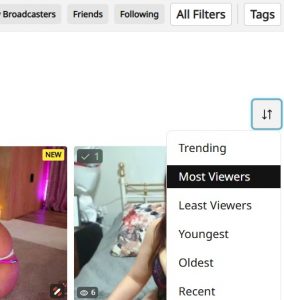
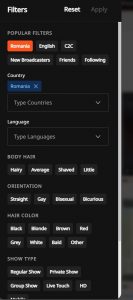
How do I change my view?

This can be done i two ways

  1. Use the sort button on the top right of the page. This has a number of preset options for you to choose from, see below


2. Choose your own filter. please use the filter options on the left of the screen to select your own preferences

Last Updated: 8 years ago

By Peter Willhelm

Changing privacy options

We have made some changes to how we manage your data and privacy. Your privacy is still our topmost priority, and we will continue to protect your information and utilize it only to provide you with the best experience on our site. For more information about how we protect your personal data please visit our Privacy Policy webpage https://www.cam4.com/privacy.

Please note if you answer no to the questions below, we will be obliged to delete your data, this cannot be recovered. If you wish to change your privacy settings. Please do the following:

  1. Log in to Cam4. Click your avatar located at the top right of the page
  2. Choose My Account from the drop-down menu
  3. select the Account Settings tab at the top of the page
  4. Click the Privacy box
  5. Select your preferences for the 4 questions listed within the Privacy Options When finished, save any changes
Last Updated: 3 years ago

By Chris

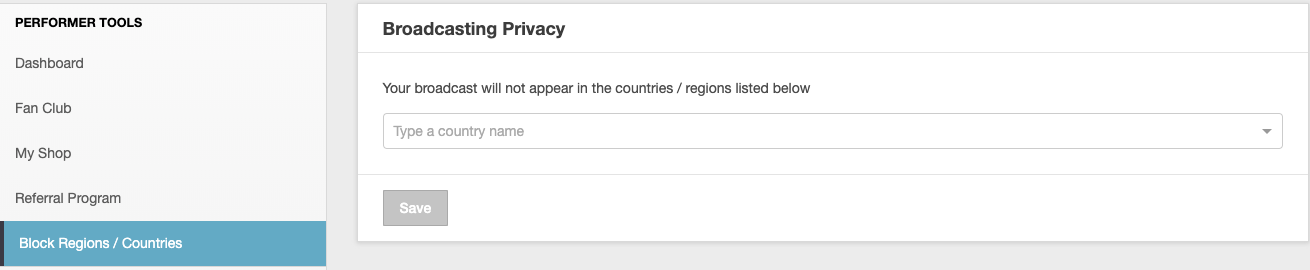
Can I block countries from seeing my profile?

Yes, you can block Countries, States or Provinces from viewing your profile.

  • Click your circular profile avatar to the top right of your screen
  • Click Broadcasters Dashboard
  • Click on Block Regions / Countries
  • Choose the country you wish to block

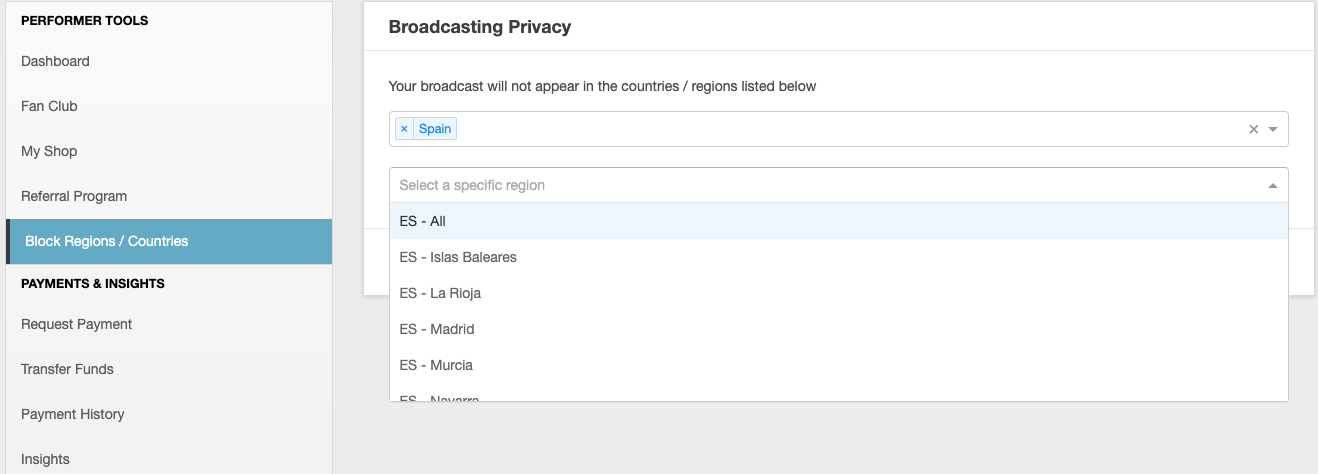
  • Once you have chosen the country an additional list will appear with each of the regions for that country, as below

  • You will be able to choose to block all of the country or only specific regions within the country
  • Repeat the Country/Region selections for each country/region you wish to block
  • Click Save
Last Updated: 3 years ago

By Peter Willhelm

How Do I Add Pictures To My Profile?

You can easily insert all kinds of images and pics into your Cam4 Profile in the Bio section of your Profile Settings.

First, click My Account in the top right of the Cam4 page.

From the menu on the left, click Edit Profile Info.

Scroll to the bottom, to the Bio section.

Bio Panel

Click the Add Image icon from the toolbar.

Add Bio Image

Paste the URL of the image you wish to use and click Insert.
Just A Tip: You may resize your images by pixel using the Width and Height boxes in the menu, if you wish.

Note: To protect your profile from unwanted activity or security risks, only images hosted on the following sites may be used in your profile:

cam4.com
flickr.com
photobucket.com
imgur.com
imageshack.com
facebook.com
postimage.org
twitter.com
instagram.com

Last Updated: 11 years ago

By Peter Willhelm

Why can’t I pick couple as a gender?

Couple is not a gender option because it is not considered a gender.

However, you may choose Couple as your show type when broadcasting.

To do this, click broadcast and read the box that pops up. You will see the following options depending on your profile gender

Male Profiles

  • Solo
  • Male Male Group
  • Male Female Group

Female Profiles

  • Solo
  • Female Female Group
  • Female Male Group

Simply select the appropriate group category to appear in the Couples section on the Cam4 home page

Last Updated: 11 years ago

By Peter Willhelm

Removing Friends or Following

You can remove someone from your Friends list or stop following an account using one of the following two methods:

Method 1: From the User’s Profile

  1. Sign in to your CAM4 account.
  2. Visit the profile of the person you want to remove.
  3. At the top of their profile, click either:
    • Unfriend (if they are a Friend), or
    • Unfollow (if you’re following them).

    These buttons will automatically update to reflect the current status (Follow/Friend or Unfollow/Unfriend).

Method 2: From Your Account Settings

  1. Sign in to CAM4.
  2. Click your circular profile avatar in the upper-right corner of the screen.
  3. Select My Account from the drop-down menu.
  4. In the Profile tab, choose:
    1. My Friends to manage your friends, or
    2. Following to manage accounts you’re following.
    3. Click the Remove button next to any name you wish to delete from your list.

    Both methods instantly update your connections. No notification is sent to the person you unfollow or unfriend.

Last Updated: 4 months ago

By Peter Willhelm

Tags: removing following, removing friends

Removing comment wall posts

  1. For an individual comment you made on someone’s wall, simply click the Trash icon located to the right of the comment you would like to remove.
  2. If you wish to hide comments from your own Cam4 profile wall, you will need to do the following:
  • Click your circular profile avatar located in the upper right of your screen
  • Within the drop-down menu click on My Account
  • Under the Profile tab, click on Customize Profile
  • Scroll down to Chat Wall Settings. There you have a toggle switch option to display or hide others’ comments on your own Cam4 profile wall. Note this will only hide comments and not delete them
Last Updated: 3 years ago

By Peter Willhelm

Tags: comment walls, delete, posts

Why can’t I chat in some rooms?

Broadcasters have full control over who can chat in their rooms. If you’re unable to type, it’s likely because the broadcaster has customized their settings. They may choose to:

  • Limit chat to certain languages
  • Restrict chat to users who have purchased tokens
  • Allow only their friends & followers to chat
  • Silence specific users
  • Use private chat only, or disable chat entirely

👉 Important: These settings are controlled entirely by the broadcaster. CAM4 Support cannot override them or change how an individual room is set up.

If you’re unable to chat, it’s not a technical issue, it’s just how the broadcaster has chosen to manage their space.

Last Updated: 6 months ago

By Peter Willhelm

Tags: can't chat, chat filters, free chat

  • 1
  • 2
  • Next →
  • English
    • Danish
    • Dutch
    • French
    • German
    • Italian
    • Norwegian
    • Polish
    • Portuguese (Brazil)
    • Romanian
    • Russian
    • Spanish
    • Spanish (LA)
    • Swedish

Categories

  • Broadcasting (39)
    • Moderation Tools (1)
  • Cam4 Features (16)
  • General Questions (1)
  • Getting Paid (14)
  • Getting Started (7)
  • Gold Membership (5)
  • Online Safety (7)
  • Studios (3)
  • Technical (7)
    • Your mobile device (1)
  • Tokens (9)
  • Video Tutorials (1)
  • Your Account (15)

Legal

  • Terms & Conditions
  • Privacy Policy
  • Statement of Rights and Child Protection

Copyright 2012. Powered by WordPress