Regular Streaming Troubleshooting

Can’t see or use your camera and microphone set up when choosing the Regular Streaming broadcast mode on Cam4?

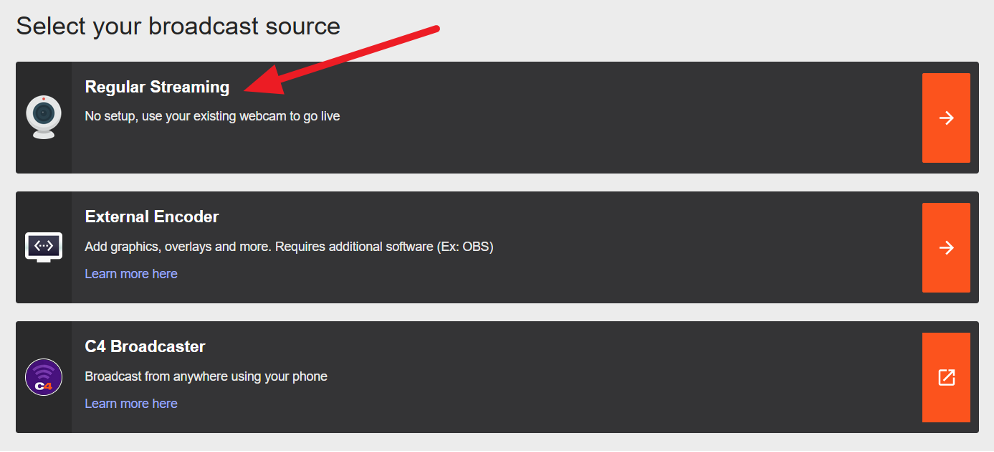
Please make sure that you are logged into Cam4 and can access the Regular Streaming tab after pressing the Broadcast button
 

I get a message that my camera or microphone is blocked or disabled.  No camera or microphone appears on my CAM4 broadcast window.

The camera and/or microphone are blocked/disabled in your browser. Please enable them by clicking the X button next to Blocked Temporarily (Firefox)
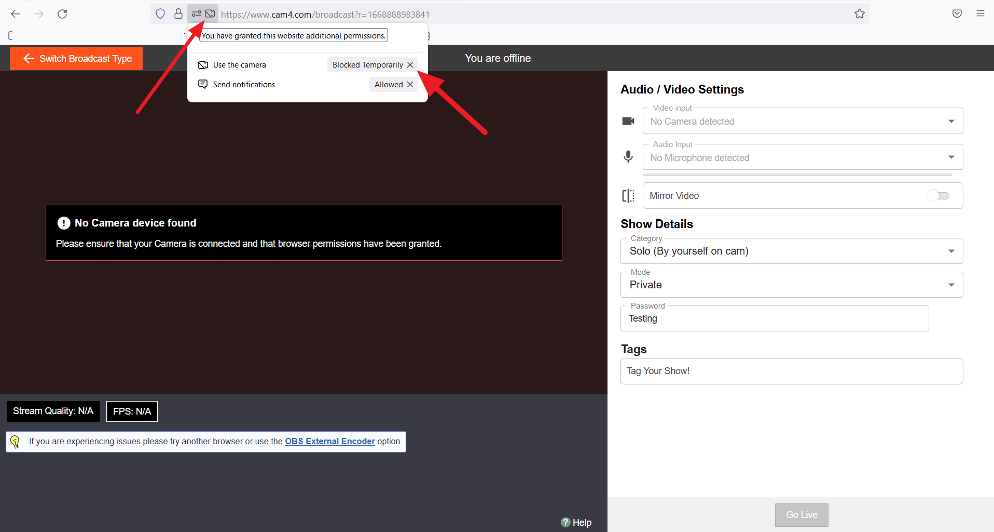
 

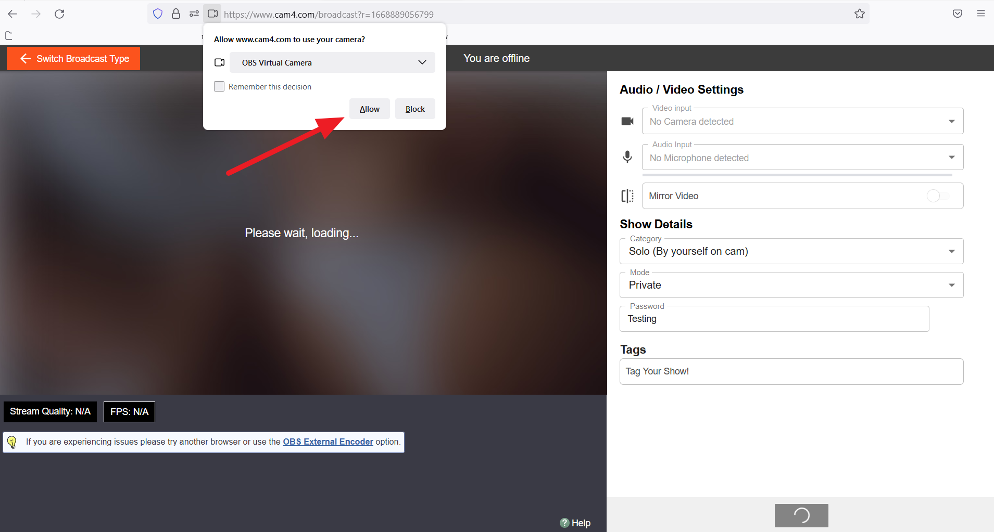
Next, refresh your Firefox browser window and then select Allow within the popup prompt. The camera you are currently using should be shown in that window. If not, use the drop-down arrow and select it.
 

If you are using Chrome browser to stream, the process is very similar: 

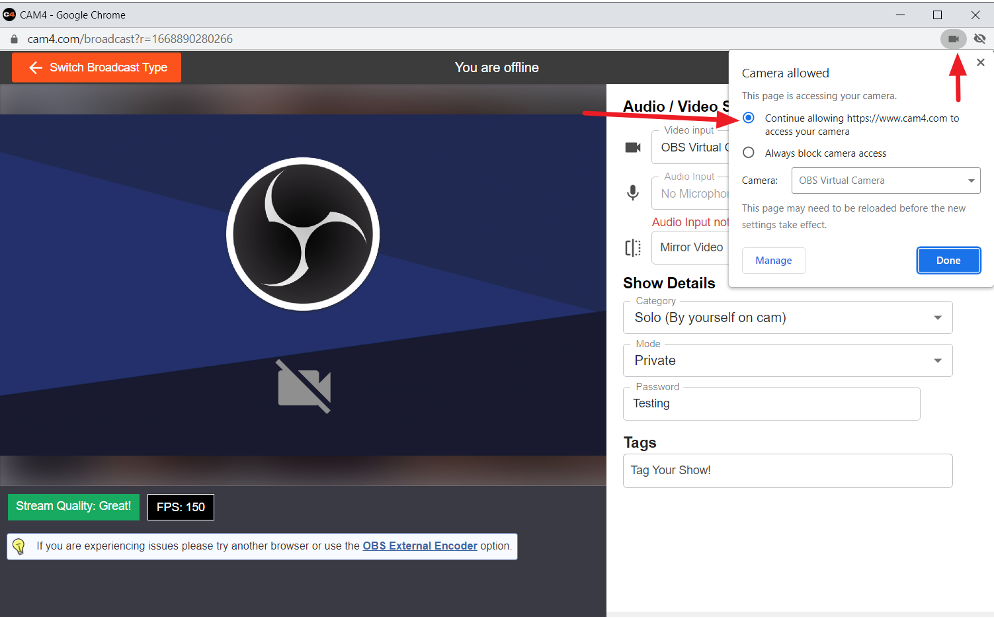
  • Click the camera icon located in the upper right corner of your broadcast window as shown below.
  • Within the pop-up box, choose Continue Allowing Cam4 to access your camera.
  • The camera you are currently using should be shown in that window. If not, simply select it using the drop-down
  • Click Done when finished and either refresh or restart Chrome


Opera users, please see  Managing Camera Access and Managing Microphone Access


Please note: This may require a browser restart rather than just a page refresh as any open tabs or browser windows may interfere with the change.

Your camera and/or your microphone could also be in use by another app. In many cases, your browser might not be able to access them directly if they are already in use. To fix this please close any other tabs/browsers or applications that are currently using your camera
( Tip: If your camera in use indicator is lit before reaching the CAM4 website it generally indicates something else is using your cam.)

Problems streaming on more than one platform.

Some may experience issues trying to broadcast on multiple platforms.  If this is an issue, you will need to create a virtual cam while only using one physical cam. The most common option would be to use the Virtual Camera option within OBS. This will give you an additional cam listed as OBS Virtual Cam which can be selected in the same manner as mentioned at the start of this article.

  1. Install OBS Studio. It can be downloaded here
  2. Open OBS Studio
    • Select Start Virtual Camera in the main OBS window
    • Open your browser and log in to Cam4
    • Click the Broadcast button and select Regular Streaming
    • Choose OBS Virtual Camera as your webcam.
    • You do not need to press Start Streaming in OBS
    • Press the Go Live button on Cam4 and start streaming


Private Shows – Fixed rate private shows

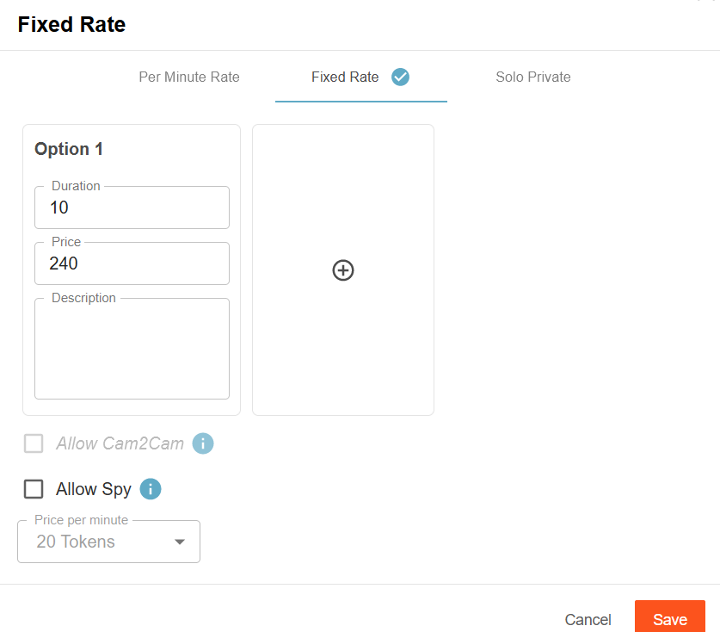
We have added the feature “Fixed Rate” which provides the ability to sell private shows in blocks of time as an alternative to the existing pay-per-minute shows.

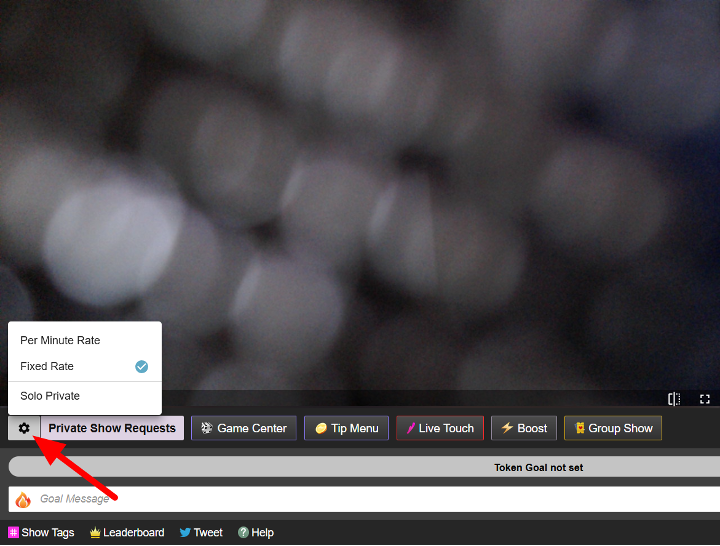
The options for this appear in the lower left of your broadcast window after clicking on the cogwheel.


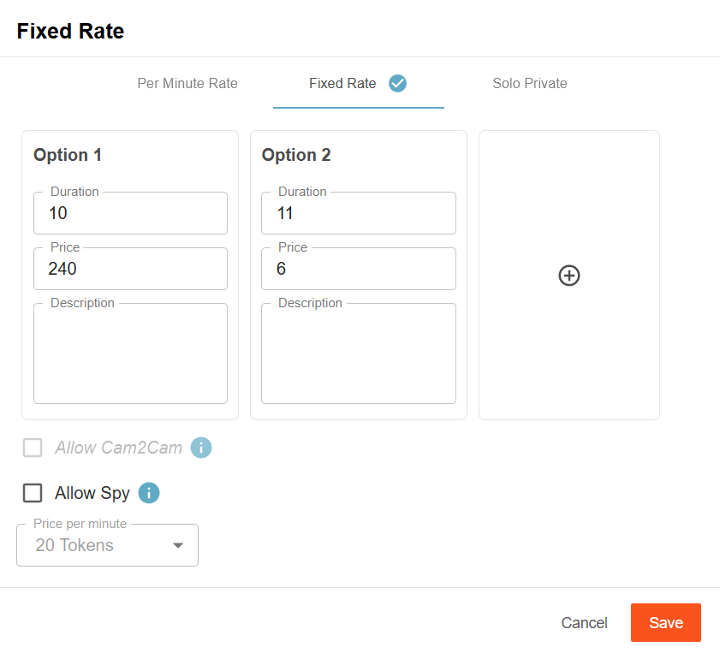
To add additional Blocks of Time options, click on the Plus + icon.

To delete a Block of Time option, click the Trash Can icon that appears at the top right of the option box

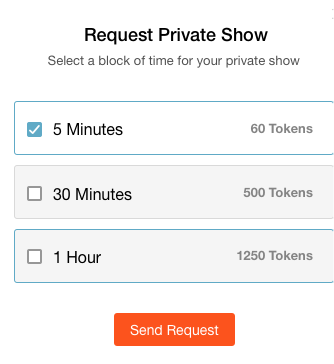
A Viewer will see the broadcaster’s chosen options when clicking on the request private show button

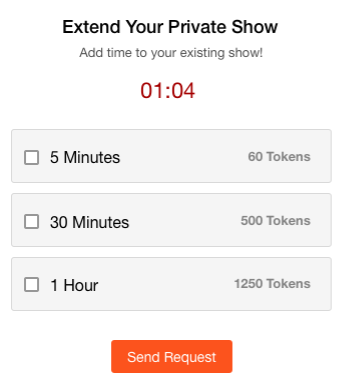
The viewer can choose to extend the show at any time


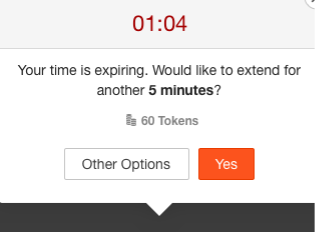
When the purchased block of time is about to expire, a prompt will appear offering the opportunity to extend the show by purchasing an additional block of time, this can be done an unlimited number of times during a show.

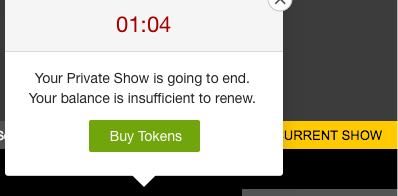
Once a viewer’s token balance is too low to purchase further blocks of time a notification will be displayed as below

It is also possible to purchase additional tokens at any time during a show

Please Note:

  • Spies remain on a per-minute basis when spying a Fixed rate show
  • Viewers not currently spying or being the primary private show viewer are presented with the amount of time remaining for the block of time in progress.

How to Use Our New Ranking System

We wish we could have all your shows on the homepage – so how can you keep your ranking up or improve it with these changes?

Get Technical

  • Test your internet speed at https://speedtest.xcdnpro.com/, this checks your connection speed to the CAM4 servers and is the most accurate
  • Upgrade your webcam
  • Ensure your video quality is good
  • Make sure you have good lighting

Broadcast regularly and be engaging with your viewers

  • Schedule your shows and be consistent with the times spent on cam
  • More frequent shows that people tip in will help you rank higher on the homepage
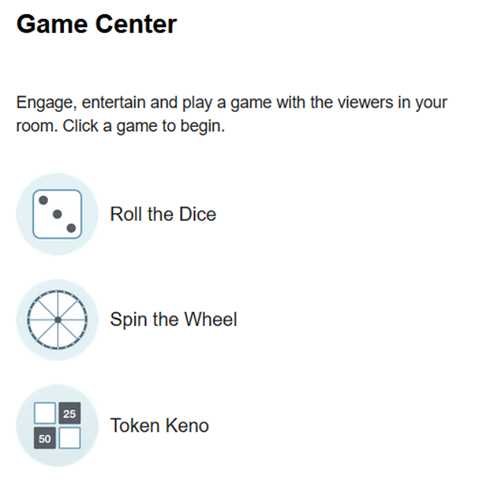
  • Enable chat tipping games (Roll the Dice, Spin the Wheel, Token Keno)
  • Give viewers something to talk about by using toys and props
  • Change your camera angles and/or use multiple webcams at once
  • Get creative with your broadcasts in numerous ways: using OBS, themes, outfits, different locations, and backgrounds

Please see https://www.cam4.com/training  for more performer tips, tricks, and training modules.

CAM4 Games Center

Roll the Dice

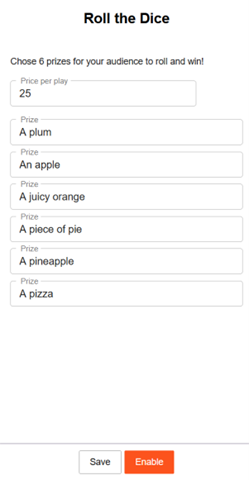
In this game, the broadcaster will have to set a price per roll and set up 6 prizes. The game cannot be started without all 6 options (dice faces) and a price being set.

Please note:

  • the price input field has a limitation of 3 digits.
  • the prize input fields have a limitation of 25 characters.

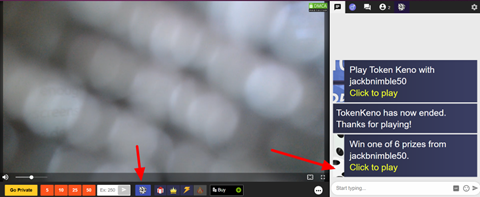
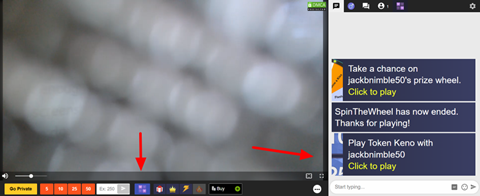
Once the game is started, all viewers in the room will have the Play Roll the Dice button in the action bar under the player and will receive a chat notification that the game is active and the possible prizes.

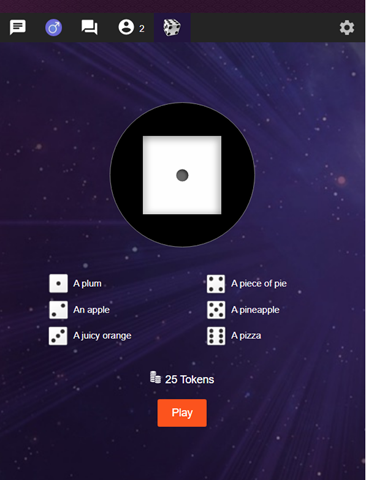
Once the Play Roll the Dice button is clicked, a game window will be opened over the chat. Here the viewer can see the price per roll, the prizes that they can win, and a Play button, which will randomly choose a prize once it is clicked.

After a roll the game will be paused for 1 minute,  to allow time for the broadcaster to give the reward that was won. If they don’t need that much time, broadcasters can reset the timer.


Token Keno

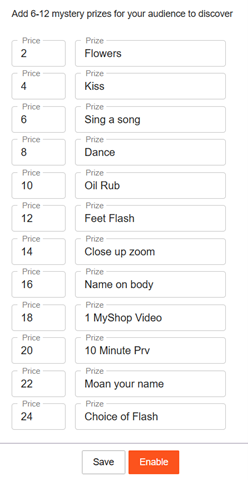
In this game, the broadcaster can set up to 12 prizes with the cost they choose. An option to be added to the game must have a prize and a cost. To start the game the broadcaster has to click on the Start Token Keno button. Once the game is started the options cannot be edited. A chat notification will notify all users that the game is enabled.

Limitations: 

  • the price input field has a limitation of 3 digits.
  • the prize input fields have a limitation of 15 characters. 

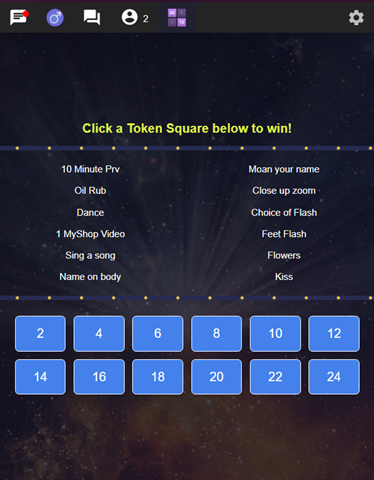
All viewers now can see the Play ‘Token Keno’ button in the action bar under the player, and if they click on it, the Token Keno game window will be displayed over chat. Here they can see a list of the prizes they can unlock and the squares they can choose with the cost to unlock them. The viewer is not aware of which prize the squares have. To play the game the viewer must click on the square he wants to unlock. Once he clicks on the square an animation is displayed with an unlocked prize.

A chat notification is sent to inform all users that the viewer unlocked a prize. After a pick, the game is paused for 1 minute, but the broadcaster has the possibility to resume it faster by pressing the Allow Unlock button that replaced the Game Center button. The unlocked prizes are displayed in the game window as greyed out and strikethrough. After the last square is picked the game ends.

The broadcaster can end the game whenever they want. To do so they have to go to the game settings window and click on the Disable button.

Spin the Wheel

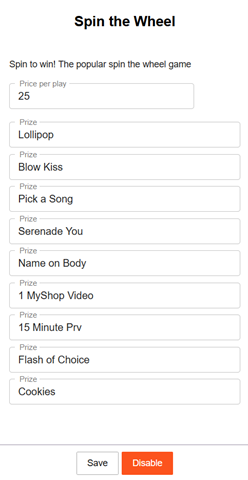
In this game, the broadcaster can set up a number of prizes and a price per spin. The minimum number of prizes is 6 and the maximum is 12. The broadcaster must set the price per spin and also input the minimum number of prizes so that the game can be started.

Limitations: 

  • the price input field has a limitation of 3 digits.
  • the prize input fields have a limitation of 25 characters. 

The viewers will have to pay the price to spin and win a random prize. After the game starts, the “Game Center” button will be replaced with “Spin the Wheel”, on the broadcaster’s side.
After the broadcaster starts a game a chat notification will be sent to all users with all the prizes in the game.

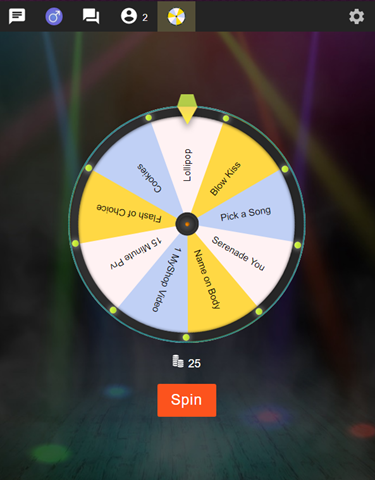
All viewers will see the Play ‘Spin the Wheel’ button, and once they click on it, the Spin the Wheel game window will be displayed over the chat. In the game window the viewers will have a Spin button with the cost per spin, and the wheel with all the possible prizes.

A chat notification is sent to inform all users that a viewer won a prize.

After a spin, the game will be paused for 1 minute, but the broadcaster has the possibility to resume it faster by pressing the “Allow Spin” button that replaced the Spin the Wheel button.

The broadcaster can end the game whenever they want, and they can do it by clicking on the “Spin the Wheel” button and the press “Disable”.

How do I update my card information?

If you wish to change the credit card on file or see other payment options, please do the following:

  • Log into your Cam4.com account
  • Click your circular profile avatar in the top right of the screen
  • Choose My Account
  • Select the Account Settings tab and then choose Payments & Subscriptions
  • Turn Enable 1-Click Checkout for Easier Purchases to off. Click Save

    This will require you to enter your payment information each time you make a purchase.

    You can re-enable the one-click option by following the above steps and turning Enable 1-Click Checkout for Easier Purchases on. Remember to Save any changes

Why does my video stop and start?

This can happen for several reasons including:

  • A lot of people moving around on cam
  • Flashing lights
  • Picking up your cam and moving the view to show something in the room to your viewers
  • Poor Wi-Fi or ethernet connection
  • Poor cell phone connection (if using the C4 Broadcaster app or similar)
  • Excessive background animations
  • Incorrect OBS Studio configuration
  • Older, outdated, or poor hardware (computer, camera, or web cam)

Why does it happen?

To make the video flow smoothly, only those pixels that change are transmitted with each frame. There is no reason to keep transmitting static pixels (those displaying the wall behind you for example), this keeps the amount of data being resent with each frame to a minimum and the video is smooth. For example, if you have multiple people moving around or a lot of flashing lights, then there are more changes, meaning more pixels need to be transmitted with each frame.

If you have an 8 Megapixel camera (8 million pixels) that runs at 30 frames per second, that works out to 240 million pixels per second that need to be transmitted to keep up with the movement. The result of this is a jerky video.

Two things to remember!

  1. When you are looking at your own video, this is displayed locally on your computer. So, it will run more smoothly for you than for those watching your broadcast elsewhere
  2. If you move your cam to give your viewers a “quick look” at something, they are unlikely to see what you are trying to show as your cam will start dropping frames as it struggles to keep up with the changes.

Choosing the Best Webcam

A good cam does not have to be expensive unless you opt for high-end quality. Below are some links with the current top cameras at various price points. You can decide which one is best for you.

*Cam4 is not affiliated with any of the merchants below. Links are provided as examples only.

Logitech C925E

https://www.bhphotovideo.com/c/product/1370830-REG/logitech_960_001075_c925e_webcam.html

Logitech C922 Pro

https://www.bhphotovideo.com/c/product/1374480-REG/logitech_960_001087_c922_pro_stream_webcam.html

Logitech C930E

https://www.bhphotovideo.com/c/product/1604031-REG/logitech_960_000971_c930e_business_webcam.html

Logitech StreamCam

https://www.bhphotovideo.com/c/product/1547008-REG/logitech_960_001280_stream_camera_plus_graphite.html

Logitech BCC950 (with remote)

https://www.bhphotovideo.com/c/product/877890-REG/Logitech_960_000866_BCC950_ConferenceCam_Video_Conferencing.html

HuddleCamHD 3X Digital Zoom USB 3 HDMI

https://www.bhphotovideo.com/c/product/1495842-REG/huddlecamhd_hc_eptz_usb_3x_digital_zoom_usb.html/DFF/d10-v21-t1-x979218/SID/EZ

Panasonic Lumic DMC-G7 Mirrorless Camera

https://www.bhphotovideo.com/c/product/1208931-REG/panasonic_lumix_dmc_g7_mirrorless_micro.html

Canon EOS-M50 Mirrorless Camera

https://www.bhphotovideo.com/c/product/1393461-REG/canon_2680c011_eos_m50_mirrorless_digital.html

How To Buy The Best Webcam

https://www.pcmag.com/picks/how-to-buy-the-best-webcam

How do I switch cams?

If you are not using OBS or a similar external encoder program and are using the Regular Streaming broadcast source option, you have the option to choose a different camera or webcam.

Choose the desired camera or webcam within the drop-down list of the Video Input area on the Cam4 broadcast window.  This is located at the top right under Audio/Video Settings

If the selected webcam or camera has not been used to broadcast with previously, your web browser may prompt you to allow use of the camera. Choose to Allow the camera and then continue to start your broadcast.