Bitsafe

Bitsafe offers both an E-wallet and a debit card to be used at ATM’s and POS.

Minimum payout: $50 USD

Processed: Daily

Bitsafe MasterCard costs: €29.50 annually. However, when CAM4 broadcasters apply for the Bitsafe account/card through CAM4 the first 6 months will be free of charge. If you use your Bitsafe card during all of these 6 months, the free period is extended for another 18 months.

In other words: if you use your Bitsafe account and card – you will not have to pay any annual fee for the first 2 years.

Costs for receiving money on your Bitsafe account from CAM4: free

Costs for transferring funds from your Bitsafe account to a European bank account (EUR SEPA): €0.75

Costs for cash withdrawal at any ATM in EUR currency: €2

Support: support@bitsafe.com

To take advantage of the CAM4 promotion, enter the first and last name of the holder of the new BitSafe account (the holder must have uploaded their documents to the dashboard) then click below to request a new Bitsafe card and create your account.

Please note: The name provided to Bitsafe needs to match the name provided to CAM4 so you can link your Bitsafe account to CAM4 as your preferred payment method. If they do not match the link will not be completed successfully.

To Register new a Bitsafe account through CAM4 

Creating your Bitsafe account

After entering your first and last name in the broadcaster dashboard and clicking on the link to request a New Bitsafe Card/account , a new window will open on the BitSafe.com site


Enter all of the required data (name, mobile number, e-mail address, etc.). Verify the email address provided, then verify your activation email by clicking the link at the bottom of the email.


Download the BitSafe app now available in the Android store and on the iOS (iPhone) App Store.

Scan the received QR code to associate your web account with the app and authorize it. Choose a security code to access the application (don’t forget to memorize your code !).

Requesting a Bitsafe card

From the Bitsafe.com website (not from the app) you can now apply for a BitSafe debit card by clicking “Apply now”.


  • Confirm your contact details and delivery address
  • Choose a 4-digit PIN code for your Bitsafe card. Do not forget to memorize the chosen PIN code!
  • To complete the request, enter the 6-digit verification code sent by SMS to your mobile phone.


CHECK THE ADDRESS on BiteSafe.com
After requesting the Bitsafe card from your account on the web, you will need to upload a photo or a readable scan of an invoice (eg gas, electricity, internet bill …) displaying your First name, surname, and address (Upload Utility Bill).

VERIFY IDENTITY via the APP
For identity verification it will also be necessary to upload a photo of your valid document via the app and then scan your face using your phone’s camera for facial recognition. Remember to make circular movements of your face following the instructions provided, it may be necessary to repeat this operation. We recommend that you perform this step in good light.

Once the 2 verification processes are complete, you will receive an email with your confirmation of account approval.

NB. If you have applied for the card through the CAM4 dashboard (by entering your name and clicking on the request link), you will not pay the annual cost of 30 EUR for account activation.

Wait for the card dispatch confirmation email and once you have received your BitSafe card you can send the available funds from CAM4 to your BitSafe account. The time to ship and receive the card is approximately 7-14 business days.

If there is any problem with the approval or non-receipt of the card, please write to BitSafe support: support@bitsafe.com


Commdoo

We are now offering CommDoo, a pay by call solution for Landlines only in DE, AT, CH, and Landlines + Mobile phones in the UK. You will see a new option in the Buy tokens overlay, besides Credit card, Paysafe, and Paypal there will also be a new option, “Pay by phone”.

How will it work?

  • For smaller token packages (up to 30 euros) a 1-second drop charge call is sufficient. The charges will be billed via your phone bill. For this option, the call lasts one second only and after that one second, it ends automatically.
  • For larger token packages (up to 250 tokens) you must call 2 times. For this option, you will need to wait on the line until the bar from the pop-up payment loads 100%.

Website: https://www.commpay.net/InfoMultiCall/
E-mail: support@commdoo.de

Boost


Struggling to build an audience?

Just logged on and want to kickstart your show?

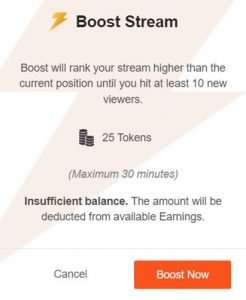
Now you can BOOST your room higher in the directory for just 25 tokens! The boost will last 5 minutes. If you have not added 10 unique viewers within that period the time will extend to a maximum of 30 minutes so you can gain those viewers and increase your rank once the boost period ends

How it Works: 

You will now notice the new BOOST button on your screen after starting a LIVE broadcast.

Boosted broadcasters will be evenly distributed among the top 25% of all cams based on their ranking against each other. So the lower your ranking the more positions you will gain using Boost

Click on the “Boost Now” button to start the feature.


It costs 25 tokens to BOOST yourself for a full 5 mins.

When you click on “Proceed” the cost of the BOOST will be deducted from your CAM4 account and your cam will be re-positioned on the directory page. 

What Happens when BOOST starts?

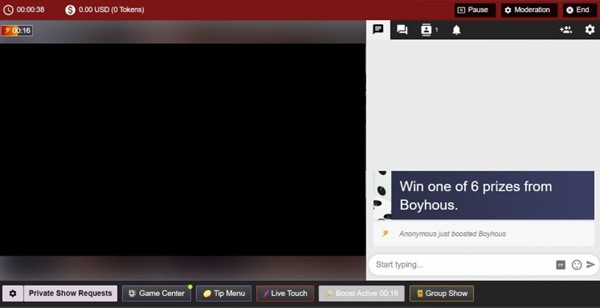
  1. You will see a message in your chat letting you know who purchased the boost.
  2. There is a bar on your broadcast window that will slowly fill up as the time runs out. 
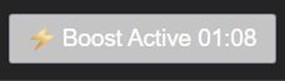
  3. The BOOST button is now inactive, this means you cannot click on it. The text has also changed to read” Boost Active” and includes a count down. 

What Happens When the BOOST ends?


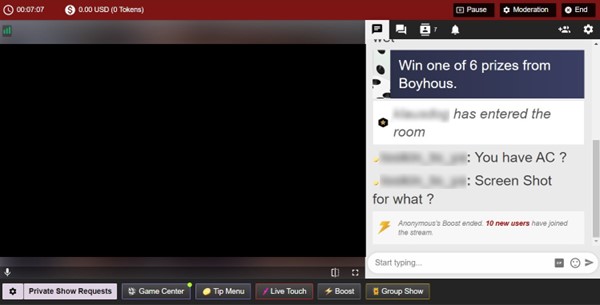
  1. The button will say “Boost” again become active enabling you to click on it again.
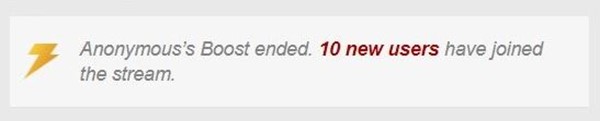
  2. You will see a message in the chat window that will tell you that the BOOST has ended and display how many viewers you gained during that BOOST.
  3. Your directory position will change, but not necessarily back to your original position – because your new position will reflect increases in your viewers due to the boost.

Viewers can BOOST you too!!

Viewers are always looking for ways to support their favorite broadcasters. Why not encourage them to use the Boost feature on you?  With their help, boosting can really make a difference in your performance and exposure on CAM4. 


Tipping games on C4Broadcaster

Tipping games are available when using the C4Broadcaster app on android devices!

  • What games are available in the app?
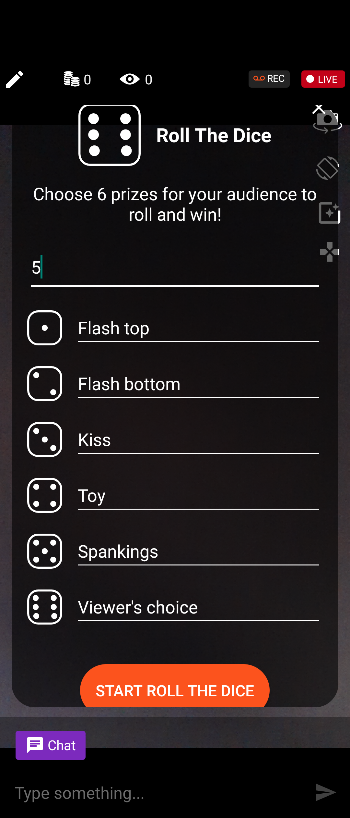
    Roll the dice, spin the wheel and token keno are all now available to be used.
  • How do I turn on the games?
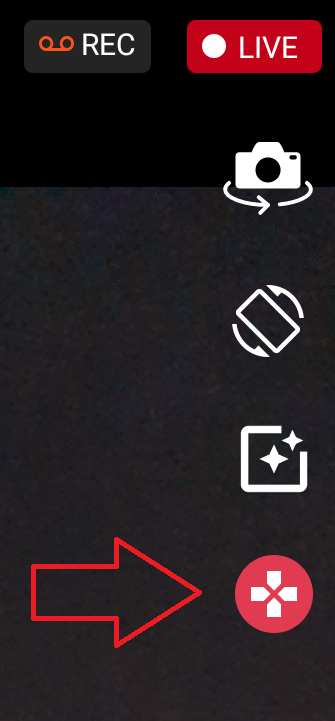
    Tap the games icon from the list on the right, then choose the game you want to play!


  • Once you have made the selection, you will be able to set the prizes before pressing “start game” at the bottom of the screen to begin.


  • What is the games history button?
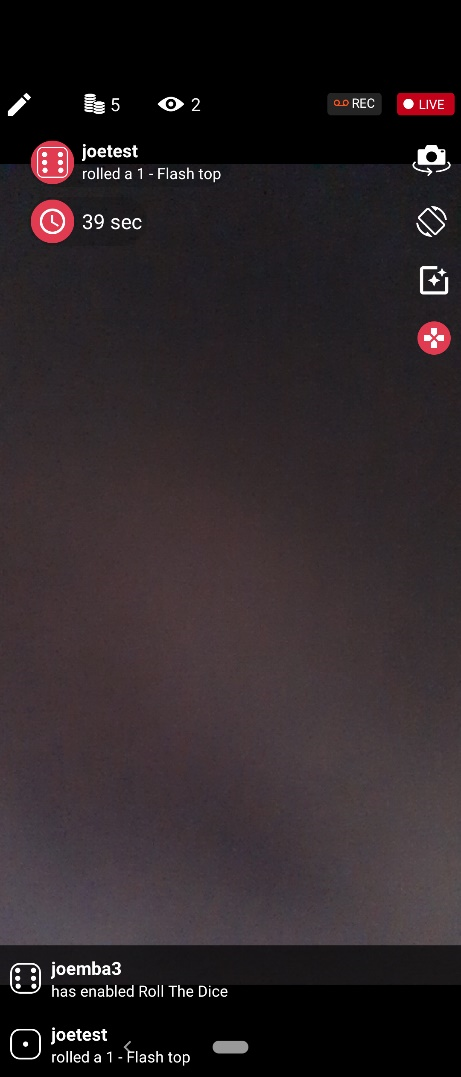
    When a game is running you’ll see this icon in the top left. Tap it and you’ll be able to review any activity in the game so you can remind yourself which prizes have been won if you missed the notification. Tap it again to return to the chat.


  • What is the clock icon under games history?
    If there is a clock icon that means someone has tipped to play the game, so it is on cooldown for 1 minute to allow time gor you to complete that prize. Once the timer runs out the game will resume. While the clock is active “game history” will be replaced by the name of the person playing the game and the result.
  • How do I stop the game?
    Tap the games icon again, and choose “End game”.
  • Can I edit the prizes while the game is active?
    No, you must end the game first.


Related Articles

Payment Methods by Country

CAM4 features several different payment method options, depending on your country. See a full list here.

Available Payment methods

Availability by Country

COUNTRY ACH Direct Deposit(CA) Yoursafe Euro Wire Paxum
Afghanistan         X
Albania       X X
Algeria         X
American Samoa         X
Andorra     X X X
Angola         X
Anguilla         X
Antartica         X
Antigua and Barbuda         X
Argentina         X
Armenia         X
Aruba         X
Australia     X   X
Austria     X X X
Azerbaijan       X X
Bahamas         X
Bahrain       X X
Bangladesh         X
Barbados         X
Belarus         X
Belgium     X X X
Belize         X
Benin         X
Bhutan         X
Bolivia         X
Bosnia & Herzegovina       X X
Botswana         X
Brazil       X X
Brunei         X
Bulgaria     X X X
Burkina Faso         X
Burundi         X
Cambodia         X
Cameroon         X
Canada       X
Central African Republic         X
Chad         X
Chile         X
China         X
Colombia         X
Comoros         X
Congo         X
Costa Rica       X X
Côte d’Ivoire         X
Croatia     X X X
Cuba         X
Cyprus     X X X
Czech Republic     X X X
Denmark     X X X
Djibouti         X
Dominica         X
Dominican Republic       X X
East Timor       X X
Ecuador         X
Egypt         X
El Salvador         X
Equatorial Guinea         X
Eritrea         X
Estonia     X   X
Ethiopia         X
Faroe Islands       X X
Fiji     X X  
Finland     X X X
France     X X X
Gabon         X
Gambia         X
Georgia       X X
Germany     X X X
Ghana         X
Gibraltar       X X
Greece     X X X
Greenland       X X
Grenada         X
Guam         X
Guatemala       X X
Guinea         X
Guyana         X
Haiti         X
Holy See         X
Honduras         X
Hong Kong         X
Hungary     X X X
Iceland     X X X
India         X – NO CARD
Indonesia         X
Iran         X
Iraq         X
Ireland     X X X
Israel       X X
Italy     X X X
Jamaica         X
Japan         X
Jordan       X X
Kazakhstan       X X
Kenya         X
Kiribati         X
Kosovo       X X
Kuwait       X X
Kyrgyzstan         X
Laos         X
Latvia     X X X
Lebanon         X
Lesotho         X
Liberia         X
Libya         X
Liechtenstein     X X X
Lithuania     X X X
Luxembourg     X X X
Macedonia       X X
Madagascar       X X
Malawi         X
Malaysia         X
Maldives         X
Mali         X
Malta   X X X  
Marshall Islands         X
Mauritania       X X
Mauritius       X X
Mexico         X
Micronesia         X
Moldova         X
Monaco     X X X
Mongolia         X
Montenegro       X X
Morocco         X
Mozambique         X
Myanmar         X
Namibia         X
Nauru         X
Nepal         X
Netherlands     X X X
New Zealand         X
Nicaragua         X
Niger         X
Nigeria         X
North Korea         X
Norway     X X X
Oman         X
Pakistan       X X
Panama         X
Papua New Guinea         X
Paraguay         X
Peru         X
Philippines         X
Poland     X X X
Portugal     X X X
Qatar       X X
Reunion         X
Romania     X X X
Russia         X
Rwanda         X
Saint Kitts & Nevis         X
Saint Lucia         X
Samoa         X
San Marino     X X X
Sao Tome & Principe         X
Saudi Arabia       X X
Senegal         X
Serbia       X X
Seychelles         X
Sierra Leone         X
Singapore         X
Slovakia     X X X
Slovenia     X X X
Solomon Islands         X
Somalia         X
South Africa         X
South Korea         X
South Sudan         X
Spain     X X X
Sri Lanka         X
State of Palestine         X
Sudan         X
Suriname         X
Swaziland         X
Sweden     X X X
Switzerland     X X X
Syria         X
Taiwan         X
Tajikistan     X X  
Tanzania         X
Thailand         X
Timor-Leste          
Togo         X
Tonga         X
Trinidad and Tobago         X
Tunisia         X
Turkey       X X
Turkmenistan         X
Tuvalu         X
Uganda         X
Ukraine       X X
United Arab Emirates       X X
United Kingdom (UK/GB)     X X X
United States X       Business – NO CARD
Uruguay         X
Uzbekistan         X
Vanuatu         X
Venezuela         X
Viet Nam         X
Virgin Islands       X X
Yemen         X
Zambia         X
Zimbabwe         X

C4 Broadcaster

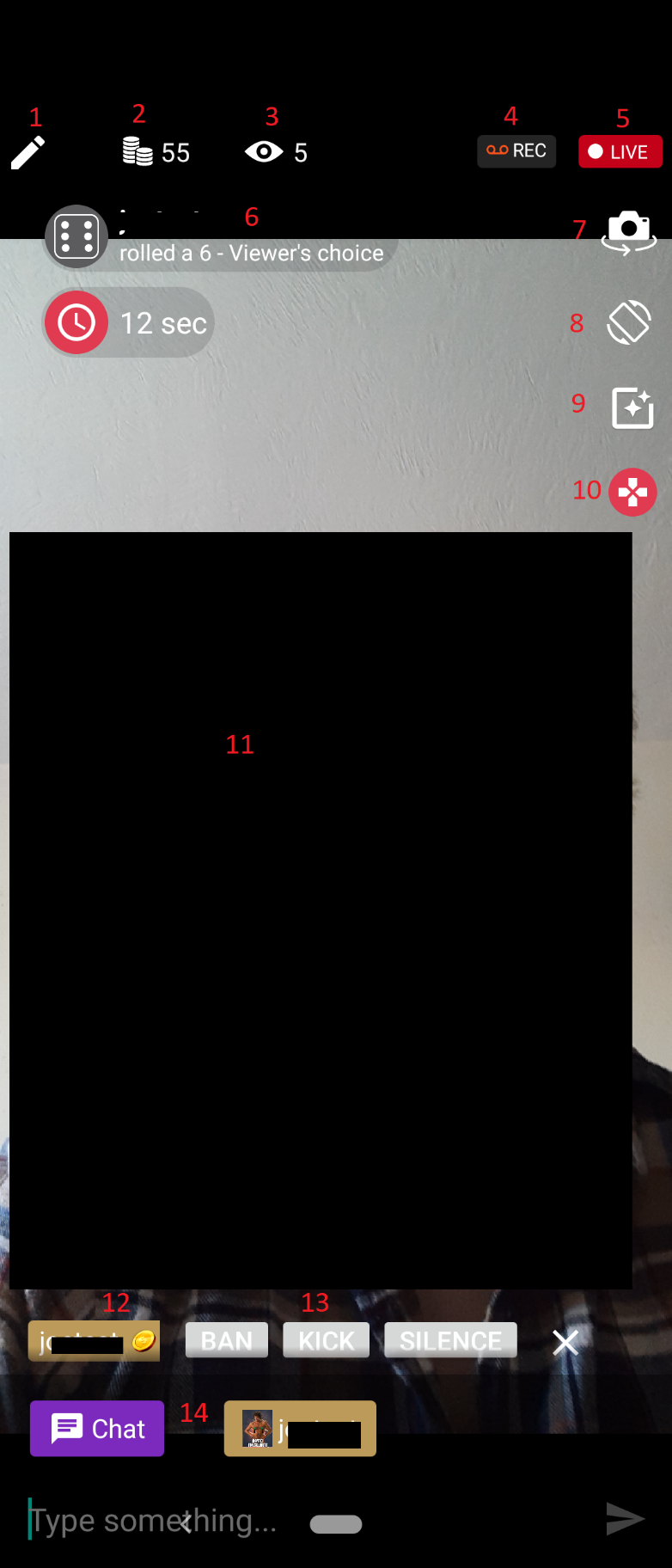
We hope you’re enjoying using our C4 broadcasting app. If this is your first time or you just need a refresher you may find it useful to go over the main functions of the app. More settings such as microphone controls and private show settings are available by swiping from the right edge of the screen.

  1. Tap this to bring up the edit goal field, where you can set your token goal and status message.
  2. This is the number of tokens received during the current broadcast. Tap this to bring up the leader-board.
  3. This is the current viewer count. Tap it to bring up the list of logged-in viewers
  4. The record button, tap this to record a video from the broadcast. Later you can upload the recording to your “my shop”!
  5. Red and live indicates the broadcast is active. Tap this to end the broadcast. If the broadcast is not active it will be grey and read “offline” instead.
  6. If a game is active this is where your game activity and information is. Tap the dice icon to bring up the game history.
  7. Camera switch. Use this to change between the front and back cameras
  8. Orientation switch. Press this to swap between landscape and portrait modes.
  9. Face masks and filters
  10. Game center. If a game is active the icon will be red. Press here to start a game, change the game settings, or to end the current game.
  11. Private show requests will appear here, in the center of the screen.
  12. The username of the person chatting. Press here to open a private conversation. Long press to bring up the moderation tools (which we have done here). You can use these to ban, kick or silence people in your room. Note the gold background indicating he is a gold member and the token icon indicating he has some tokens.
  13. Usually, this is where the chat message is displayed. Because we have long pressed the message the moderation tools appear. Pressing the X on the right will return us to the chat message.
  14. These are active conversations. The purple one on the left is public chat. The one with a username and avatar is a private chat with that member. To swap between them tap the relevant conversation.


Frequently Asked Questions

How do I turn off my microphone?

Swipe from the right of the screen to open the menu, then turn the microphone toggle off. If the option is not present then unfortunately it is not possible for your device.

Why can’t I see certain options on my phone?

Some options such as face masks or the microphone toggle may be unavailable on some devices due to technical limitations from the manufacturer.

Can I connect my toy to C4 Broadcaster?

No, it is not currently possible to connect any devices such as live touch or Lovense toys to C4 Broadcaster

Can I set a moderator from C4 Broadcaster?

Moderators cannot be set or removed using C4 Broadcaster.

Can I set a password for my room?

No, password-protected private rooms are not yet available on C4 Broadcaster

Why am I getting the message “Disconnecting due to poor network connection”?

The speed may be too low, or your phone’s connection may have dropped. If you are seeing this a lot, please contact technical@cam4.com

Why am I getting the message “The server cannot be reached”?

This could be an issue with network equipment, or your provider restricting access to adult content. If you can reach other adult websites on the same connection please contact technical@cam4.com with your connection information and IP address so we can investigate further.

Why is my camera so dark?
If you find your camera is too dark please open the menu by swiping from the right and toggle the “increase camera brightness” option.

Private Shows

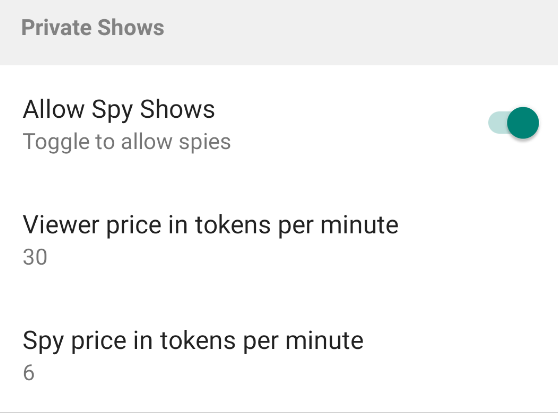
Private shows are available when using the app to broadcast! You can change the settings by opening the menu by swiping from the right and making your choices from the options under the “Private shows” heading.


Fixed time private shows and cam2cam are not currently available.

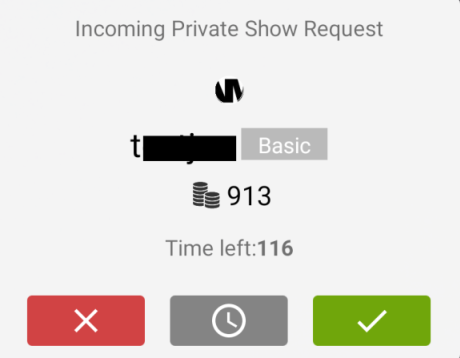
When someone requests a private show you’ll receive a popup in the middle of your screen with options to accept or decline the show. You’ll also see information such as their username, the number of tokens they currently hold, and their gold status to help you make an informed decision. Tap the red cross to decline the show, or tap the green tick to accept the show and immediately go private. If you are not yet ready to take the private show you can tap the grey clock icon to suspend the request. You have 2 minutes to accept or decline the private show after it has been requested .


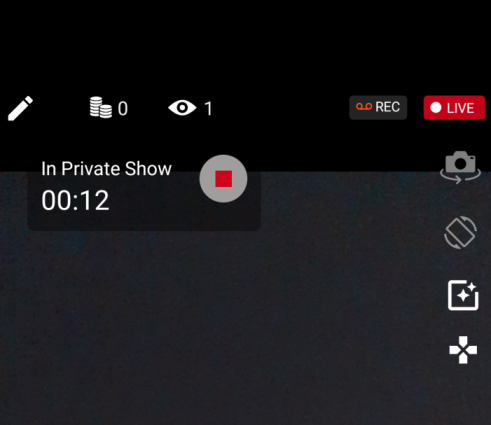
When the show is underway you’ll see a timer in the top left with a “stop” button. Tap the stop button at any time to end the show.


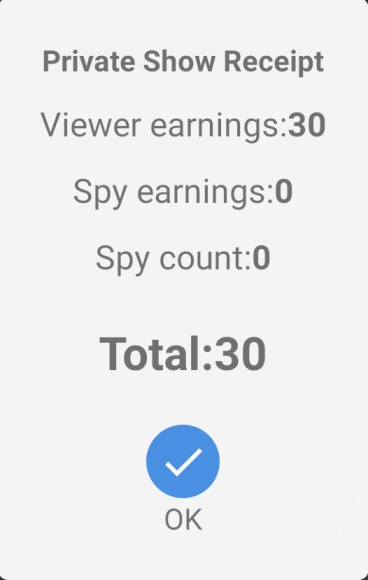
Once the show has ended you’ll see a receipt, letting you know how many tokens you earned for the private show!

 
Related Articles

SFW (safe-for-work) Galleries

Some countries and states are now requiring adult sites to offer a non-explicit version of the site to viewers till they are age verified. Having images in this gallery will ensure that you show up on all versions of CAM4!

What is considered an SFW (safe-for-work) image?

Images in your SFW Gallery should be without nudity which means no photos of genital’s or sexual acts (real or simulated). Breasts and nipples are permitted.

How do I use the SFW Gallery

1. Go to My Account
2. Choose Galleries
3. Choose SFW Gallery


4. You can upload up to 10 images to this gallery


Please note:

  • Only use images to which you own the copyright.
  • Do not include images showing others who are not approved on your account.
  • No pictures of children.
  • No images of weaponry or violence.

Chat Settings

You can fine-tune your chat experience by clicking the cogwheel icon (⚙️) in the upper right corner of your broadcast window. This opens a menu of settings designed to help you control who interacts with you and how.

Private Messages Panel Includes:

Font Size

  • Choose the font size that works best for you, ranging from very small to very large, for optimal readability.

Notifications

  • Mute Private Message Notification Sounds – Turn off sounds for incoming private messages.
  • Mute Private Show Notification Sounds – Silence the sound that plays when a private show request comes in.
  • Disable Large Tip Notifications – Mute or hide large token tip alerts if you prefer a less flashy experience.

Privacy Interactions

  • Disable Chat for Other Broadcasters – Prevent other broadcasters from chatting in your room.
  • Disable Private Chat – Block all private messages during your broadcast if you want to keep things public-only.

Chat Filters

  • All – Allow messages from everyone.
  • Only users that speak my language(s) – Keep the chat understandable by filtering based on language.
  • Only Friends & Following – (Replaces “Friends & Favorites”) Only friends and users who follow you can chat in your room.
  • Only Token Purchasers – Restrict chat to those who have purchased tokens.

💡

Note: These filters help maintain a safe and relevant environment for you and your viewers.

How to use My Shop Sale

Broadcasters

Please go into your Broadcasters Dashboard and for each “My Shop” item you will see the option to set the item on sale by clicking on “Item Sale”.

When opening “Item Sale” you will see the following options:

  1. Set Duration of the sale 
  2. The new discounted price for viewers. The discounted price needs to be lower than the initial one.
  3. The new discounted price for Fans. The discounted price needs to be lower than the initial one.
  4. Start the sale

When a sale is set on a My shop item you will see the following in your My Shop Area

If you re-enter the Item Sale option on a video that has a Sale set on it you will see all of the information added for that sale, and know exactly when the sale will end, and also have the option to End Sale at any time you wish. The discounted price can’t be changed during a Sale, you will need to End that sale and create a new one if you wish to change the price.

If you choose to end the sale manually you will receive an “Are you sure” confirmation like the one below.

Viewers

When you enter a broadcaster’s profile and the broadcaster has My Shop items on sale you will see them marked as below and you will be able to buy the video at the discounted price requested by the broadcaster. 

Phishing

What is Phishing?

Phishing attacks are intended to collect your personal data, financial information or install viruses/trojans on your machine. They can be delivered by many methods

  • Email: A message containing a link to a malicious website or a faked login form designed to capture your username and password. Typically this mail will offer you something that seems too good to be true (free tokens) or claim you need to visit a link for some urgent reason (to Validate your account or similar)
  • Skype & other messengers: People claiming to be Cam4 staff asking you to do something (private shows, an audition, a problem with your account, etc) or again links that may be malicious or images that may be infected. 
  • Inbox messages: Faked messages saying you received a tip or gift, links requiring login – you may also see these appear in chat

What can you do about it?

  • Don’t reveal personal or financial information in an email, and do not respond to email solicitations for this information. This includes following links sent in email. 
  • Before sending or entering sensitive information online, check the security of the website
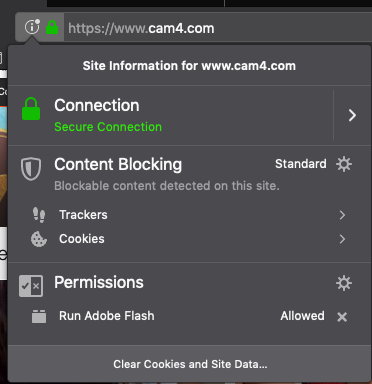
  • Pay attention to the website’s URL. Malicious websites may look identical to a legitimate site, but the URL may use a variation in spelling or a different domain (e.g., .com versus .net). If you look at the site URL in the browser address bar you will see the following

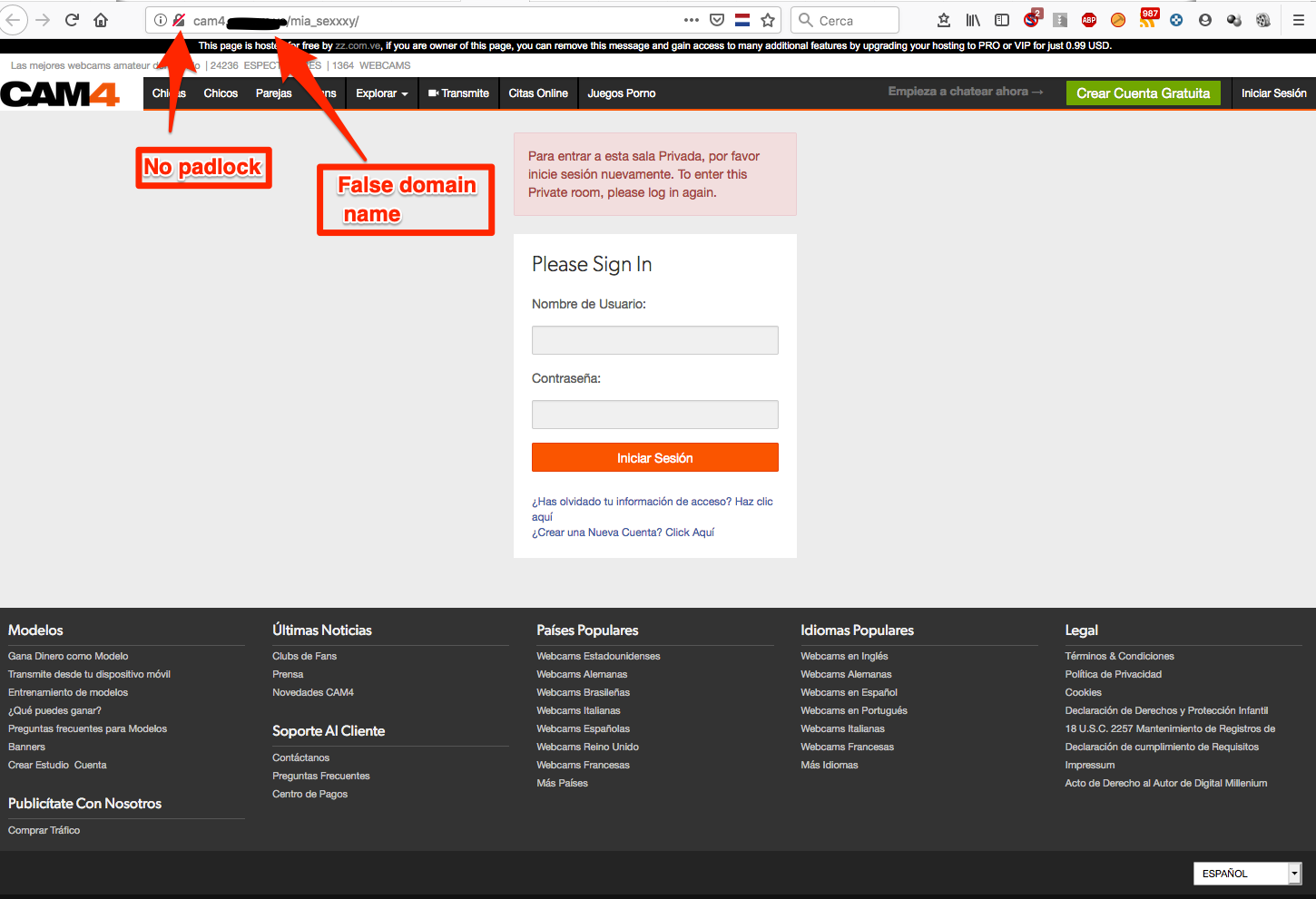
The presence of the padlock to the left of the URL shows that we have the security certificate for the domain and the link is valid. A faked page will not have this. See the example below

  1. The padlock shows with a red line through it, showing this is not a secure site
  2. Note the domain name does include cam4 but is not cam4.com.

Please pay attention to links like this provided through any method, particularly those asking you to login or provide personal information

Protect yourself

  • When in doubt, throw it out: Links in email, tweets, posts, Skype etc are often how information is compromised. If it looks suspicious, even if you think you know the source, it’s best to delete or – if appropriate – mark it as junk.
  • Think before you act: Be wary of communications that ask you to act immediately, offers something that sounds too good to be true or asks for personal information. If you want to check if the request is valid, please contact us directly at support@cam4.com, do not use the link you received.
  • Use a strong password: Make sure you do not use the same password for everything. Some tips on using a good password can be found here
  • Lockdown your account: In addition to a good password, make sure to add your security questions for additional protection. You can also add 2-factor authentication by using our SMS verification system