What Is External Encoding?

Video encoders are software that allows your digital video to be broadcast live!

CAM4 uses its own encoder, so you just need to click Broadcast to go live on the site. Some sites, like Twitch or YouTube Livestreaming, require you to download external encoders before you can broadcast.

External Encoders can be technical to configure, but they give you many more options for setting up and running your broadcast. With an external encoder, you can fine-tune your video quality, add images or videos to your broadcast, stream video games live, and so much more. Savvy users may even be able to add scrolling lists of top tippers or favorite gifts!

CAM4 has added support for an external encoder to the broadcast window – Open Broadcaster Software (OBS).

You can download OBS (Open Broadcaster Software)here for free.

Related Articles:

Live Show Scheduling

Never miss a show from your favorite models! CAM4’s Live Show Scheduling feature works like a TV guide for live cam shows. Models can schedule their broadcasts in advance, and you’ll get notified when they’re about to go live.

What is Live Show Scheduling?

Live Show Scheduling lets broadcasters plan their shows ahead of time and share their schedule with fans. When you follow a broadcaster who uses scheduling, you’re automatically subscribed to their calendar and will receive notifications before their shows begin.

Scheduled shows are the same price as regular shows—this feature simply makes it easier to know when your favorite models will be online.

Viewer FAQs

Does Live Show Scheduling require a CAM4 account?

Yes. All CAM4 members (both Basic and Gold) can use the Live Show Scheduling feature. To sign up for a free CAM4 account, click here.

How do I subscribe to a broadcaster’s schedule?

Subscribing to schedules is now automatic through the follow system:

  • If you’re already following a broadcaster: You’re automatically subscribed to their show schedule
  • If you’re not following them yet: Visit their profile page. If they have shows scheduled, you’ll see a “Subscribe and Visit Calendar” button. Clicking it will follow them and take you to the calendar

How do I see my Live Show Schedule?

You can view your Live Show Schedule by going to Calendar in your account menu.

What do the colors on the calendar mean?

  • Orange dots: Live shows scheduled by broadcasters you’re subscribed to
  • Blue dots: Live shows you’re scheduled to perform (if you’re a broadcaster)

How do I know how many shows are scheduled today?

The number of shows scheduled for the current day is displayed next to the calendar icon at the top of the site.

How many broadcasters can I subscribe to?

There is no subscription limit. You can follow and subscribe to as many broadcasters as you like.

When do I receive notifications?

You’ll receive notifications 15 minutes before subscribed shows begin, giving you time to join when your favorite models go live.

What information can models share about their shows?

Broadcasters can share:

  • Show duration
  • Show goals and themes
  • What they have planned for each show
  • Teasers about the content

This helps you know what to expect and decide which shows to attend.

Broadcaster Information

As a broadcaster, you can:

  • Schedule shows up to 90 days in advance
  • Share your show goals and plans with fans
  • Build a regular audience by maintaining a consistent schedule
  • Let fans know exactly when to find you online

Fans who follow you will be automatically subscribed to your calendar and receive notifications before your shows start.

Fraud Awareness

There is no way to tell if someone tipping is fraudulent, but there are things you can look for to protect yourself that will help keep it to a minimum and also benefit your fellow broadcasters.

New Members

You can see when someone became a member of CAM4 by checking their profile. Brand new users tipping large amounts may be an indicator of fraud.

Please keep in mind that not all new members are fraudulent. Someone with a longer history at CAM4 does tend to be safer but there is always a possibility of a member contacting their bank and stating they did not make the purchases (chargeback).

Tipping Behavior

There are things you can look for during your show that should be a red flag as possible fraud. Here are a few:

  • If you are chatting while clothed (not performing) and someone tips you – especially large amounts and they are not a regular.
  • Someone tipping you more than requested.
  • Someone tips without chatting or making a request – especially if “requests” is one of your goals.
  • Someone tips and then immediately leaves the room.

Most tippers, especially new ones, will tip in small numbers to see if a broadcaster will follow through with goals or requests.

Rule of thumb: someone spending money wildly may not be spending their own.

Track Your Fraud

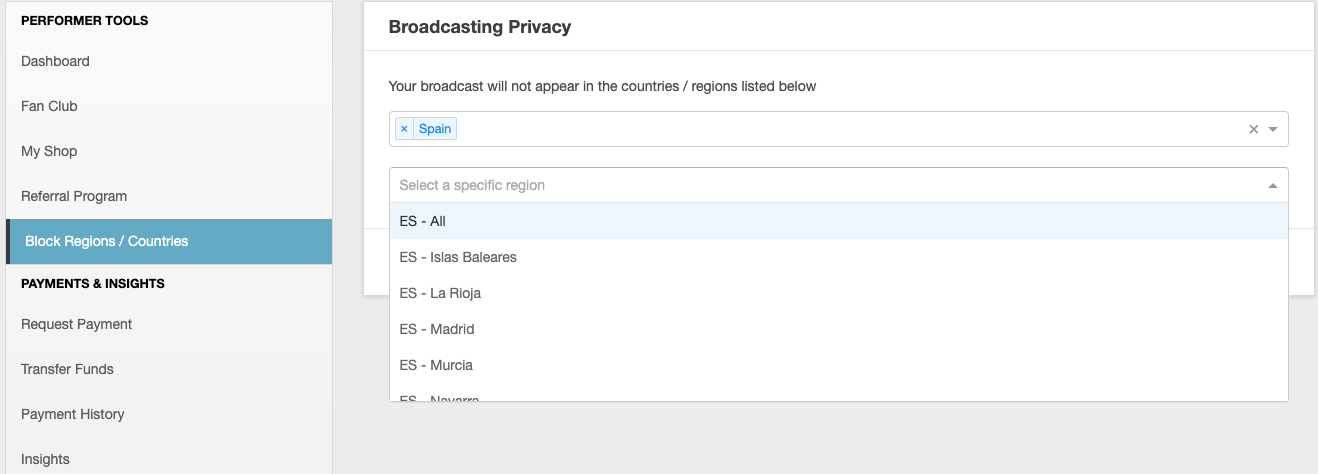
If you have repeat fraud from a particular country it may be time to add that country to your block list.

What Do I Do If I Suspect Fraud?

If at any time you feel someone is fraudulent and wish to refuse their tip, please notify us at fraud@cam4.com and we will take care of that for you.

Please keep in mind that all tokens tipped are purchased through one of our processors. Voids are tokens that were purchased with a stolen credit card or the tipper contacted their bank stating they did not make the purchase.

There is no such thing as ‘fake tokens’. Token adders are exe files that are designed to steal your log-in and compromise your account and should never be clicked on. If you find a link to a token adder please report it to us at: technical@cam4.com so we can have it removed.

Adding Cam4 to your e-mail safe list (whitelist)

Most email providers now routinely employ anti-spam software. To make sure that you receive your verification email from CAM4 please select your email provider from the list below and follow the instructions provided.


America Online (AOL)

  1. Locate the Contacts option on the left navigation bar of your AOL Mail Home Page (under the Trash folder).
  2. Click New Contact icon.
  3. Type the contact information in the required and optional fields.
  4. Scroll to the bottom and click Add Contact.
  5. A confirmation message that the contact has been created will appear.
  6. Repeat steps 2 through 5 for these email addresses:
  • noreply@cam4.ws
  • support@cam4.biz
  • welcome@cam4.biz

Gmail

  1. Click the gear icon in the upper right, then choose “see all settings
  2. Click filters and blocked addresses, then scroll down and click “create a new filter”
  3. Type noreply@cam4.ws | support@cam4.biz | welcome@cam4.biz in the “from” field, and click “create filter
  4. On the next screen click “never send it to spam” and click “create filter

Hotmail/Outlook

  1. Click the gear icon in the top right, then click “View all Outlook settings
  2. Click “Email“, then “Junk email“.
  3. Scroll down to “Safe senders and domains
  4. Click “+ Add
  5. Type the email in the box provided and press enter on your keyboard. Repeat for each of the following.
  • noreply@cam4.ws
  • support@cam4.biz
  • noreply@cam4.biz

Other ISPs

Add the following addresses to any address books or safe lists with your email service provider:

  • noreply@cam4.ws
  • support@cam4.biz
  • welcome@cam4.biz

Yahoo! Mail

  1. In the upper right, click the “contacts” icon. It is next to the calendar icon.
  2. Click add a new contact at the bottom of that pane.
  3. Type cam4 in the name field and scroll down to “Email”. Type the email address there and click “add email address” for additional email fields. We recommend adding the following emails:
  • noreply@cam4.ws
  • support@cam4.biz
  • welcome@cam4.biz

Getting Started as a CAM4 Broadcaster

Getting started with CAM4 is quick, free, and easy! Follow these four steps to create your broadcasting account and start earning.


Step 1: Create Your Account

Start broadcasting in minutes:

  1. Go to CAM4.com
  2. Click the “Create Free Account” button
  3. Choose a username that fits your personality
  4. Create a strong password unique to CAM4
  5. Enter your email address

Important Privacy Tips:

  • Use an email address with no personal information
  • Recommended: Create a dedicated email account (Gmail, Yahoo, etc.) using your CAM4 username to keep your account separate from personal email
  • Never reuse passwords from other sites

Step 2: Verify Your Email

  1. Check your inbox for a verification email from CAM4
  2. Click the verification link in the email
  3. You’ll see a confirmation message – your account is now verified!

Step 3: Complete Your Profile Setup

After verification, you’ll be guided through the Profile Completion Wizard, which helps you set up everything you need to start broadcasting successfully.

How to Access the Profile Completion Wizard:

  • Automatic: Opens automatically after email verification for new accounts
  • Manual: Navigate to Broadcaster Dashboard → Profile Completion Wizard

What You’ll Complete:

Essential Steps (Required):

  • ✅ Upload ID verification documents
  • ✅ Add a profile photo
  • ✅ Write your bio
  • ✅ Create your tip menu
  • ✅ Choose your niches/categories
  • ✅ Set up your payment method

Optional Extras:

  • Add gallery photos/videos
  • Customize your profile banner
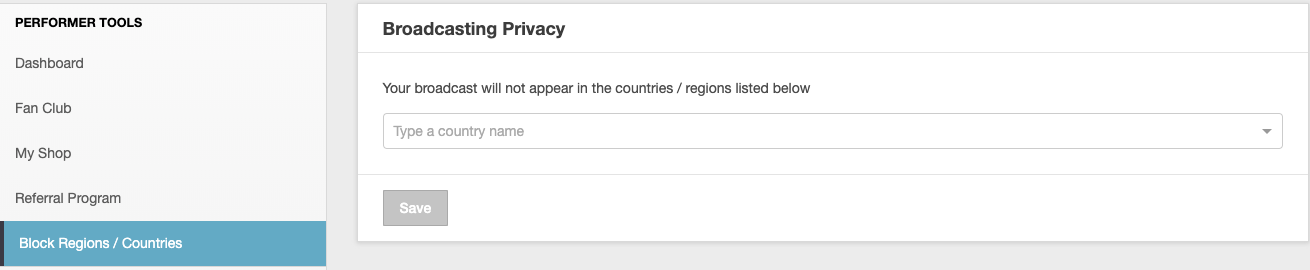
  • Set privacy preferences (block countries/states/provinces)
  • Configure additional settings

Navigation Path:

  • Click your profile avatar (top right corner)
  • Select “My Account” from the dropdown menu
  • Click “Broadcaster Dashboard” in the left menu (under Broadcaster Tools)
  • Access various settings and management options

Step 4: Start Broadcasting!

Once your profile is set up, you’re ready to go live!

Key Things to Know:

Flexibility:

  • No schedules required
  • No minimum hours
  • You decide when to broadcast and what to do

Earnings:

  • Each token = $0.10 USD
  • 100 tokens = $10.00
  • Minimum payout: $50.00

Payment Setup:

  • Navigate to Broadcaster Dashboard → Manage Documentation
  • Upload required verification documents
  • Choose your preferred payment method
  • View earnings and payment history

Important Rules:

Make sure to read the broadcasting rules displayed in your chat window. Following these guidelines keeps your account in good standing.

Learn how to send tips on Cam4

Broadcasters on Cam4 are working hard to please you. You can show them how much you appreciate it by tipping them with tokens. Sending a generous tip might even encourage broadcasters to take your requests, so send a tip and enjoy the show!

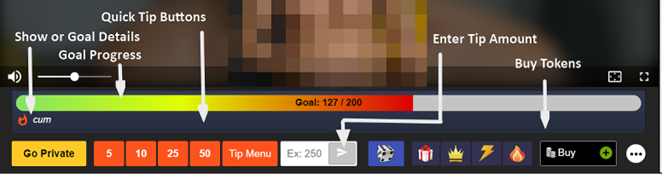
Show or Goal Details

This area shows either the performer’s show description, show topics, or Goal details providing the performer has entered this information for viewers.

Goal Progress Bar

When a goal is set, you can view the progress of the goal as tips are sent to the broadcaster here. Help the chat room reach its goals to unlock special performances!

Quick Tip Buttons

The quickest way to send tips in chat to the broadcaster. Choose a token tip amount of 5, 10, 25, or 50 tokens

Enter Tip Amount

To send a tip amount other than what is offered via the Quick Tip Buttons, here you can enter the number of tokens that you’d like to send to the broadcaster. Send a generous tip to show how much you enjoy the show. A low tip may be misunderstood as insulting, so tip wisely.

Buy Tokens

Click this button to buy more tokens. A new window will appear listing the Cam4 token packages. If a window does not appear, disable any popup blockers you may be running.

Token Balance

This area shows your current token balance. Tokens are used to send tips to broadcasters to let them know that you’re enjoying their show. Cam4 sells many token packages. You can view them by clicking the link above or the token icon as shown below.

What is Cam4 Tipping?

Viewers

All members of Cam4 can purchase tokens to tip broadcasters as a means of expressing their appreciation for a performance. Tipping gives the broadcaster actual cash.

Tokens are available to purchase in packages – the cost per token is reduced with larger token packages. Click here to view the available token packages

Broadcasters

All Cam4 broadcasters can accept tips.  You can see your tipping history, your earnings, etc from your Broadcasters Dashboard.

What are Cam4 Tokens?

Tokens are the currency used at Cam4 for a wide variety of features – you can use tokens to tip broadcasters, send Cam4 Gifts, watch Private Shows and more. All of the features that require tokens are completely optional but are a great way to show your favorite Cam4 broadcaster you’re enjoying the show.

Tokens are available in a variety of packages; the larger the package the lower the cost. Click here to view the available token packages. Broadcasters may redeem tokens earned during performances at any time for their cash value. 

Beat The Leader

What Is Beat The Leader?

Beat The Leader is a game viewers can play to make sure they are always the Tip Leader in a room – so they can keep getting the attention that comes with being the leader!

How does Beat The Leader work?

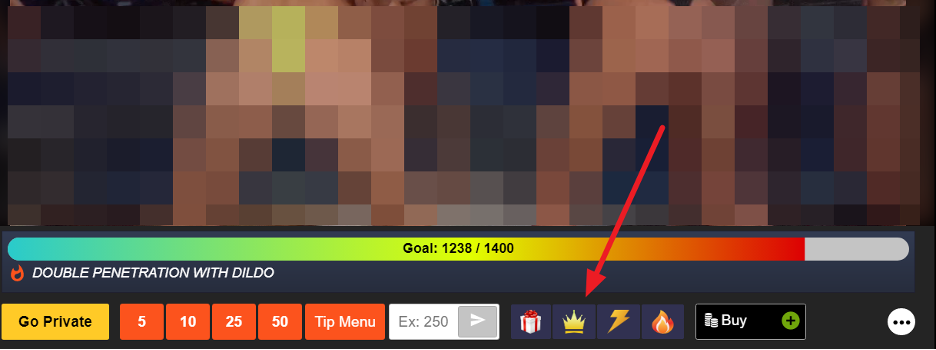
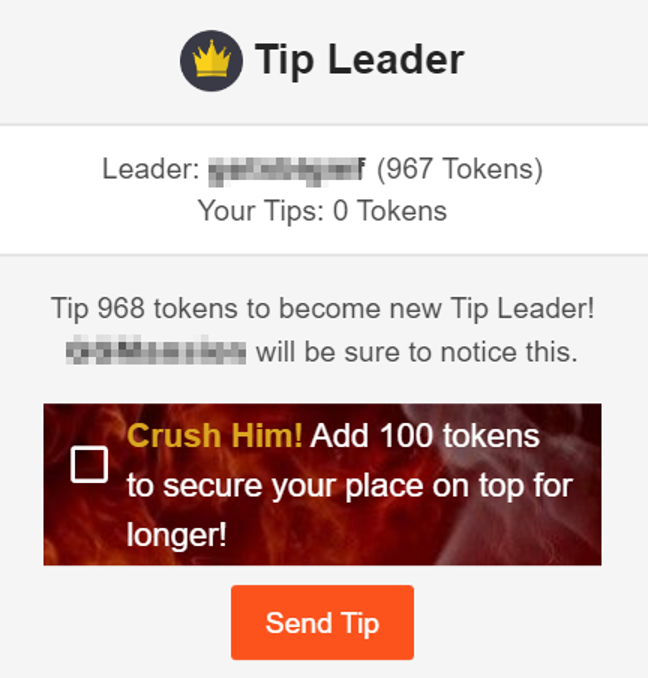
The Beat The Leader button gives viewers the option to automatically send a broadcaster enough tokens to become the new tip leader.

How many tokens does the Beat The Leader button send?

After clicking Beat The Leader, you can choose to send enough tokens to match the current leader, plus 1 – making you the new tip leader.

Or, you can choose to CRUSH the current leader by sending an extra 100!

Where can I find Beat The Leader?

 Beat The Leader is available on any cam that has tipping enabled. The button will appear below the goal bar once a viewer has become the tip leader.

 What if I tip anonymously?

 If you send tips anonymously and become the tip leader, you will appear as anonymous in the Beat The Leader menu.