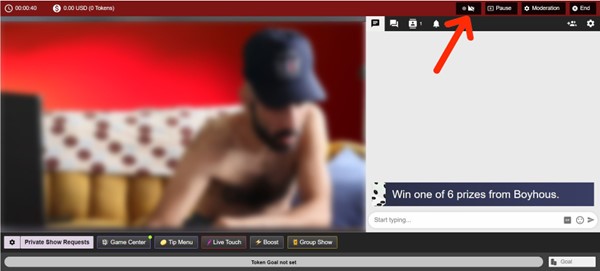
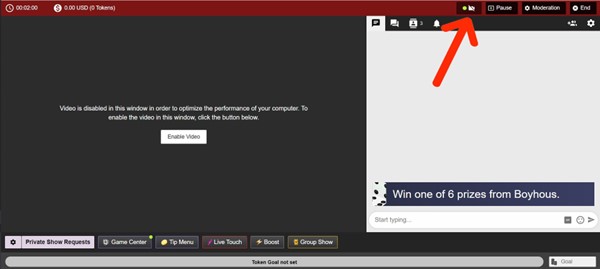
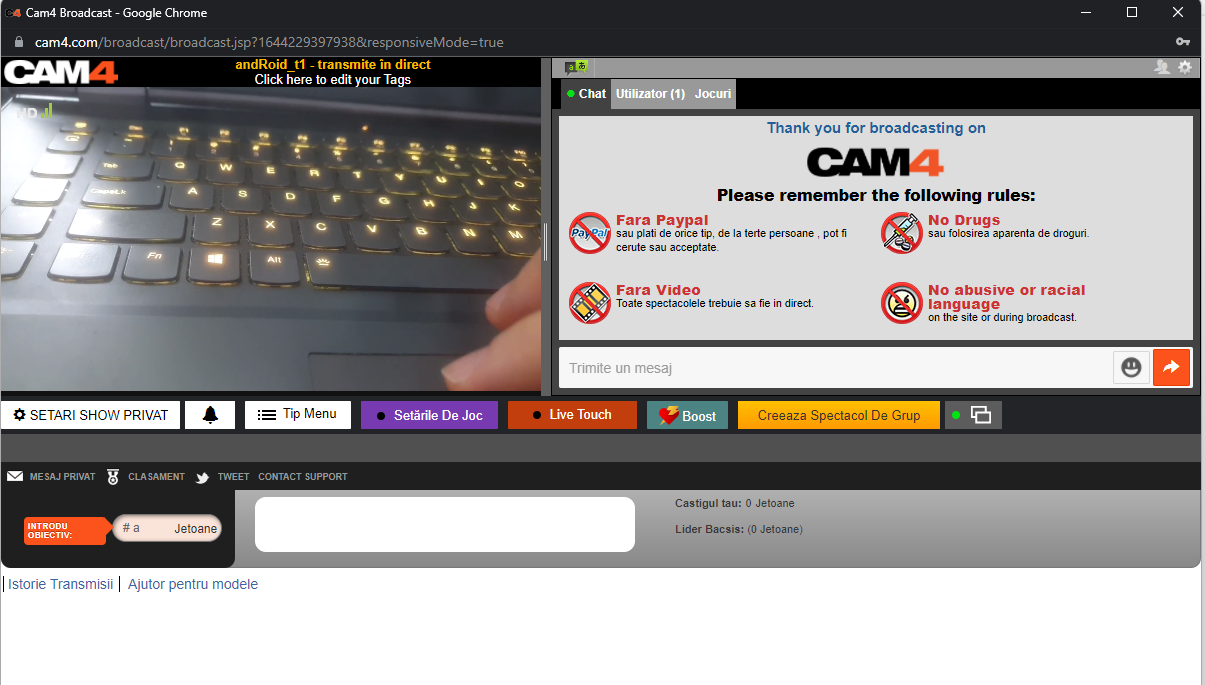
Show / Hide video button for better performance → Recommended for outdated hardware
When the Led indicator is Green (Show Video) the video is displayed on the left side of the chat. In this situation there will be more resources used for streaming
When the Led indicator is Black (Hide video) the video will be replaced by a “black cover”resulting in less resources being used while broadcasting
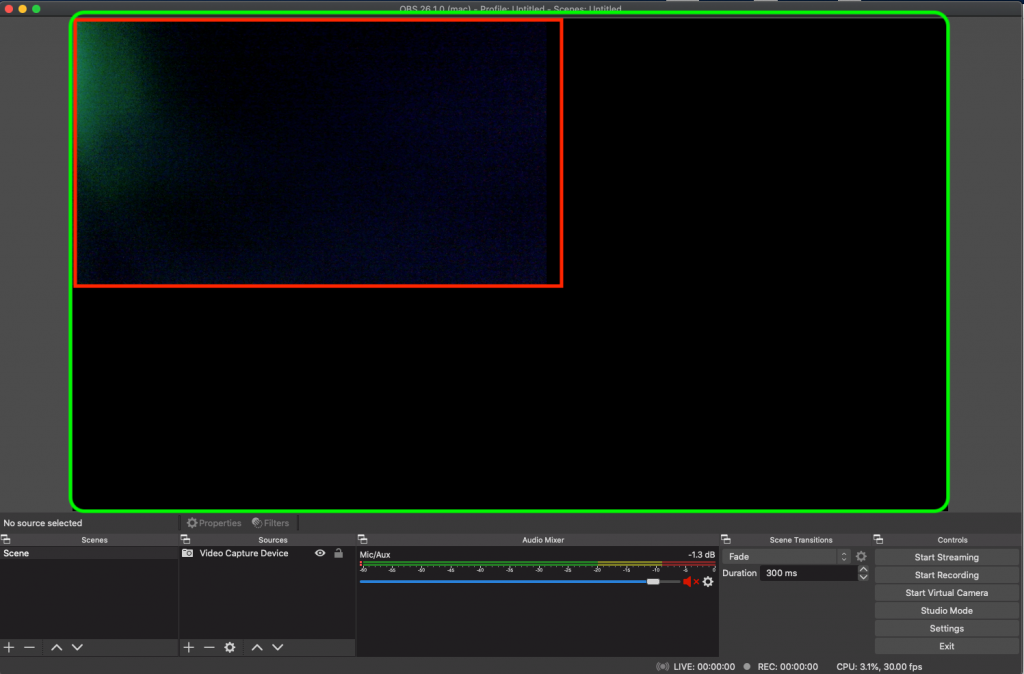
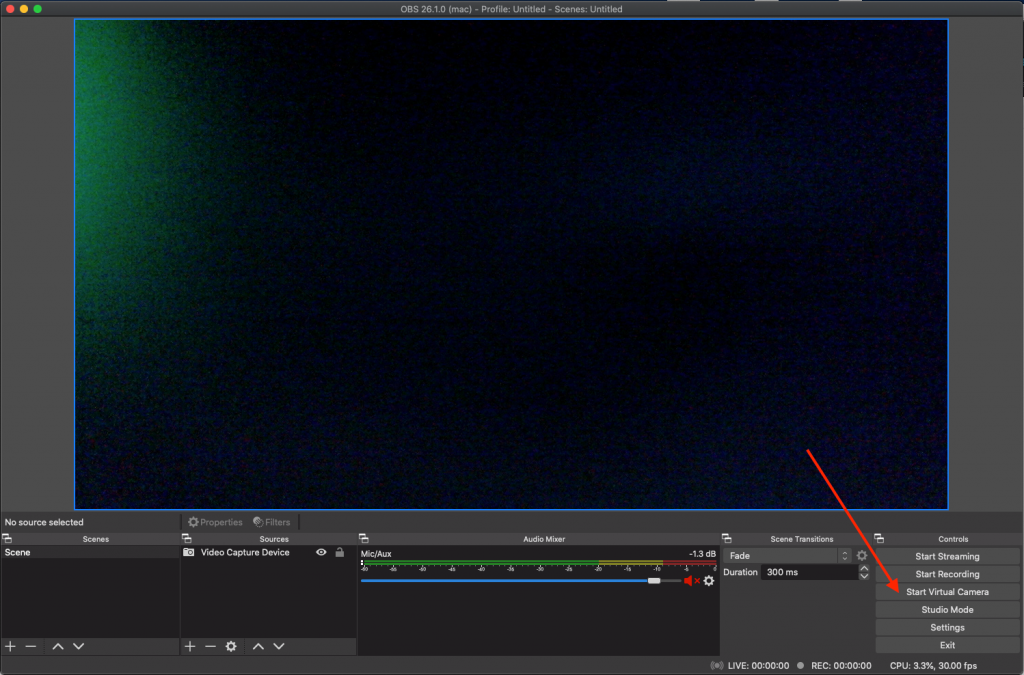
the Video Capture in OBS does not fit the whole screen
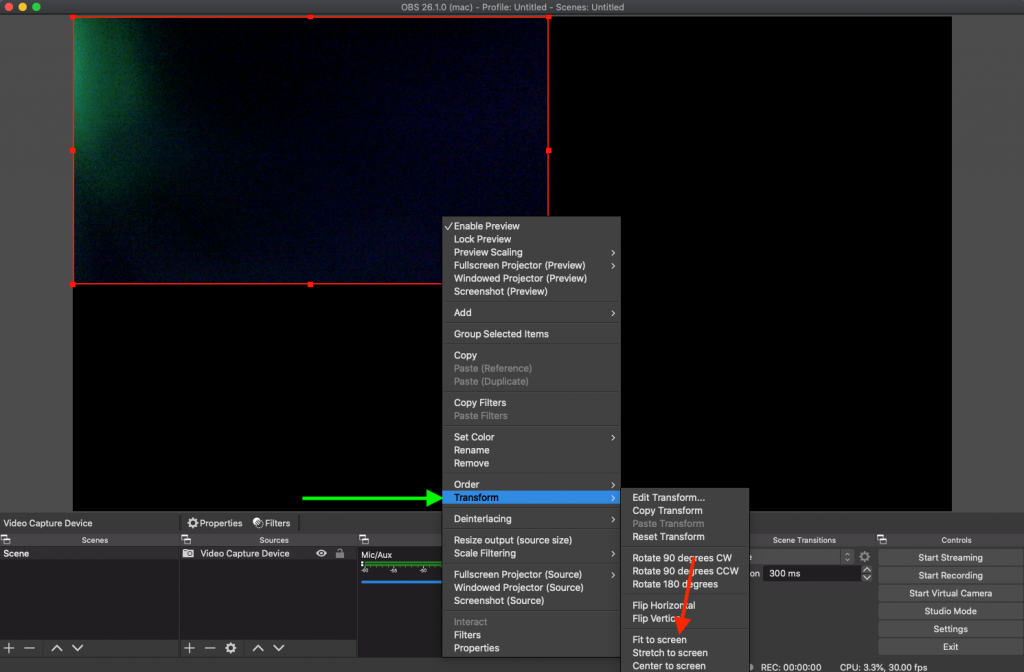
In case the image appears as in the above screenshot, you need to Select the Video Capture Device (a red rectangle will appear when selected) → Transform → Fit to Screen
Broadcast Quality
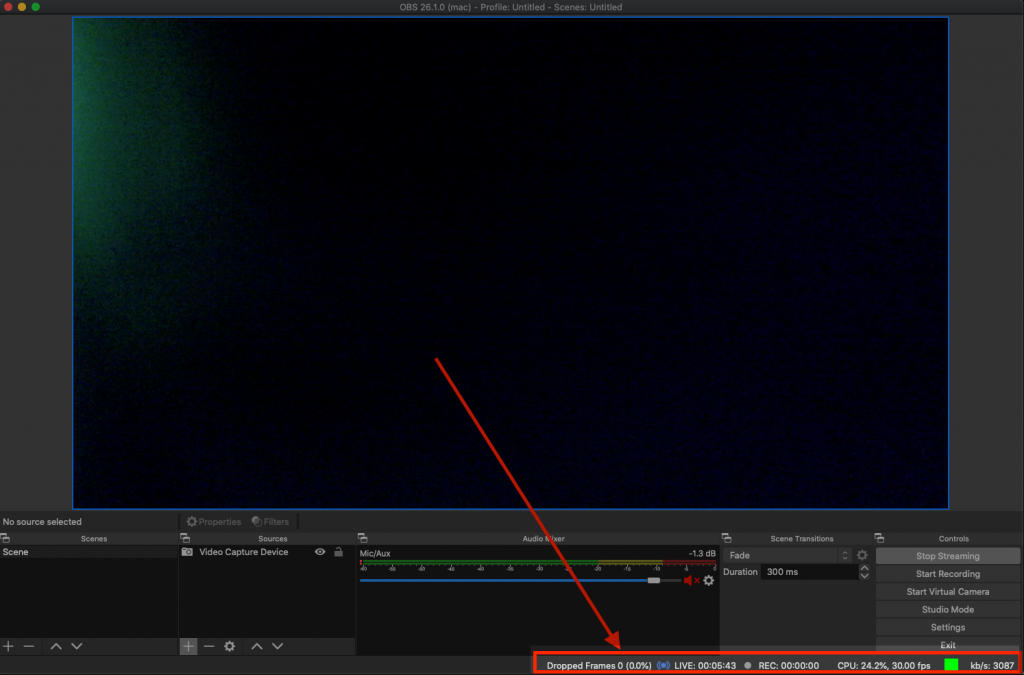
OBS offers feedback and metrics related to the ongoing broadcast such as CPU Usage, Time since starting broadcast, FPS, Dropped Frames, and Bitrate
A green square means that everything is working perfectly, as opposed to a red square indicating there are some issues that maybe caused by high load of CPU, network etc.
In case of HIGH CPU Load close any other windows that you might have (ex: if you have 10 tabs opened in your browser and you don’t need them it’s better to have them closed)
In case of issues with FPS / Bitrate / Dropped Frames – revise the Streaming settings and go down a resolution. In case you’ve initially opted for 1280×720, go down a resolution and see how that works.
Achievements shine the spotlight on the milestones you reach as a CAM4 member. When you complete different interactions on CAM4 such as uploading photos to your profile, joining a Fan Club, or making a new friend, you can unlock an Achievement badge.
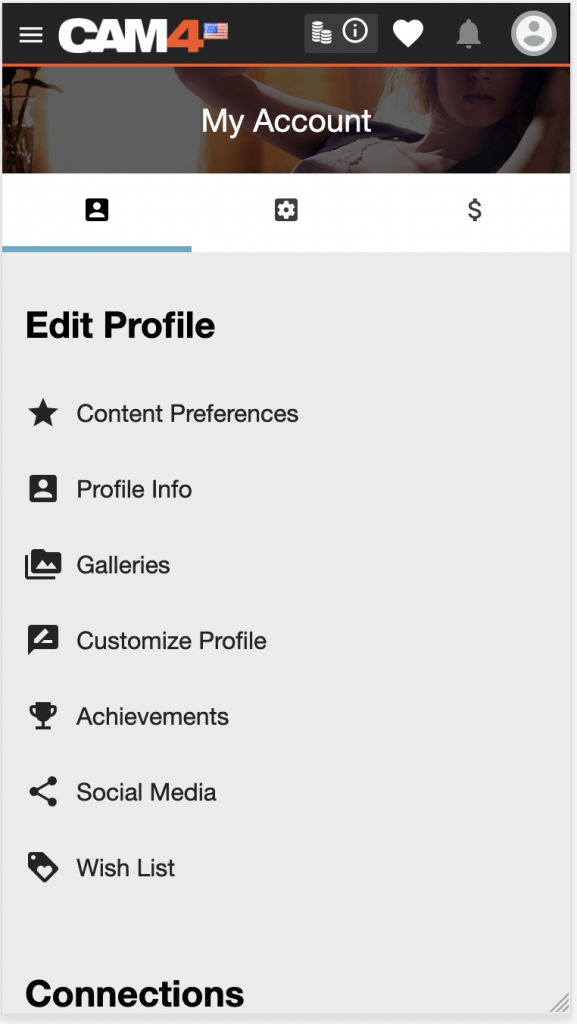
Visit the Achievements section in My Account to track your progress and explore new achievements to unlock. You can display your collection of unlocked achievements on your profile and check out what your friends have unlocked on theirs, helping you find new ways to connect with each other.
Once you’ve unlocked an Achievement, you can use that badge and title in CAM4 chat rooms to add flair to your username and stand out from the crowd! (Coming soon).
WHERE CAN I FIND MY ACHIEVEMENTS?
You can learn more about available Achievements and track your progress by visiting the Achievement page within the Edit Profile section of My Account.
Any Achievements you earn will also get featured on your CAM4 profile page.
NAVIGATING ACHIEVEMENTS
When viewing Achievements in My Account, you can browse between ALL, UNLOCKED, and LOCKED achievements.
ALL will show you a mix of locked, unlocked, and in-progress Achievements. Use UNLOCKED and LOCKED to quickly view only the Achievements you have earned or are in the process of earning, respectively.
CHANGING THE DISPLAY SETTINGS
You can choose to view your achievements in either a detailed list or a simplified grid by selecting the corresponding toggles at the top of each section
LOCKED, UNLOCKED & IN PROGRESS
Locked and in-progress Achievement badges are displayed in black and white. Once you have completed the criteria to unlock any Achievement, the badge is displayed in color. By default, all your unlocked and in-progress Achievements are moved to the top of the list, sorted by most recent.
When an Achievement requires multiple actions, for example, uploading more photos to your profile gallery, you’ll see a progress bar appear underneath the badge, which will fill as you complete these actions.
VIEWING ACHIEVEMENT DETAILS
You can tap or click any Achievement to view more details at any time. Doing so will open a panel that will display the following:
Achievement badge
Achievement title – this is the name of the achievement
Achievement description – the specific actions required to unlock the Achievement
Progress completion percentage – how much progress has been made so far toward unlocking the achievement
Rarity percentage – this indicates how common or rare this Achievement is within the CAM4 community. If less than 10% of other users have completed this goal, congratulations! You can feel proud! If lots of other people have also unlocked the same achievement, that’s great, too. It just means you have even more in common with plenty of potential new friends on CAM4.
HOW WILL I KNOW I’VE UNLOCKED AN ACHIEVEMENT?
When you unlock an Achievement, you’ll be notified in real-time. A small panel will appear in the top right corner of your screen showing you the title and badge of the Achievement you just unlocked. You can choose to interact with this panel for more information, dismiss it by clicking the “x” or simply wait and it will disappear on its own.
If you want more information but didn’t click the Achievement notification in time, not to worry – you can always visit the Achievements section inside My Account to see your unlocked Achievements; the newest ones will always be right at the top waiting for you!
CAN PEOPLE SEE MY ACHIEVEMENTS ON MY PROFILE PAGE?
Yes! Unlocked Achievements appear on your CAM4 profile page. You can also see what your friends and other CAM4 members have unlocked on their profile pages.
HELP! I COMPLETED ALL MY ACHIEVEMENTS – WILL THERE EVER BE NEW ONES?
Yes! We plan to release more Achievements regularly; make sure to subscribe and keep an eye out for news in CAM4 email announcements and follow us on Twitter for all the latest news and updates.
HELP! I COMPLETED AN ACTION, BUT MY ACHIEVEMENT DIDN’T UNLOCK!
We’re here to help! If you feel you’re missing an Achievement for an action you’ve completed, we want to know – you can get in touch with us at https://www.cam4.com/contact
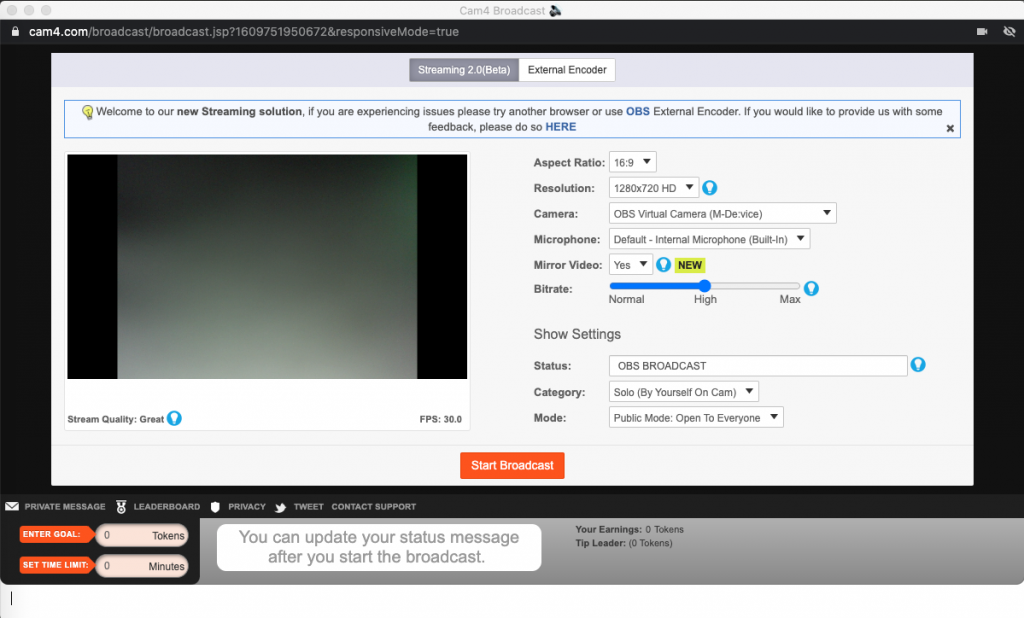
⚠️ IMPORTANT UPDATE: CAM4 now discourages using OBS Virtual Camera with Regular Streaming mode due to stream quality issues and viewer connection problems.
If you need to broadcast on multiple platforms, we recommend using External Encoder mode instead. Further information here: Regular Streaming
To assist in keeping track of your tippers’ spending behavior to prioritize your attention during a live show. Integrated within your CAM4 chat, this tool now allows you to identify viewers tipping habits!
How It Works
A colored halo appears around user avatars
Each color represents a different spending tier
Shows how many tokens someone has spent in the last 2 weeks
No halo = no tokens spent recently
The Coin Icon
A coin icon means the viewer currently has at least 1 token in their balance
This is separate from the spending tier halo
Viewing the Legend
Click the “?” icon to see what each color tier represents.
Where You Can See It
The indicator appears in:
User list
Room chat
Leaderboard
Private message tabs
Privacy Notes
Only visible to you – Viewers and other broadcasters cannot see these indicators
Anonymous viewers stay anonymous – Gold members who watch and tip anonymously will remain anonymous in this feature
Payment Schedule: Payments are now processed daily (Monday-Friday). Payment requests must be submitted to be included in the next business day’s payment processing.
Time to Receive Payment: Direct deposit payments are processed daily Monday through Friday with a minimum payment request of $50 USD.
Bank Statement: Payment will show up on your bank statement as GRANITY MEDIA INC.
Bank Name
Also Known As
Institution Number
Royal Bank of Canada
RBC
003
Toronto-Dominion Bank
TD, TD Canada Trust
004
Bank of Nova Scotia
Scotia Bank
002
Bank of Montreal
BMO
001
Canadian Imperial Bank of Commerce
CIBC
010
If your Canadian Direct Deposit Bank ID is only 3 digits, please add a 0 (zero) to the beginning of the number.
Simplii Financial is also popular as it’s a lower fee offshoot of CIBC: Instead of having its own Institution Number, Simplii Financial shares Institution Number 010 with its parent CIBC and all Simplii clients share a branch-transit number of 30800.
Laurentian Bank operates mostly in the province of Quebec and the Bank ID is 0039.
Tangerine Bank is also popular and is the lower fee offshoot of Scotiabank and the Bank ID is 0614.
Meridian Credit Union has the Bank ID 0837.
NOTE: Funds will be sent to your account in CAD. Your bank may charge you fees in addition to the fees quoted here. Fees charged by your bank are not under our control. Please consult with your bank prior to requesting a payment if you are unsure.
Why does my streaming disconnect sometimes after a couple of minutes of streaming with a message called “Disconnected due to poor network” ?
C4Broadcaster has a built-in mechanism in which it adapts the quality of the stream depending on your network condition (both wi-fi and mobile data). In general, disconnecting occurs after a certain time period due to the stream becoming unviewable because of the bad network conditions, so we automatically disconnect you.
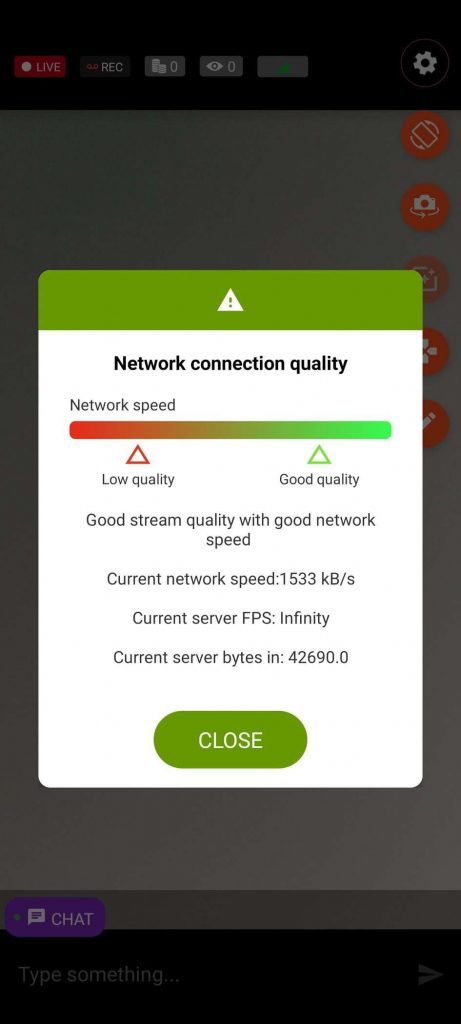
In order to let you know when you’re in a zone where the signal strength of the network is low, we have added a signal icon with three tiers of colors. When pressing the icon, a popup is shown with extra details regarding your estimated network speed and network connection quality.
Tip: For best streaming stability, use a Wi-Fi connection with at least 3-5 Mbps upload speed. You can test your connection speed at https://speedtest.xcdnpro.com/
Why can’t I see the chat, see viewers or notifications?
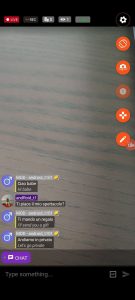
If the chat connection fails, you won’t be able to see chat messages, the viewers count or tips received. Keep an eye on the chat connection indicator on the main chat room.
Note: Even in case the chat connection is down, the streaming is a separate component which can work in parallel. Your broadcast will continue even if chat is temporarily unavailable.
Having problems logging in, what should I do?
Please make sure the credentials you are using are correct. If you receive a “Server is unreacheable error” then please follow the instructions in the error. If you’re still having problems, please contact CAM4 support
Face masks and image filters are not available on my device
Not all devices support face masks and image filters. We are doing our best to support as many devices as possible. This feature requires devices with sufficient processing power and compatible camera APIs.
Having issues with pairing/connecting my Lovense device
Please make sure that Bluetooth is turned on and the GPS sensor is active. If it still doesn’t work, then the device may not compatible with your phone
How can I silence, kick or ban someone from the chat?
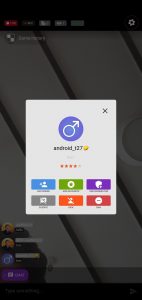
The Moderation Popup can be opened by long-pressing on a chat message from a viewer. This will allow executing certain actions towards or against that user. The supported actions are:
Add as friend / Remove friend
Add as favorite / Remove favorite
Add as moderator / Remove moderator
Silence / Unsilence
Kick
Ban
Additionally, the private show rating, the gold membership status and the avatar of the user are shown.
How can I contact customer support from the application?
Open the menu by sliding from left to right and click on the Customer Support item to open Intercom. From there, follow the steps needed to open a chat with a customer support representative.
How can give feedback on the application?
We always welcome feedback from our users and our application is tailored on their needs. Opening the Intercom from the menu is the simplest and fastest way to talk to a CAM4 representative and propose your ideas!
How can I access account management features such as the broadcaster dashboard via C4 Broadcaster?
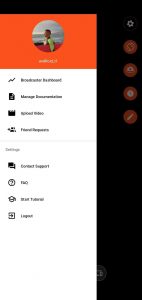
The menu allows you to navigate between sections of the application. In order to access it, swipe from left-to-right.
The menu gives you the ability to access:
Your broadcaster dashboard
Manager your documentation
Handle your incoming friend requests
Contact support via Intercom
FAQ
Start the tutorial
Logout
How can I see the insights of my broadcasts?
Open the menu by sliding from left to right and click on the Broadcaster’s Dashboard item. It will open the broadcaster dashboard and from there you can go to the Insights Tab
My camera preview is too dark, what can I do?
If your camera preview is too dark, swipe right-to-left and toggle the “Increase camera brightness” option. This should allow the camera to capture more frames while reducing the framerate of the video. Recommended for usage in dark environments
I have updated my application and it doesn’t work anymore
If after an update, you are experiencing issues with the application, please contact the CAM4 support so we can address this issue as quickly as possible and offer you a solution for the best experience.
How do I turn off my microphone?
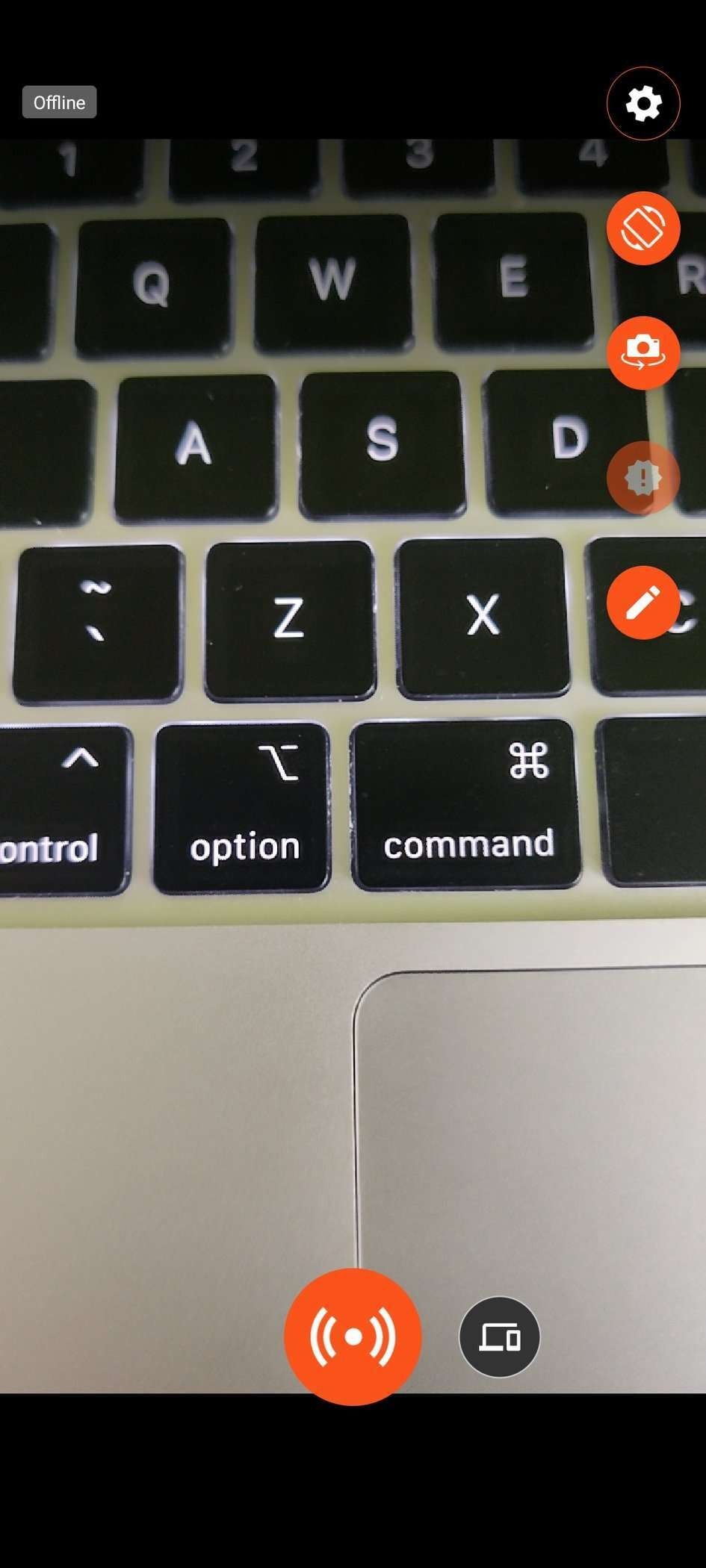
Click the gear icon in the upper right corner to access settings, then toggle the microphone icon to turn your microphone on or off. If the option is not present then unfortunately it is not possible for your device.
Can I set a moderator from C4 Broadcaster?
Yes, long click on a user’s name will bring up the moderation popup. From there, you can add him as a friend/favourite or as a moderator.
Can I set a password for my room?
No, password-protected private rooms are not available on C4 Broadcaster
How can I have my viewers’ chat messages translated?
To enable the Chat Translator on C4Broadcaster, go to the Settings page and look at the Chat Settings category.
You can enable the chat translator by pressing on the toggle on the row.
To change the translator language, select the desired one from the languages list
Streaming tips:
Network Connection
The network conditions are key to a good streaming experience. Wi-Fi is usually recommended since it’s more stable than an indoor mobile data connection.
Keep an eye on the signal indicator showing your network strength
Avoid moving too far from your router during broadcasts
Certain locations may have poor signal, which can disrupt the streaming experience for you and your viewers
Minimum recommended upload speed: 3-5 Mbps for stable streaming
Lighting
Lighting is another key component to a good streaming experience.
Usage of the device’s flashlight is recommended in dark rooms or environments
Turn on the “Increase camera brightness” option in settings for better exposure in low light
Natural lighting or external light sources can significantly improve video quality
Device Stability
Keeping the device steady will contribute to a better viewing experience for your audience.
Use phone stands or selfie sticks for stable positioning
Avoid holding the device by hand for extended broadcasts
Position your device at eye level or slightly above for the most flattering angle
Device Mirroring
If you own an eligible Samsung device, you can use the Your Phone app to mirror your screen onto your PC, allowing you to broadcast from your mobile device while viewing and controlling it from your computer.
General Best Practices
Test your setup before going live with a private test broadcast
Monitor your signal indicator throughout your broadcast
Keep your device charged or connected to power during long broadcasts
Close other apps running in the background to optimize performance
Check your broadcast quality periodically using the network indicator
As of version 6.5.0 (released February 2022), we have added the ability to use C4 Broadcaster as an External Encoder. This means you can benefit from using the powerful camera of your mobile device while interacting with your viewers via the broadcast window on your PC. This works in the same way as if you were using OBS, but without the setup that would be required there to get it to work.
In order to do this, please follow these 3 simple steps:
Start C4Broadcaster and press on the external encoder button next to the regular Start Broadcast button.
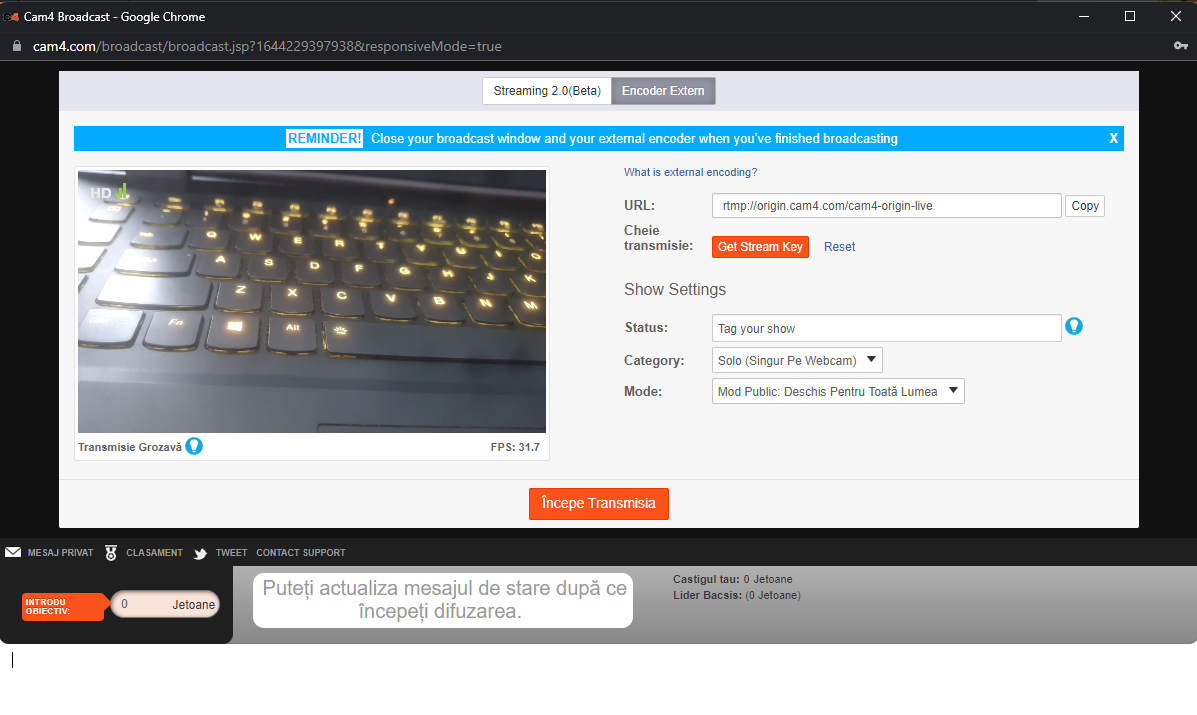
Navigate to https://cam4.com and click on Broadcast. In the Broadcast Window, switch to the External Encoder tab. The camera preview from your mobile phone should appear in the player.
Press the Start Broadcast button in the Broadcast Window and have fun.
You can now use your mobile device to move around while managing your room through the broadcast window.
Place the mobile phone anywhere you desire, forget about cables, external cameras or carrying your laptop from room to room
Make good use of the quality of your phone cameras. If your network connection and device supports it, you can stream in FullHD resolution from your device
Avoid the potential painful OBS or any 3rd party software configuration
If your wi-fi connection is sketchy, you can always switch to mobile data (4G/5G) in order to provide a better experience for your viewers
When finishing your show, remember to close both the Broadcast Window and also stop the stream from C4Broadcaster
Note: While streaming in External Encoder mode, viewer interactions and some features are disabled on C4Broadcaster. They are available in the Broadcast Window
Can’t see or use your camera and microphone set up in CAM4 Streaming 2.0?
Please make sure that you are logged into Cam4 and can access Streaming 2.0 tab in the Broadcast window
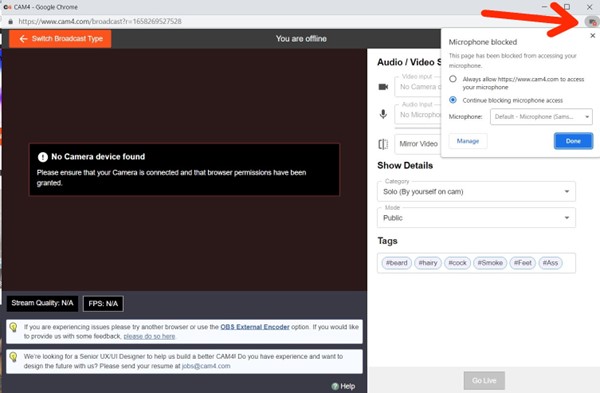
I get a message that my camera or microphone is disabled / No camera or microphone appears on my CAM4 Streaming 2.0 broadcast page.
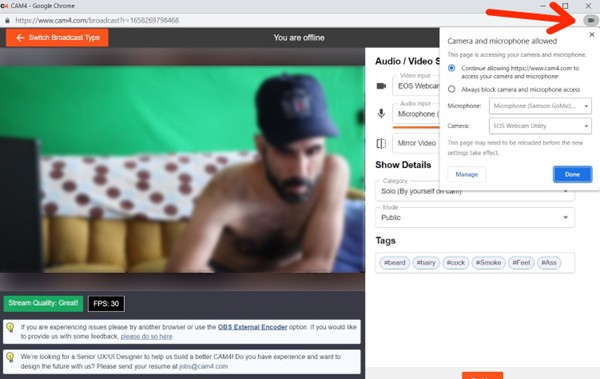
The camera and/or microphone are disabled in your browser. Please enable them by clicking the “Allow” button near the address/URL bar to allow cam access for the site – Select Continue allowing / Allow -> Done – and then refresh the page.
Please note: This may require a browser restart rather than just a page refresh as other tabs or browser windows may interfere with the change
Your camera and/or your microphone could be in use by another app. In many cases, your browser might not be able to access them directly if they are already in use. To fix this please close any other tabs/browsers or applications that are currently using your camera ( Tip: your camera in use indicator is lit before reaching the CAM4 website it generally indicates something else is using your cam.)
Problems streaming on more than one platform.
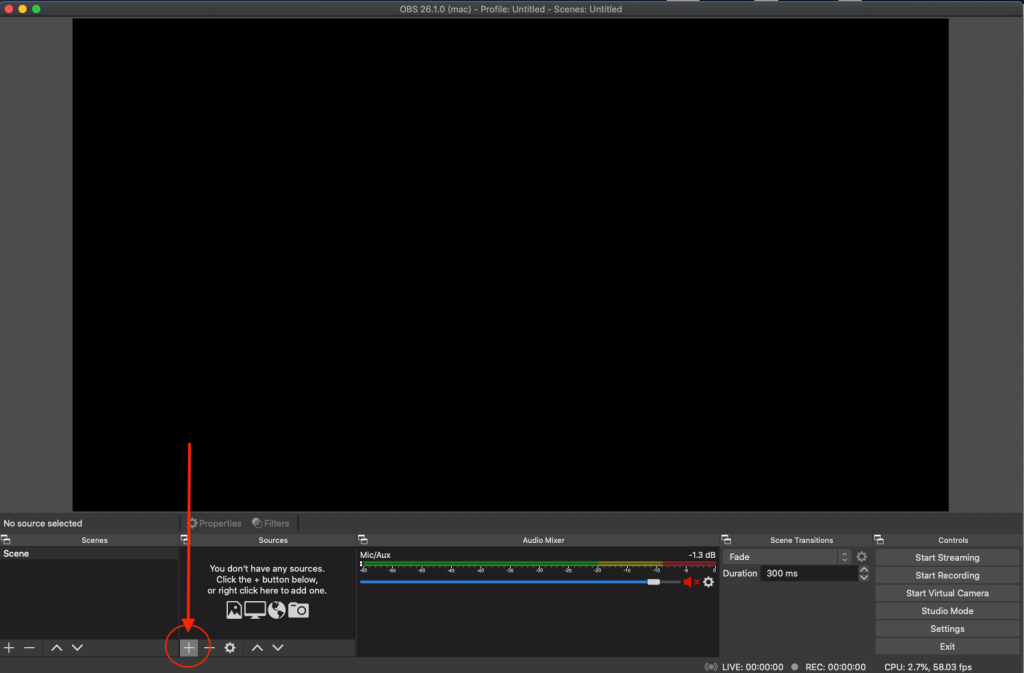
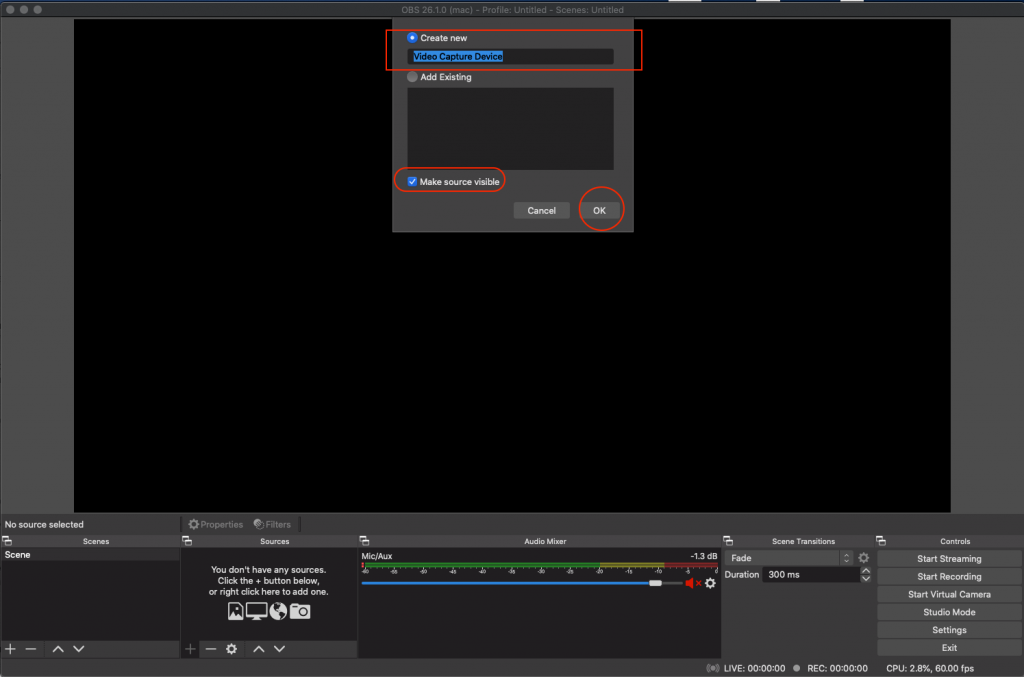
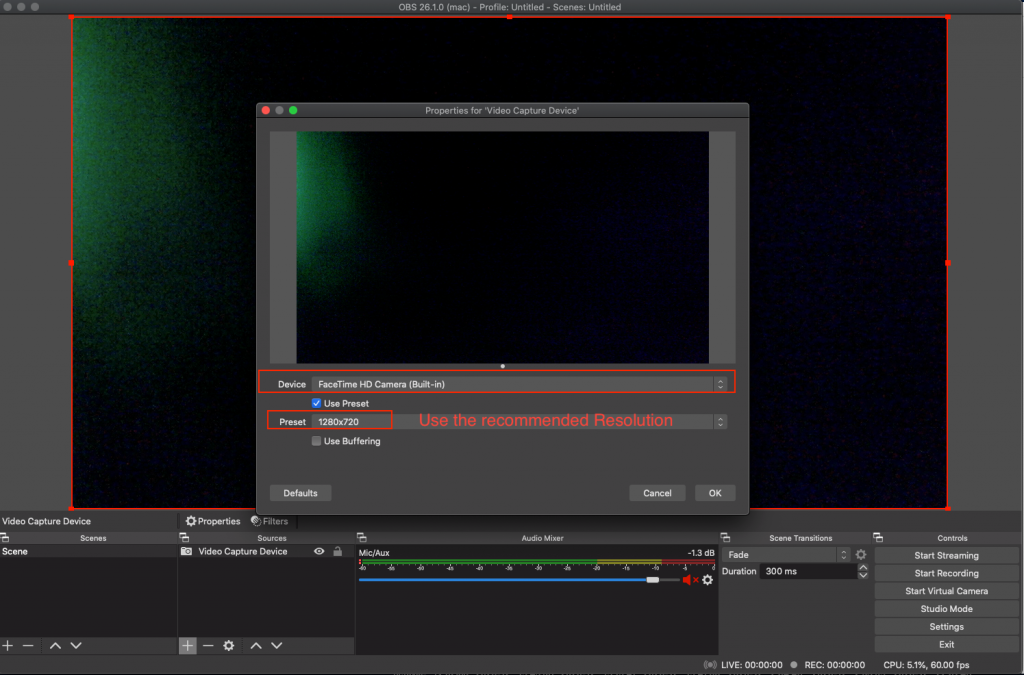
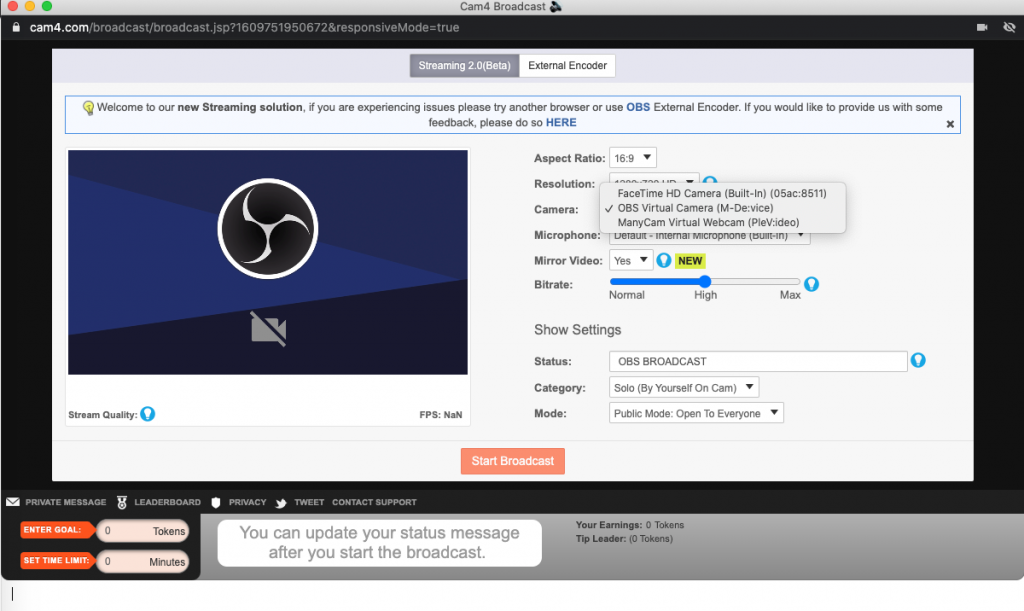
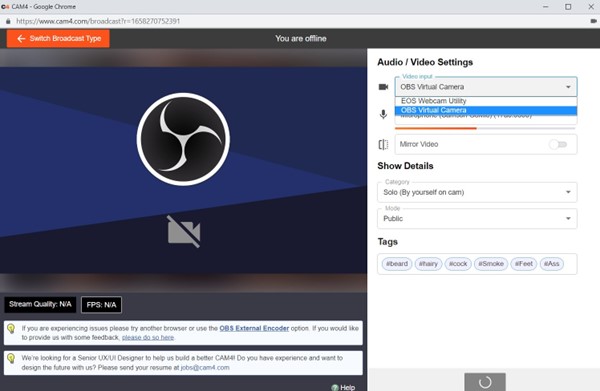
You may experience issues trying to broadcast on multiple platforms while using streaming 2.0. If this is an issue you will need to create a virtual cam while only using one physical cam. The most common option would be to use the combination of OBS + OBs browser plugin. This will give you an additional cam in the dropdown list of an OBS virtual cam
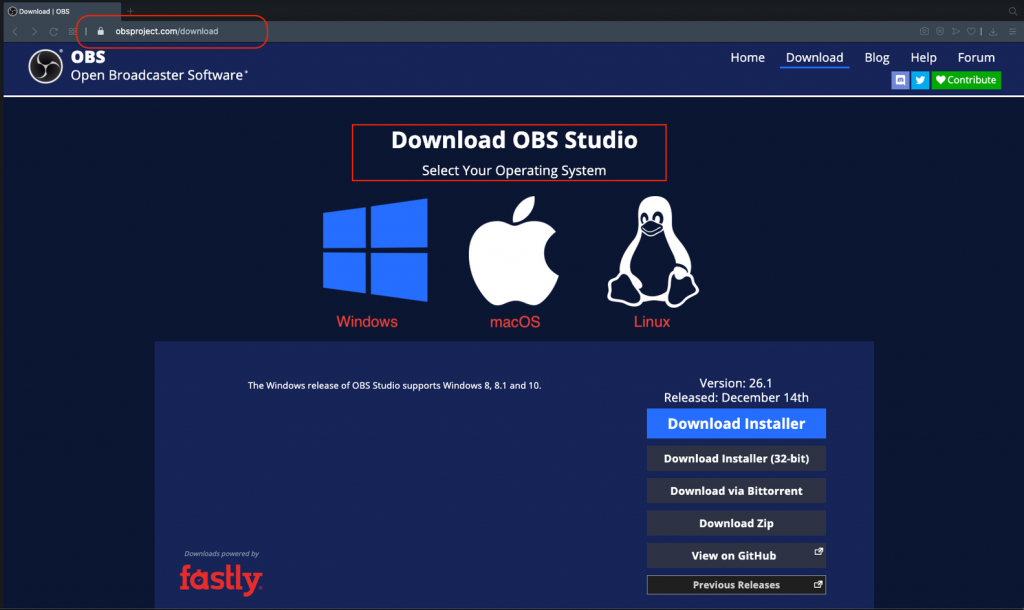
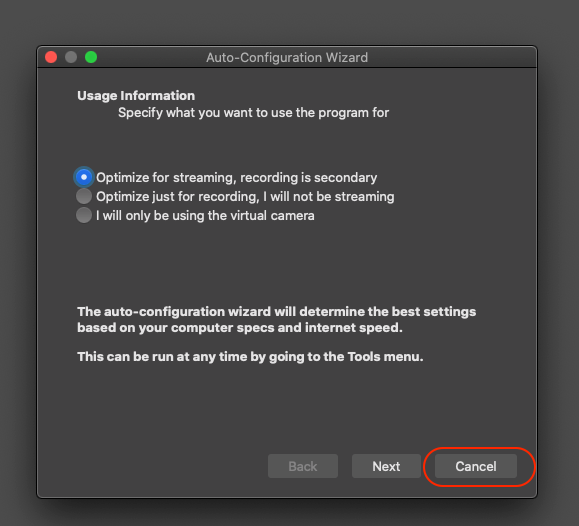
Install OBS Studio. It can be downloaded here, instructions for auto-configuration can be found here
Install OBS Virtual cam based on your platform. Windows, Mac, Linux. Please note for Windows this will require a system restart to complete the installation.
Open OBS Studio
Select Tools / VirtualCam in the main OBS Studio window
Press the Start button, then close the dialog
Open your browser and choose OBS-Camera as your webcam.
You don’t need to press Start Streaming in OBS, but you need to have the proper settings for sources in OBS ( Camera and Microphone)
Start Streaming on CAM4 using Streaming 2.0 or External Encoder tab.
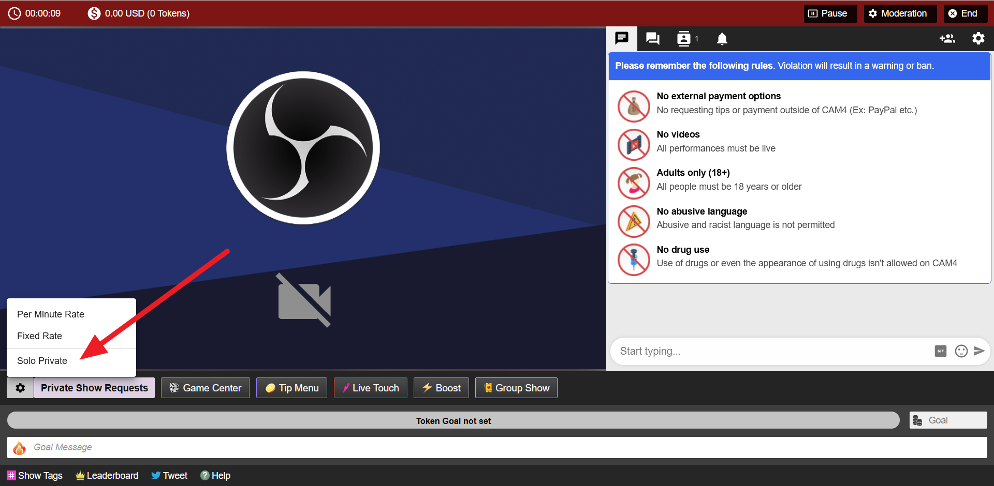
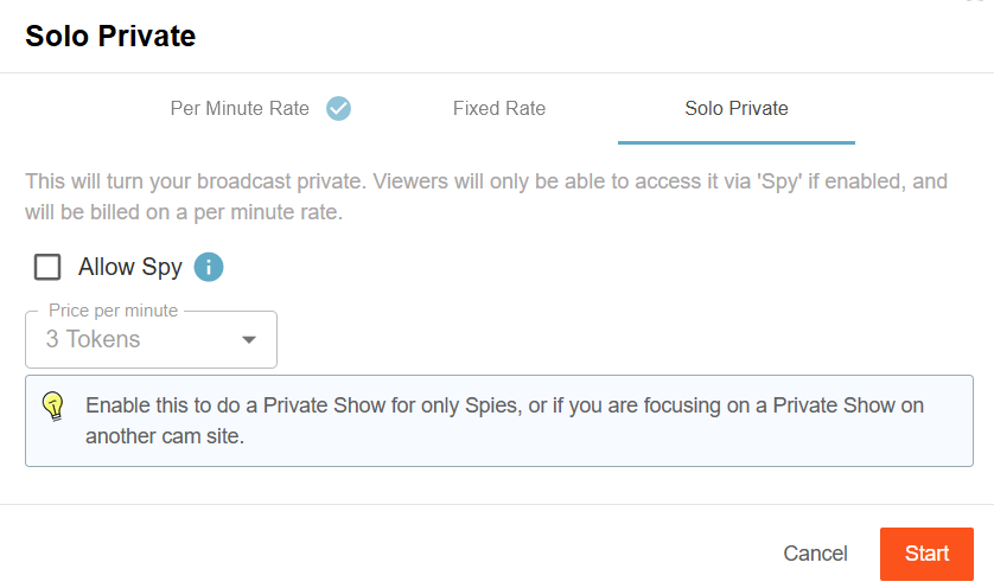
If you are entering into a private show on another platform while you are live on CAM4, we have added a Solo Private Show feature. This allows you to start a private show with no viewer which
Gives you privacy for the show
Keeps your directory position and viewers on CAM4
Offers an increase in your revenue by having spy viewers
The options for this appear in the lower left of your broadcast window after clicking on the Settings cogwheel as shown below
Solo Private Settings
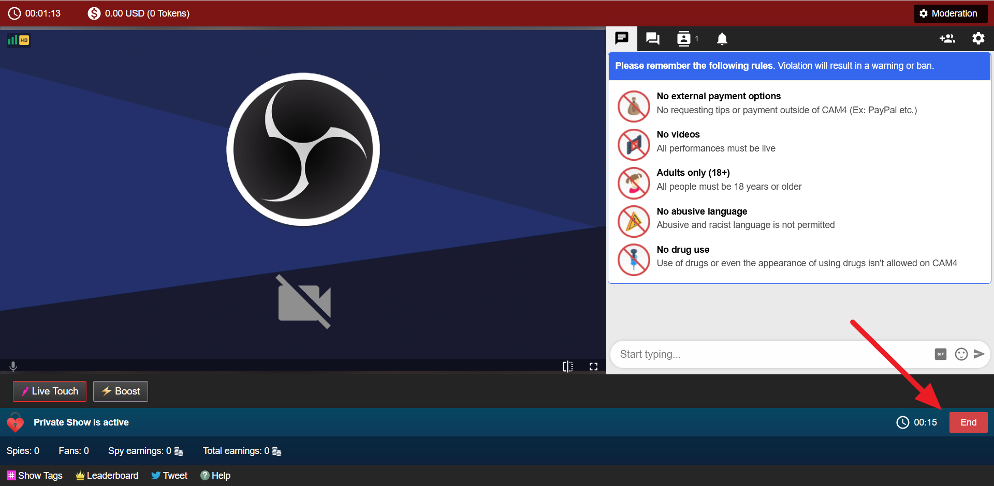
To end the Solo Private, click the End button located at the lower right corner of your broadcast window