SMS & Email Verification (Two-Factor Authentication)

To protect your account and comply with security requirements, CAM4 uses Two-Factor Authentication (2FA). You can choose between SMS Verification or Email Verification as your 2FA method.

Setup

  1. Login to CAM4 and click your circular profile avatar at the top right of the page
  2. Within the drop-down menu, choose My Account
  3. Select the Account Settings tab
  4. Click on Security and scroll down to the verification options
  5. Choose either SMS Verification or Email Verification

SMS Verification Setup

  1. Select your country from the dropdown
  2. Enter your cell phone number
  3. Enter your CAM4 password
  4. Click Submit – a code will be sent to your phone
  5. Enter the code on CAM4 to complete setup

Email Verification Setup

  1. Your primary email address will be used
  2. Enter your CAM4 password to enable
  3. Verification codes will be sent to your email when required

Frequently Asked Questions

Can I disable 2FA (SMS or Email Verification)?

For Broadcasters and Members who make purchases: Two-factor authentication is required for your security and cannot be fully disabled. However, you can switch between SMS and Email verification methods at any time through your Security settings. This requirement helps protect your account and earnings.

For other account types: You may be able to disable 2FA, but we strongly recommend keeping it enabled for additional security. If you cannot disable 2FA or have questions about your account type, please contact support@cam4.com.

Can I switch between SMS and Email Verification?

Yes! You can switch between SMS and Email verification at any time:

  1. Go to My Account > Account Settings > Security
  2. Edit your current verification method
  3. Choose the alternative method (SMS or Email)
  4. Complete the setup process

Note: Only one 2FA method can be active at a time. Enabling Email verification will disable SMS verification, and vice versa.

Can I change my phone number?

Yes, you can update your phone number by editing the details in Security settings where you originally set up SMS verification.

What if I lose my phone or can’t access my email?

Please contact support@cam4.com immediately for assistance. Have your username ready. Our support team will help you regain access to your account through a secure verification process.

What if I don’t receive my verification code?

  • For SMS: Check your phone signal, wait 2-3 minutes, and try clicking “Resend Code”
  • For Email: Check your spam/junk folder
  • If you still don’t receive a code after 10-15 minutes, contact support@cam4.com with your username, phone carrier (if SMS), and country

Important Security Notes:

  • Verification codes are valid for 15 minutes
  • There is a daily limit of 15 codes per account for security
  • 2FA is triggered for sensitive actions like password changes, email updates, cashouts, and purchases
  • Use your actual mobile carrier number for SMS (VOIP numbers may not work reliably)

CAM4 Tube Content

CAM4 has partnered with multiple tube sites (Pornhub, xHamster, etc.) to create channels featuring recorded content from CAM4 creators like you! Tube sites allow for your content to be visible to a new audience.

  • Who will be featured on the channel?
    All CAM4 creators are welcome to submit content to be purchased for the CAM4 tube channels.
  • What do performers get for being featured on the channel?
    The goal of the CAM4 tube channels is to help creators grow their brand and audience by showcasing them across these platforms. All content will be purchased directly from you (the creator). Additionally, your CAM4 username will be embedded into the video to increase the visibility of your CAM4 profile.
  • How do I get my content featured on a CAM4 tube site?
    Just contact us at video@cam4.com or reach out to your regional manager
  • Will the videos be used anywhere else?
    The video content submitted will be used across CAM4’s dedicated tube sites. It will be watermarked with the CAM4 logo to prevent reproduction.
  • Will CAM4 keep the recordings?
    The original content you submit will be regularly deleted from our storage. The final videos we upload to Tube sites will be stored in our secure database.
  • Who gets the ad revenue?
    Ad revenue is not the goal of these partnerships – our goal is to drive traffic back to CAM4 and your profiles.
  • Can you tag my porn star or model profiles in the videos?
    Absolutely. By tagging your profiles and social channels, new viewers and fans can connect with you further. Viewers will be able to find your dedicated pages and featured live shows. Need a profile? We will work with you to get your profile set up within CAM4!
  • Do the videos need to be just me? Or can I record something with a partner?
    We accept either! The content is purchased and paid out according to how many performers are in the video.
  • What type of videos are you looking for?
    The style of the video should feel intimate and cam-like. We love seeing content that reflects the people we see on CAM4. Content that feels homemade (but not low quality) does very well. Additionally, content that is not in a traditional cam location (on a bed; in a bedroom) does well outside, in a car (when stationary), bathroom, etc.)
  • Are any other specifications required?
    The content must be High Definition (1080p minimum) but can be filmed horizontally or vertically. The length required is 15-20 minutes, and it must end in a cumshot or orgasm.

Do I Have To Pay Taxes On My Earnings

Broadcasters are not employees of CAM4. If you receive any compensation from a User of CAM4 for services you provided that User, you have been compensated as an Independent Contractor of that User. As such, any Broadcaster utilizing the platform services provided by CAM4 are responsible for filing and paying their own tax liabilities.

The company that owns CAM4 is based in the country of Curacao. If you are not a resident of Curacao, we as a foreign Corporation are not required to file income reports for Independent Contractors.

You are subject to all of the tax rules of the country where you or your company reside.

For your convenience and upon your request, CAM4 will make available to you a record of your annual earnings from Users of the CAM4 platform.

NOTE: If you are in the US and received one or more ACH Payments, you will receive an IRS Form 1099 from the company that sends out your payment(s).

ACH for Multiple Accounts

Due to changes made by our ACH payment processor it will not be possible to add ACH as a payment method to multiple accounts using the same Social Security Number (SSN).

How does it affect you?

  • If you only have one account no changes need to be made and payments can continue as normal.
  • If you have more than one account, only one can be used to cash out with ACH as the payment method. For your additional accounts please use convert to tokens as the payment method, you can then transfer the tokens to the account you have setup for ACH through the tip jar. Payment can then be requested from the ACH account.

How to use iOS Broadcaster

General requirements:
  • Apple iPhone/iPad running iOS 11 and up
Step by step instructions for broadcasting using an Apple device
  1. Open Safari on an Apple iPhone/iPad running iOS 11 and up
  2. Go to https://www.cam4.com/
  3. Make sure you are logged in.
  4. Access the menu and tap on “Broadcast”
  5. Press “Allow” when prompted for access to the camera and mic
  6. Once the app has loaded, you can:
    1. Add a status message, tip message and tip goal in the top part of the screen. Don’t forget to press “Save” in order for these to be used.
    2. Switch to a different camera
    3. Press “Start Broadcast” in order to start a show
  7. Once a show has started the app shows the following:
    1. Received token count and Viewer count
    2. A “stop broadcast” button
    3. Chat message list
    4. Chat input

Latest updates

  • Landscape support for iPhone X
  • Private Show queue – As a broadcaster you now have the ability to either accept or reject a private show request immediately. Docking it to the side temporarily, enables you to wrap up what you were doing before addressing the request.
  • Private show settings – These can now be changed within the app.
Troubleshooting
Error messages

message: “Due to new technologies being made available in iOS 11, this app only works on Safari 11 and up. Please update in order to run the app.”

explanation: The app only works on Safari iOS 11 and up. This is due to new technologies that have been enabled by Apple on iOS 11. Updating to iOS 11 and then opening https://www.cam4.com in Safari will remove this error.

message: “Please refresh the page and tap “Allow” when asked to access the Microphone and Camera.

explanation: iOS will ask for permission when accessing the camera and microphone of the device. Pressing “Allow” when asked will get rid of this error.

Purchasing tokens with Gift Cards

Cam4 now offers the option to pay with 100+ major brand gift cards. Instant access, 100% anonymous, and no credit card required.

This allows US customers to sell their unused gift cards from 100+ merchants and retailers instantly, without requiring slow shipment and verification of cards. This makes the transaction simple for users, determining market value for their cards, and offering them full payment in CAM4 tokens on the spot.

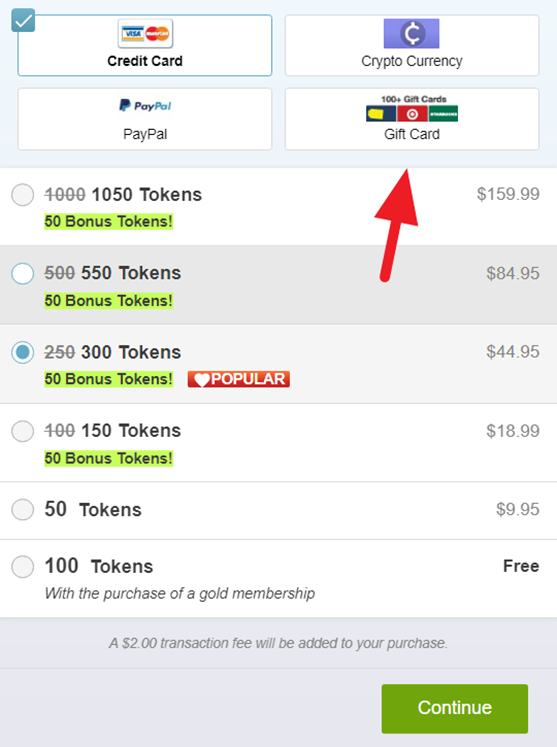
When purchasing tokens, please look for the Gift Card button on the choose package screen to redeem your cards.

Select the 100+ Gift Card option and enter your gift card details.  You will see the Cam4 Token value you will receive by redeeming the card.

Please note: Gift cards are resold on a marketplace, so your reclaim value will be lower than the original gift card balance.

C4 Broadcaster FAQ

What is C4 Broadcaster?

C4 Broadcaster is an Android app that lets you broadcast live to CAM4 from your mobile device! Find out more about it here. https://www.cam4.com/app/broadcasting 

How do I download C4 Broadcaster?

You can download C4 Broadcaster to your Android device from the Google Play store

What devices does C4 Broadcaster work on?

Any Android device running Android version 4.4.2 or higher can install and use C4 Broadcaster.

What is allowed outside on CAM4?

You can get a reminder on what is allowed on cam outdoors here: https://www.cam4.com/training/legal-stuff/whats-allowed-on-cam-outdoors

Can I broadcast in both landscape and selfie modes?

Yes you can!

C4 Broadcaster landscape mode

Can I record my show?

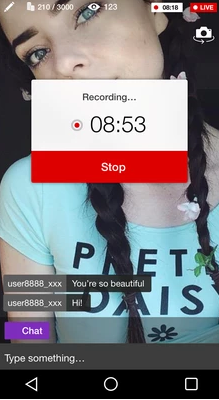
Yes, you can record parts of your shows, just tap the record button located next to the start broadcast button. You can start/stop recording at any time during your broadcast. Once your are finished you can either save or discard the video. Any videos you save will be stored directly on your phone gallery, so you don’t need to interrupt your show.

record

Can I upload videos?

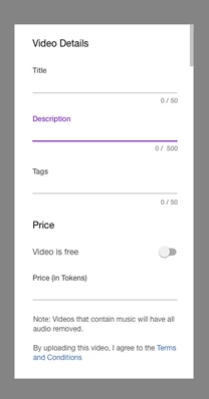
Yes you can upload these videos and any others on your phone directly from the app

myshop-upload

Once you’re finished you can go to Cam4, check the approval status, manage your profile and edit the video information in MyShop.

How Do I Create Posts on My Activity Feed?

The Activity Feed is CAM4’s platform for sharing content with your fans. You can post photos and videos from your Media Vault to your profile feed, where fans can view, purchase, or unlock them.

Getting Started

Step 1: Upload Media to Your Media Vault

Before creating posts, you need to upload content to your Media Vault:

  1. Navigate to Broadcaster Dashboard → Media Vault from your account menu
  2. Click Upload Photo or Video
  3. Drag and drop your files or click to select them
  • Supported formats: Images (JPG, PNG) and Videos (MP4, MOV)
  • File size limits apply (check current limits in upload interface)
  1. Wait for your media to upload and process
  2. All uploads require approval before they can be used in posts (may take up to 48 hours)

Important: Only approved media from your Media Vault can be added to Activity Feed posts.


Step 2: Create a New Post

Once you have approved media in your Media Vault:

  1. Go to your Profile Page
  2. Navigate to the Activity tab (or Feed tab)
  3. Click the Create Post button (usually near the top of your feed)
  4. You’ll see the Create New Post overlay

Adding Content to Your Post

Select Media:

  • Click Add Media or the upload icon
  • Choose from your Media Vault tab (shows your approved content)
  • You can select multiple images or videos for a single post
  • Navigate through selected media using the arrow buttons

Write Your Post:

  • Add a text description or caption for your post
  • Use the text area to share updates, teasers, or context

Step 3: Configure Post Settings

Post Visibility Options:

*� Public (Free):

  • Anyone visiting your profile can view this post
  • Great for teasers or building engagement

*� Locked (Paid):

  • Set a token price for users to unlock this post
  • Enter the number of tokens required to view
  • Fans must pay once to permanently unlock

⭐ Fan Club Only:

  • Only your active Fan Club subscribers can view
  • Great for exclusive content for paying fans
  • Encourages Fan Club subscriptions

Media Cover Selection:

For video posts, you can select a custom cover/thumbnail:

  • The system may auto-select frames from your video
  • Click to choose your preferred thumbnail
  • This appears before fans play or unlock the video

Step 4: Publish Your Post

  1. Review your post content, media, and settings
  2. Click Post or Publish
  3. Your post will appear on your Activity Feed immediately

Note: While the post appears immediately, content must remain approved. If moderation flags any issues, you’ll be notified.


Managing Your Posts

Edit a Post:

  1. Find the post on your Activity Feed
  2. Click the three-dot menu (⋮) on the post
  3. Select Edit Post
  4. Modify the cover image, the description, or the cover blur state.
  5. Click Save to update

Important: You cannot change the media files in an existing post. To use different media, create a new post.

Delete a Post:

  1. Click the three-dot menu (⋮) on the post
  2. Select Delete Post
  3. Confirm the deletion
  4. The post is permanently removed from your feed

Viewing Your Activity Feed

Where Your Posts Appear:

Your Profile → Activity Tab:

  • Shows all your posts in chronological order
  • Fans visiting your profile see your public posts or locked previews
  • Fan Club subscribers see exclusive content

Directory Activity Feed:

  • Public posts may appear in the global CAM4 feed
  • Helps new fans discover your content

Subscriber Feeds:

  • Your posts appear in the feeds of users who follow or subscribe to you

Post Insights & Earnings

Track Your Performance:

  • View post likes and engagement
  • See unlock/purchase counts for paid posts
  • Monitor earnings from post sales
  • Check which posts drive the most Fan Club conversions

Access insights through:

  • Your Broadcaster Dashboard
  • Individual post statistics
  • Media Vault analytics section

Best Practices for Activity Feed Success

Content Strategy:

✅ Mix free and paid content

  • Use free posts as teasers to drive paid unlocks
  • Reserve your best content for Fan Club or paid posts

✅ Post regularly

  • Consistent posting keeps fans engaged
  • Aim for 3-5 posts per week minimum

✅ Use compelling descriptions

  • Write enticing captions that make fans want to unlock
  • Tease what’s in the paid content without giving it away

✅ Price strategically

  • Start with competitive token prices
  • Adjust based on engagement and unlock rates
  • Consider Fan Club exclusivity for premium content

✅ Leverage video content

  • Videos typically drive higher engagement than images
  • Short teaser videos work great as free posts

Engagement Tips:

  • Respond to comments on your posts
  • Ask questions to encourage interaction
  • Cross-promote your Activity Feed during live shows
  • Share your profile link on social media

Frequently Asked Questions

Q: Can I upload videos directly when creating a post?
A: No. All media must first be uploaded to your Media Vault and approved before you can add it to posts. This ensures content compliance.

Q: How long does content approval take?
A: Typically up to 48 hours. Approved media can then be used in posts immediately.

Q: Can fans download my locked content after purchasing?
A: This depends on your downloadability settings in the Media Vault. You can control whether each piece of media is downloadable.

Q: What happens to my old My Shop videos?
A: My Shop content has been migrated to the Activity Feed system. Your approved videos are now available in your Media Vault to create posts.

Q: Can I create posts from my mobile phone?
A: Yes! Log in to CAM4 on your mobile browser and follow the same steps. The interface adapts to mobile devices.

Q: How do I protect my privacy?
A: You can control who sees your profile by limiting what countries can view it in your settings. You can also delete posts at any time.

Q: What’s the difference between locked posts and Fan Club posts?
A:

  • Locked posts: One-time token purchase to unlock (any user can buy)
  • Fan Club posts: Only visible to active Fan Club subscribers (monthly subscription)

Q: Can I schedule posts in advance?
A: Post scheduling is not currently available. You must manually publish posts.

Q: Why can’t I see the Create Post button?
A: Ensure you’re logged in and viewing your own profile. The button appears on your Activity/Feed tab when you’re the profile owner.


Need Help?

If you encounter issues with the Activity Feed or have questions:

  • Contact support@cam4.com
  • Visit the Broadcaster Support section
  • Check your Dashboard for announcements and tips

What Are Tip Sounds?

Every time tokens are sent to a broadcaster, a tip sound is played for the tipper, the broadcaster, and all other viewers in chat.

Tip sounds change based on the size of the tip. There are four tiers of tip sounds.


Tier Token Amount
Tier One 1 – 4
Tier Two 5 – 49
Tier Three      50 – 249
Tier Four 250+


The bigger the tip amount, the bigger and longer the sound will be.