CAM4 Fan Club & Billing – FAQ for Performers

What is the Fan Club?

Your Fan Club is a monthly subscription that lets your loyal fans support you directly and consistently! Subscribers get special perks (like badges in chat!), and you get steady income.


What is the 80% payout, and who gets it?

You receive 80% of the subscription price on any Fan Club subscription made via credit card.

Important:

  • This only applies to credit card billing
  • Token-based subscriptions still follow the existing payout structure.

So, if your Fan Club is $10/month and your fan pays by credit card, you get $8. Simple as that.


Why can’t I activate my Fan Club?

You need to complete Identity Verification first — this includes verifying anyone appearing in your Fan Club or Activity Feed.

A red alert at the top of your screen will guide you.

How do I set my Fan Club price?

  • You’ll set your monthly rate in USD (not tokens).
  • The minimum is $1.

This is the only area on CAM4 where you set a price in dollars, so we make that extra clear with $ signs and labels throughout the setup.


What happens if I change my Fan Club price?

You can change your Fan Club price once every 3 months (unless Customer Support makes an exception).

If you raise or lower your price:

  • New subscribers will pay the updated price.
  • Existing subscribers stay on their current price (they’re “grandfathered in”).
  • Exception: if their billing cycle is less than 48 hours from ending, they’ll move to the new price the following cycle.
  • Subscribers will get a message from you (automatically sent by the system) explaining the changes, including:
    • What they currently have
    • What’s changing
    • When it takes effect
    • Option to cancel

What’s the difference between token subscriptions and credit card billing?

Feature Tokens Credit Card
Payout Standard 80%
Subscription Management CAM4 CAM4
Rebill Failure Prompt user to switch to CC billing Handled automatically
Currency Displayed Tokens USD

Existing fans on tokens can stay as-is. New fans will be encouraged to switch to CC billing, especially when their token subscription fails.


What happens if a fan’s card fails?

They’ll be prompted next time they log in to update their payment method and continue supporting you. No manual effort from you.


What currency will I see in my earnings?

Even though viewers may pay in other currencies, you’ll always see your earnings in USD.
This includes both token-based and credit card-based subscriptions — it all gets merged into your balance.


Where does my Fan Club money go?

It’s added to your regular earnings wallet and follows the same:

  • 3-day reserve
  • chargeback policy
  • cashout options

You won’t need to worry about which “account” it came from. Everything’s already converted and available in one place.

What happens if my Fan Club is closed or I’m banned?

  • Subscribers are canceled.
  • They are not billed again.
  • They will no longer see your Fan Club on your profile.

This works the same way it does today with token-based fan clubs.


Will fans be automatically upgraded to the new pricing?

No. Only new subscriptions will follow your new price. Legacy fans stay on the price they signed up with — unless they cancel and resubscribe.


I’m confused between tokens and dollars — help?

You’re not alone! Fan Clubs now operate on dollar pricing to support higher payouts and streamline billing.

Just remember:

  • Token pricing = lower payout
  • Dollar pricing via credit card = 80% payout

We’ll be reminding fans, too, and giving them options to support you the best way possible.


Still have questions?

Our team’s here to help. Just email us at performers@cam4support.com and we’ll get back to you as soon as possible.

Free Video Editors

Want to make your videos pop, sparkle, or turn heads on social?  We’ve got your back.

While CAM4 doesn’t offer built-in editing tools, there are excellent free or freemium editors available that can help you polish your offline content, whether it’s for your Activity Feed or simply enhancing your social media presence.

Here’s a shortlist of some fan-favorites you can explore:

🔥 CapCut

  • Platforms: iOS, Android, Windows, macOS, web
  • Why you’ll love it: Super beginner-friendly, full of trending TikTok-style effects, filters, and auto-captioning. Great for quick cuts and stylish highlights.
  • Best for: Creators who want fast, eye-catching edits with zero stress.
  • Heads up: No watermark, unless you’re using premium features.

Where to Learn More:
CapCut has in-app tips and a whole Tips & Tutorials section.

  • Official YouTube: @CapCutOfficial
  • Community: r/CapCut
  • Quick search: CapCut beginner tutorial or CapCut TikTok effects

💻 Microsoft Clipchamp

  • Platforms: Windows, browser, iOS
  • Why you’ll love it: It’s built right into Windows 11 and works great in your browser—tons of templates (like “stream highlights”) and an easy drag-and-drop setup.
  • Best for: Windows users, low-powered PCs, or anyone wanting quick edits with screen recordings or webcam overlays.

Where to Learn More:
Clipchamp has pop-up tutorials built right into the editor.

  • Official YouTube: @clipchampcom
  • Try searching: Clipchamp editing basics, or how to crop in Clipchamp

🍏 Apple iMovie

  • Platforms: macOS, iOS, iPadOS
  • Why you’ll love it: Classic, clean, and easy. It guides you with templates and looks sharp without needing design skills.
  • Best for: iPhone or Mac users who want to go from “meh” to “movie trailer” in minutes.

Where to Learn More:

Adobe Premiere Rush

  • Platforms: iOS, Android, macOS, Windows
  • Why you’ll love it: Edit on your phone, finish on your laptop. It’s a slick, no-fuss tool for cutting clips, cleaning up sound, and layering effects.
  • Best for: Those who are already using Adobe tools or want cross-device flexibility.

Where to Learn More:
Rush has built-in guides and Adobe’s official Learn Premiere Rush portal.

  • Community: Adobe Forums
  • YouTube search: Premiere Rush, how to edit video

Key Features of Simple Editors

Feature CapCut Clipchamp Premiere Rush iMovie
Basic Editing Trim, cut, split; multi-track timeline Trim, split, drag/drop; magnetic snapping timeline Trim, split, ripple edits, snapping Trim, split, ripple edits; magnetic snapping
Frame Capture Yes (save frame for thumbnails) Not directly, but can screenshot Not built-in, use device screenshot Not built-in, use macOS/iOS screenshot
Titles & Text


Customizable fonts, animated titles, and auto-captions Custom text, animated titles, motion graphics Built-in motion graphics templates, text overlays Preset titles, text overlays, Hollywood-style templates
Transitions & Effects One-click transitions, filters, stickers, AR filters Basic transitions, filters, stickers, and animated overlays Basic transitions, colour filters Animated transitions, filters, and theme-based transitions
Audio Editing Multi-track, detach audio, music library, voiceovers Multi-track, sound library, basic audio FX, text-to-speech Auto-ducking, voiceovers, one-click noise reduction Volume control, fade in/out, noise reduction, EQ presets
Colour Adjustments Basic sliders + LUTs, keyframe options on desktop Brightness, contrast, saturation, filters Basic sliders (exposure, temp, contrast) One-click enhance, manual sliders, filters
Advanced Tools Keyframes, chroma key, motion graphics, speed curves Screen/webcam recording, templates, stock media integration Speed controls, auto-ducking, voiceover, simple colour tools Chroma key, picture-in-picture, stabilization, auto-editing
Templates & Stock


Auto-cut templates, effects geared toward social content Project templates, stock video/audio/images Motion graphic templates from Adobe Themed trailers, transitions, music (limited stock)
Performance & Workflow Smooth editing, desktop app offers more advanced tools Proxy editing, GPU export, cloud import (OneDrive, Photos) Mobile-friendly workflow, Adobe Cloud sync Highly optimized for Apple devices, supports Final Cut export
Ideal for Merging social media trends with your media to post content to TikTok and Reels Recording your screen and webcam in two separate tracks, in case you decide to separate them Cross-device editing and built-in social media presets Those in the Apple ecosystem

🎨 Honorable Mentions (Advanced but FREE!)

If you’ve got time, techy vibes, or a powerful computer:

DaVinci Resolve (Windows/macOS/Linux) – Pro-level with a steep learning curve

Where to Learn More:

Kdenlive (Open Source, Windows/macOS/Linux) – Surprisingly powerful and customizable

Where to Learn More:

  • Manual: Kdenlive Manual
  • Reddit: r/kdenlive
  • YouTube search: Kdenlive basics or Kdenlive 2025 tutorial

📌 Remember: These editors are not integrated into CAM4, so you’ll need to download or use them separately. But they’re powerful allies in making content that sells and stands out.


Tax Identification Number (TIN) Guide

Country TIN or Equivalent Location
Austria ATIN / St.Nr.
  • Found on tax assessment notices (Steuerbescheid) and income tax returns.
  • It can also be located on payroll slips or correspondence from the tax office
Belgium Numéro National – NN
  • Printed on the back of your Belgian ID card.
  • It also appears on social security documents and tax filings.
Bulgaria ЕГН
  • This is your Unified Civil Number, found on your Bulgarian ID card (Лична карта).
Croatia OIB
  • Your Personal Identification Number is found on ID cards, official documents, and tax forms.
Cyprus TIC
  • Located on tax assessment notices, tax returns, or any official correspondence from the Tax Department.
Czech Republic DIČ / Rodné číslo
  • Rodné číslo: Found on ID cards, birth certificates, and tax returns.
  • DIČ: This is issued for tax purposes and appears on tax documents and invoices.
Denmark CPR – Personal ID Number
  • Located on your yellow health insurance card (Sundhedskort) and official documents.
Estonia IK – Isikukood
  • Located on your ID card, passport, or any official document.
Finland Henkilötunnus – HETU
  • Located on your Finnish ID card, passport, or official correspondence.
France NIF
  • Located on your tax assessment notice (avis d’impôt) or tax returns.
Germany Steuer-ID
  • Printed on your tax assessment notices (Steuerbescheid) and income tax returns.
  • Also, sent in an official letter when you register with the local tax authority
Greece AFM
  • Found on tax returns, receipts, and official documents. Issued by the local tax office (DOY).
Hungary Adószám
  • It is located on the Hungarian tax card (Adókártya)
Ireland PPS Number
  • It is on your PPS card, payslips, or official tax documents
Italy Codice Fiscale – CF
  • Printed on the Italian ID card, health card (Tessera Sanitaria), and all tax documents.
Latvia PVN
  • Found on official tax returns or issued tax documents.
Lithuania PVM / AK
  • PVM: VAT number for businesses.
  • AK: Found on ID cards or official documents for individuals.
Luxembourg IN
  • Located on official tax notices, pay slips, or social security documents.
Malta ID Number
  • Found on the Maltese ID card.
Netherlands BSN – Burger Service Nummer
  • Printed on your ID card, passport, or payslip.
Poland PESEL / NIP
  • PESEL: Found on your Polish ID card or passport.
  • NIP: Issued by the tax office and found on tax documents.
Portugal NIF – Número de Identificação Fiscal
  • Printed on your Portuguese tax card, tax returns, and official correspondence.
Romania CNP / CIF
  • CNP: Found on ID cards or birth certificates.
  • CIF: Used for businesses and located on tax documents.
Slovakia RC – Rodné číslo
  • Located on Slovak ID cards or birth certificates
Slovenia RC – Rodne številke
  • Printed on Slovenian ID cards, passports, or tax documents. 
Spain NIE / DNI / NIF
  • DNI: Printed on Spanish national ID cards.
  • NIE: Issued to foreigners and found on residency documents.
  • NIF: Used on tax returns and official documents.
Sweden Personnummer – PN
  • Found on your Swedish ID card, tax returns, and correspondence with the Swedish Tax Agency (Skatteverket).
United Kingdom National Insurance (NI) Number
  • Found on Tax, Health, and Pension documents

DAC7 Compliance

What is DAC7?
DAC7 is a European Union regulation requiring online platforms to report specific user information to tax authorities. This regulation applies to all independent performers and studios in the European Union (the United Kingdom has adopted these rules as well) that use our platform (and everyone else’s peer-to-peer camming platform).

Why do you need my information?
Under DAC7, if you are a European resident, we must collect and submit specific information about performers subject to taxation within the EU. This ensures transparency and compliance with EU tax regulations.

What information will be collected?
The information collected includes identification details such as your legal name, address and tax identification number (TIN or Codice Fiscale in Italy), and any other necessary information outlined in the DAC7 guidelines. We will let you know the bare minimum of information required.

When and how should I provide this information?
We will begin collecting this information at the end of November 2024. You will receive instructions for securely submitting your details when you log in. We will not disclose the nature of your activities on the platform.

What happens if I don’t provide the required information?
Starting from January 2025, any Independent Performer or Studio who fails to provide the required information will not be able to receive payments. Please Note: This also includes tips to tokens. While tips to tokens are not included in the information we must submit, it is still a payment method that cannot be used until we have your correct information on file.

How will my information be used?
Your information will only be used for compliance with DAC7 requirements. It will be reported to the relevant EU tax authorities as mandated by law and handled per data privacy regulations. No one will ask you, and we will not report, what type of work you do to earn money on our platform.

Will a report be sent to the authorities annually or after each payment? 
On January 31, 2025, a file covering January 1, 2024, to December 31, 2024, will be sent. The data in this file will be divided into quarters.

Future filings will be sent quarterly. For example, the filing submitted on April 30, 2025, will cover the period from January 1, 2025, to March 31, 2025.

Do I need to provide information even if I convert my tips into tokens?
Yes, you still need to fill out the requested information even if you convert your tips into tokens, as tokens are still considered a payment method. However, insofar as these tokens remain on our platform, they are not earnings and will not be reported as earnings.

Why is the UK included in the DAC7 reporting requirements?

While DAC7 is specific to the EU, the UK has introduced similar rules to align with international standards for tax transparency. These rules are based on global efforts to ensure that income earned on digital platforms is reported appropriately.

What if I don’t have a fixed address?
We are required to collect accurate address information from all users. We understand that some of our users may not have a fixed address. If this applies to you, we encourage you to consult a knowledgeable advisor or legal professional who can provide guidance tailored to your situation.

Who should I contact if I have additional payment questions?
Please get in touch with our payments team at payments@cam4.com

Where can I find my Tax Identification Number (TIN)?

    • Tax Documents: Look at your previous tax returns or official tax documents, as the TIN is often listed there.
    • Government-issued Letters or Notices: Check any correspondence from your country’s tax authority (e.g., HMRC in the UK, or AEAT in Spain).
    • Pay slips or Employment Records: Employers often include your TIN on pay slips or year-end tax forms, such as P60s in the UK.
    • Bank Statements or Financial Documents: Some financial institutions use your TIN for tax reporting purposes and may display it on certain documents.
    • Tax Authority’s Online Portals: Many countries allow individuals and businesses to access their tax information online. You may need to log into your local tax agency’s website.
  • Contact Your Tax Authority: If you are still looking for it, contact your local tax office or agency for assistance. You may need to verify your identity.

Please use this guide to find your Tax Identification Number (TIN) in each of these countries:

Offline Private Shows (OPS) Notifications FAQ

Introduction:

Welcome to the Offline Private Shows (OPS) Notifications FAQ. This guide will help you set up and manage notifications, availability, and pricing for your private shows on CAM4. If you have questions about the process, this guide will provide clear, step-by-step instructions.

OPS Notifications Modal:

You’ll see a feature highlight modal when you log in after participating in an OPS. This modal introduces the new “Private Show Settings” area, where you can manage your OPS notifications and settings. You can access this area by clicking the “Get Started” button. The modal will stay visible until you complete the setup, change the notifications area, or dismiss it.

Private Show Settings Area:

The “Private Show Settings” area in the Broadcaster Dashboard allows you to:

  • Make your OPS schedule visible.
  • Adjust your OPS or Private Show pricing.
  • Configure your notification channels.

This area is divided into three sections:

  1. Notifications: Set up your preferred notification channels.
  2. Private Show Availability: Define the days and times you’re available for OPS requests.
  3. Pricing: Adjust the pricing for your private shows.

    image2024-8-20_17-46-18.png

Notifications:

The “Notifications” section in the “Private Show Settings” area is designed to ensure you never miss an OPS (Offline Private Show) request. This section allows you to configure how and where you receive notifications about OPS requests, ensuring you’re always informed when a viewer wants to connect with you, even offline.

Available Notification Channels:

image2024-8-20_17-46-18.png

  1. Browser Notifications:

    • Overview: Browser notifications are quick pop-ups on your screen, regardless of which website you’re on, as long as your browser is open.
    • Enabling: To enable browser notifications, toggle the switch on the right side of the “Browser Notifications” option. If your browser has notifications disabled or blocked, an error message will appear, guiding you to enable them. Different browsers (e.g., Chrome, Firefox, Safari) have different settings for enabling notifications, and the system provides guidance specific to your browser.
    • Mobile Browsers (iOS): For iOS users, browser notifications require additional steps. You must add the web app to your home screen and access it to enable notifications.

  2. C4 Broadcaster Notifications:

    • Overview: These notifications are sent through the C4 Broadcaster app and inform you about OPS requests directly on your mobile device.
    • Enabling: Toggle the switch to activate notifications via the C4 Broadcaster app. When a notification is received, it appears similarly to a call, making it easy to respond quickly.
  3. Email Notifications:

    • Overview: Email notifications send you detailed information about OPS requests directly to your inbox, ensuring you have a record of the request.
    • Enabling: Toggle the switch to enable email notifications. Ensure you have the correct email preferences in your account settings under “Emails & Notifications.” Specifically, the option “Receive notifications relating to your CAM4 account” must be enabled. If this setting is turned off, the system will notify you and provide a direct link to adjust your preferences.
  4. SMS Notifications:

    • Overview: SMS notifications send a text message to your mobile phone whenever an OPS request is made.
    • Enabling: To activate SMS notifications, toggle the switch and ensure your phone number is correctly registered and validated. You can do this by adding a new number in the “Private Show Settings” area and following the validation steps provided.
    • Two-Factor Authentication: Note that the phone number used for SMS notifications may also be used for SMS Two-Factor Authentication (2FA). If 2FA is enabled, you’ll be guided through the necessary steps to ensure your notifications are correctly configured.

Customizing Notifications:

  • Multiple Channels: You can enable one or more notification channels simultaneously. This lets you receive notifications through multiple methods, ensuring you’re always informed, regardless of your current activity or location.

  • Channel Conflicts: Some notification channels may be influenced by other account settings (e.g., email or SMS). These dependencies are marked with an info icon “ⓘ” next to the respective channel, alerting you to review and adjust related settings if necessary.

Troubleshooting Notifications:

  • Browser Issues: If you’re not receiving browser notifications, double-check your browser’s notification settings. Ensure notifications are allowed for the CAM4 site and the browser is not set to “Do Not Disturb” mode.

  • Email Deliverability: If you’re not receiving email notifications, verify that your email address is correct and that notifications aren’t being filtered into your spam or junk folder. Adjust your email filters to ensure that messages from CAM4 are always delivered to your inbox.

Best Practices:

  • Enable Multiple Channels: For maximum coverage, it is recommended that you enable more than one notification channel. This ensures that even if one channel fails, you’ll still receive notifications through another method.

  • Regularly Review Settings: Periodically review your notification settings, especially after changing your account or updating your mobile device or browser. This ensures that all channels remain active and properly configured.

  • Stay Informed: By configuring your notifications effectively, you can stay informed about OPS requests in real-time, helping you respond promptly and maintain strong engagement with your audience.

Private Show Availability:

image2024-8-20_17-48-12.png

The “Private Show Availability” section allows you to define when you can accept OPS requests from viewers. This is crucial for maximizing your engagement and ensuring that your fans know when to request a private show with you, even when you’re not actively online.

Configuring Availability:

  1. Day Selection:

    • You can select specific days when you are available for OPS requests. For example, you can be available only on weekdays, weekends, or any combination of days that suits your schedule.
  2. Time Intervals:

    • You can configure up to three-time intervals for each selected day. This allows you to break up your availability throughout the day. For instance, you might choose to be available in the morning, afternoon, and evening on a given day.
    • To set a time interval, select the day, then choose a predefined option like “All day” or “Custom Time” to enter specific start and end times. Click “Add time slot” to include each interval.
  3. Day Groups:

    • You can group multiple days and apply the same time intervals to those days. For example, you could create a group for “Monday, Wednesday, and Friday” with one set of time intervals and another group for “Saturday and Sunday” with different time intervals.
    • This feature is especially useful if you have a consistent availability pattern across multiple days.
  4. Editing and Removing Availability:

    • You can return to this section anytime to edit or remove your availability settings. Select the day or day group you want to modify, make changes, and click “Save” to update your settings.
    • If you need to start over, you can remove all existing time intervals and day groups and create new ones from scratch.

Profile Visibility:

  • Once you’ve configured your availability, these settings will be displayed on your profile page under the “Detailed Bio” section. This ensures that viewers can easily see when you are available for OPS, increasing the likelihood of receiving requests during your preferred times.

  • For desktop users, this information appears on the left side of the profile page. For mobile users, it’s shown directly beneath the main profile information, ensuring visibility across all devices.

Messenger Integration:

image2024-8-20_17-56-23.png

  • Your configured availability is also integrated into the Messenger area. If a viewer attempts to send an OPS request offline and outside your set availability, the request button will be disabled. This helps manage expectations and ensures viewers know when you’re available for private shows.

  • Having your schedule prominently displayed on your profile and in the Messenger area enhances your connection with your audience, making it easier for them to plan their interactions with you.

Best Practices:

  • You should set your availability when you’re open to engaging with viewers but may not be actively online. This allows you to maximize your earnings by accepting OPS requests during off-peak hours.

  • Regularly updating your availability based on your schedule and viewer engagement trends can help optimize your OPS interactions and increase viewer satisfaction.

Pricing:

image2024-8-20_17-49-15.png

The “Pricing” section within the “Private Show Settings” area is where you can set and adjust the rates for your Offline Private Shows (OPS) and regular private shows. By carefully configuring your pricing options, you can cater to various viewer preferences, maximizing your appeal and earnings.

Setting Your Prices:

  1. Understanding Pricing Structure:

    • The “Pricing” section allows you to define different price points based on the duration of the private shows you offer. This flexibility enables you to accommodate short interactions and longer, more personalized sessions.
    • You can set up multiple time blocks, each with its rate. This structure allows you to appeal to viewers who may only want a quick interaction or those looking for a more extended experience.
  2. Configuring Time Blocks:

    • Short Duration (e.g., 1 minute): This is ideal for quick interactions or for viewers who want a brief taste of what you offer without committing to a longer session.
    • Medium Duration (e.g., 2-5 minutes): This is a popular choice for viewers who want a more meaningful interaction without a long-term commitment.
    • Long Duration (e.g., 10+ minutes): This is perfect for dedicated fans who want to spend more time with you in a private setting. Offering a slight discount for longer sessions can encourage viewers to choose these options, increasing your overall earnings.
    • To set a time block, select the desired duration, enter the corresponding price, and click “Save.” You can add multiple time blocks to cover various preferences.
  3. Adjusting Prices:

    • Prices can be adjusted at any time to reflect changes in demand, special promotions, or evolving preferences. It’s advisable to regularly review your pricing to ensure it remains competitive and aligned with the value you offer.
    • If certain time blocks are more popular, consider adjusting those prices accordingly. For example, if demand is high, you might increase the price for shorter durations or offer discounts on longer sessions to encourage more extended interactions.
  4. Best Practices for Pricing:

    • Competitive Pricing: Research similar profiles and consider setting competitive prices that reflect the unique experience you provide. Avoid setting too low, as this might devalue your services, but ensure they’re not prohibitively high.
    • Special Offers: Periodically offering discounts or promotions can attract new viewers and encourage repeat business. For instance, offering a discount on longer sessions during off-peak hours can help fill your schedule and boost your earnings.
    • Transparency: Displaying your pricing on your profile and in the Private Show Settings area helps set clear expectations for viewers. Transparency builds trust and reduces the likelihood of misunderstandings or dissatisfaction.
  5. Managing Viewer Expectations:

    • Be clear about what each time block offers to avoid any confusion. If specific shows or activities require more time, ensure viewers know this upfront.
    • You can include descriptions or notes in your profile or during interactions to communicate what pricing tiers cover, helping viewers choose the option that best suits their needs.

Impact on Earnings:

  • By strategically setting your prices, you can create a pricing structure that appeals to a wide range of viewers while maximizing your earnings. Balancing affordability with value ensures you attract and retain viewers, leading to more consistent OPS requests.
  • Remember that your pricing reflects the unique experience you offer. Adjusting it based on demand and viewer feedback can help you optimize your income while maintaining a loyal fan base.

Monitoring and Adjusting:

  • After setting your prices, it’s important to monitor their performance. If you notice that certain price points are underperforming or that viewers frequently choose certain durations, adjust accordingly to better meet demand.
  • Utilize any feedback from viewers to refine your pricing strategy. Regular adjustments can help you stay competitive and ensure your OPS offerings remain attractive to your audience.

Support for Pricing Adjustments:

  • If you’re unsure how to set or adjust your prices or need assistance with the technical aspects of configuring the “Pricing” section, CAM4’s Customer Care Team is available to help. They can guide best practices, market trends, and technical troubleshooting to optimize your pricing strategy.

Conclusion:

The “Private Show Settings” area, including its key components—Notifications, Private Show Availability, and Pricing—offers a comprehensive suite of tools to enhance your OPS (Offline Private Shows) experience on CAM4. By taking the time to properly configure these settings, you ensure that your interactions with fans are seamless, timely, and tailored to your preferences.

Maximizing Your OPS Experience:

  • Notifications: By setting up multiple notification channels, you never miss an opportunity to engage with your audience. Whether you’re notified via browser, email, SMS, or the C4 Broadcaster app, these channels keep you connected, even offline. This ensures your fans can reach you at the right time, enhancing their experience and boosting your potential earnings.

  • Availability: Configuring your Private Show Availability allows you to manage your time effectively, ensuring that OPS requests align with your schedule. Displaying this availability on your profile and in the Messenger area provides clear communication to your viewers, helping them know exactly when you’re available for private interactions.

  • Pricing: Setting competitive and flexible pricing for your private shows ensures you cater to various viewer preferences. Offering multiple duration options makes your services accessible to a broader audience, increasing the likelihood of receiving OPS requests.

Staying Engaged and Responsive:

Effective use of these settings improves your interaction with viewers and fosters a sense of professionalism. Fans appreciate knowing when and how they can reach you, and the ability to respond promptly to OPS requests enhances their satisfaction and loyalty. Regular communication and availability build stronger relationships with your audience, leading to more consistent and higher earnings.

Continuous Improvement:

Remember, the features and tools in the “Private Show Settings” area are designed to evolve based on user feedback and technological advancements. It’s a good practice to regularly revisit this area to ensure your settings remain aligned with your goals and to take advantage of any new features that might enhance your OPS experience further.

Support and Further Assistance:

If you encounter any issues or have questions about configuring your settings, CAM4’s support team can always assist. Don’t hesitate to reach out if you need help troubleshooting notification issues, adjusting your availability, or fine-tuning your pricing strategy. The goal is to ensure you have all the tools and support you need to maximize your time on CAM4.

Final Thoughts:

By effectively utilizing the “Private Show Settings” area, you’re taking a proactive step toward optimizing your presence on CAM4. These tools help you manage your time and interactions more effectively and build a stronger connection with your audience. You can look forward to a more organized, responsive, and profitable OPS experience with the right settings.

Business Document Requirements to Apply for a Studio

When applying for a studio, you must submit your company’s official registration documents issued by local authorities. These documents must include the following details:

  • The full legal name of the company owner and any associates (if applicable)
  • The company’s activity codes, contact information, and renewal dates
  • Any other relevant business information

Please note:

  • The company must be registered in the same country where the studio operates.
  • The documents must be submitted in full as a PDF file.
  • Only the detailed version of your registration documents will be accepted if you have both a simplified and a detailed version.
  • Ensure that the document is valid and current at the time of submission.

If you have any further questions about your application, please email us at studios@cam4.com, and our team will be happy to assist you.

What is a Studio?

A Studio is a business that manages models who broadcast live video content online, typically through adult cam sites such as CAM4. The studio provides a structured environment where models can work professionally, offering various services to support their broadcasting efforts. These services often include access to necessary equipment, secure locations, technical support, marketing, and sometimes even training and coaching to help models maximize their success.

In a studio setup, models work independently or as part of a larger team, while the studio handles many administrative and logistical tasks. This allows models to focus on their performances. Studios may also be responsible for compliance with local regulations, payment processing, and managing the models’ online profiles.

The Studio Owner or a designated Studio Admin ensures their models follow CAM4’s rules and guidelines. The studio must enforce these rules, as serious violations may result in the studio being closed. This oversight ensures a safer and more compliant work environment for everyone involved.

A vital feature of a studio is that it operates as a legitimate business, ensuring that the work environment is safe, secure, and professional. The studio provides resources and support to help models succeed while navigating the technical and business aspects of online camming.

CAM4 Messenger FAQ

  1. What are the key improvements introduced in the new inbox messaging system?
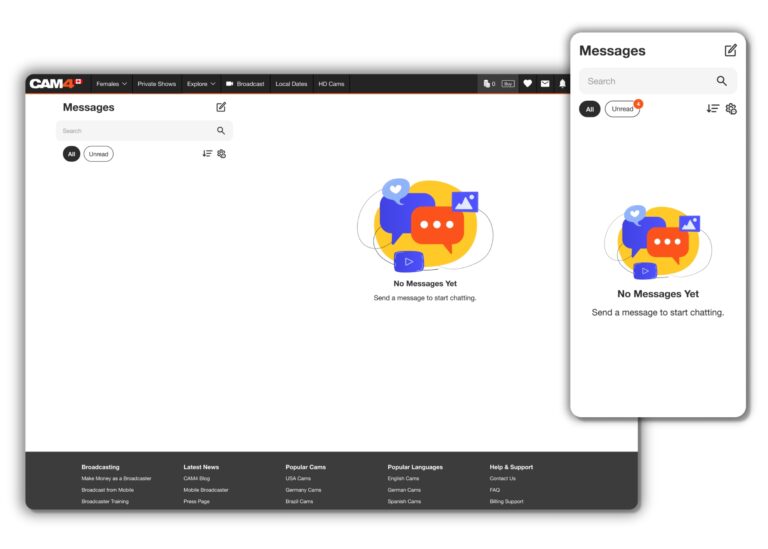
  • The new inbox messaging system brings a completely overhauled user experience and design, offering a fresh and intuitive interface. Users can explore new features designed to transform the way they interact with each other, on both desktop and mobile.
  1. How can I start a new conversation with other users?
  • Click on the icon to initiate a new conversation. You can search for users using filters like recently watched or recently tipped, or simply enter their username in the search bar for real-time results.
  1. How can I organize my conversations in the inbox?
  • You can filter chat threads by the most recent or oldest messages for convenient organization. Additionally, the gear icon allows you to edit existing conversations, select multiple threads for deletion, or star a thread for easy access.
  1. What is the purpose of starring a thread?
  • Starring a thread places it in the starred group section for quick and easy access.
  1. What is a Wink, and how does it work?
  • Non-gold users have three Winks per day, allowing them to express interest and initiate a conversation. Gold users can skip the need for Winks and directly message any user on the platform.
  1. What media features are available in the new inbox?
  • Users can send various media types, including My Shop videos and galleries, directly into the thread conversation. Media can be sorted and shared with other users.
  1. How can broadcasters benefit from the media features?
  • Broadcasters can share fan-only galleries, promoting themselves to users who have purchased a fan club membership
  1. How can I reward performers with tips and gifts?
  • Tips and gifts can be sent directly into private threads to show appreciation for the shared content.
  1. How does the Request Private Show button work?
  • Clicking the button allows users to engage in a private Cam2Cam show in exchange for tokens. This provides a more intimate space for users without the possibility of others spying on the show.
  1. How can users rate each other after a private show?
  • At the end of a private show, users can rate each other. Additionally, earnings and spending for that specific session are visible in the chat.
  1. How can I save a message or media for later reference?
  • Highlight a message or media and press the bookmark icon labeled “Save” to store it chronologically in the Save tab for that thread.
  1. Are there any additional details to explore in the new Inbox Overhaul?
  • Yes, we encourage users to explore the system further to discover all the little details and features. Feel free to reach out to support@cam4.com if you have any specific questions or need assistance.

OBS Guide

OBS Guide – Video

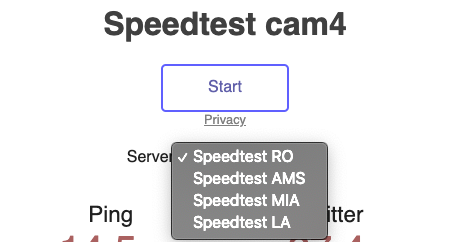
Before installing OBS please do a speed test using http://speedtest.xcdnpro.com This will test your connection with our servers.

Based on your results here are our recommendations regarding the resolution and Bitrate (you will need to set this once you configure OBS)

Upload Speed Resolution Bitrate
higher than 9Mbits /s 1920×1080 4000 Kbps
between 5Mbits and 9 Mbits 1280×720 3000 Kbps
between 3Mbits and 5Mbits 960×720 2500 Kbps
between 2Mbits and 3Mbits 800×600 2000 Kbps
less than 2Mbits 640×480 1000 Kbp
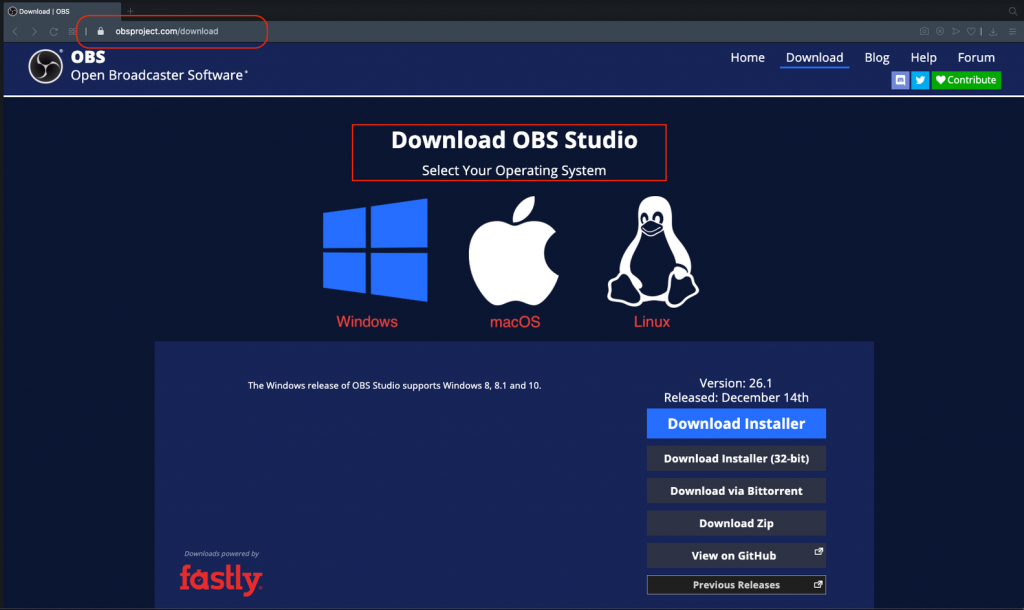
  1. Download OBS software from https://obsproject.com/download 
     Please Note: There is a phishing campaign at the moment that encourages downloading OBS from non-official sites. Please make sure you download the version available on the official website only
  • Select the Operating System (Windows / MacOS / Linux)
  • Click on Download Installer
  1. Once the download is finished, install the application
  2. Open OBS software
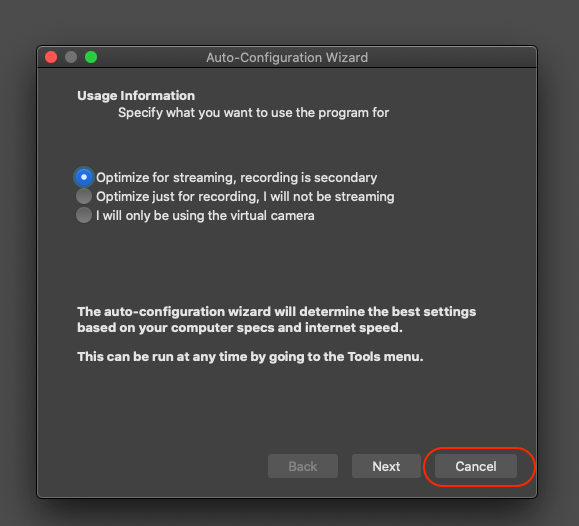
  3. The first time you open OBS you will be asked if you want to Auto Configure OBS → Click CANCEL
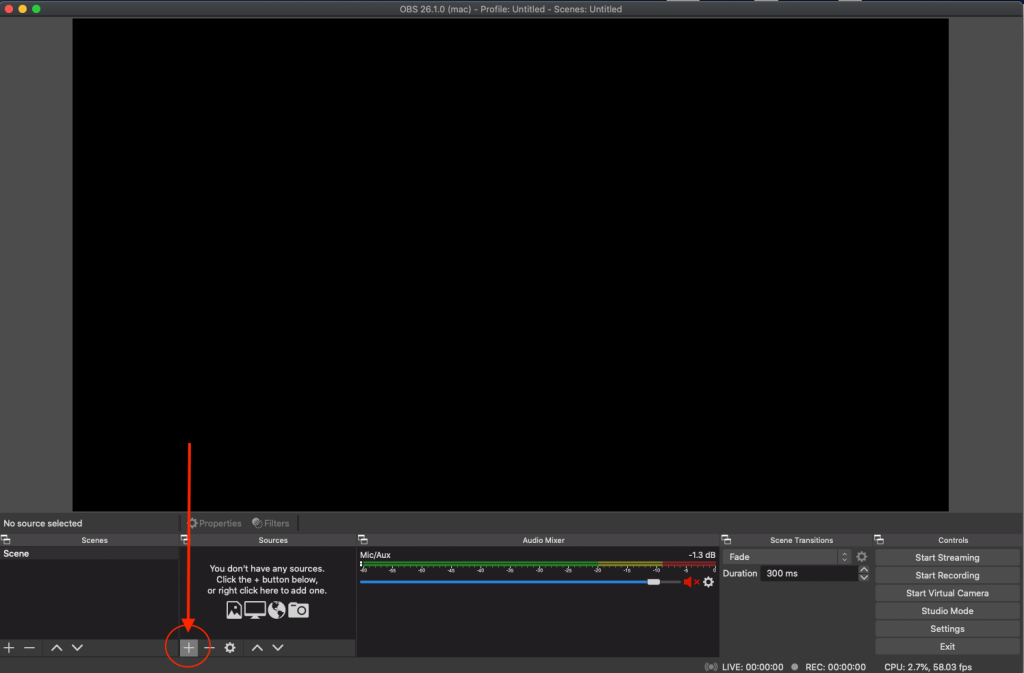
  1. Click on + To add a new Video Source
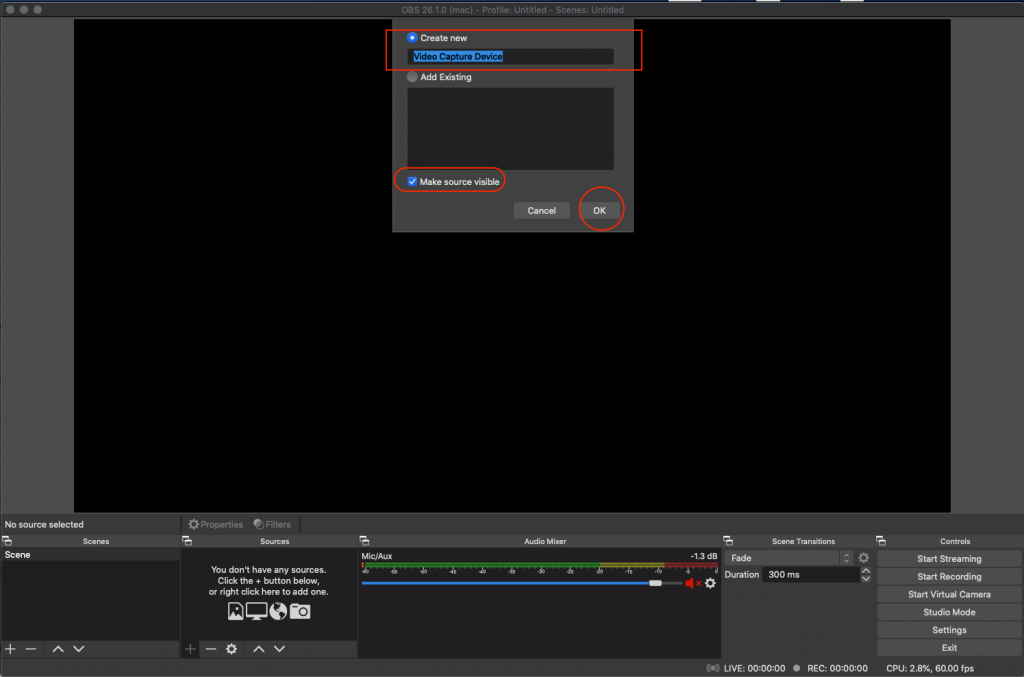
  • Select Video Capture Device
  • Input desired name
  • Check “Make source visible
  • Click OK
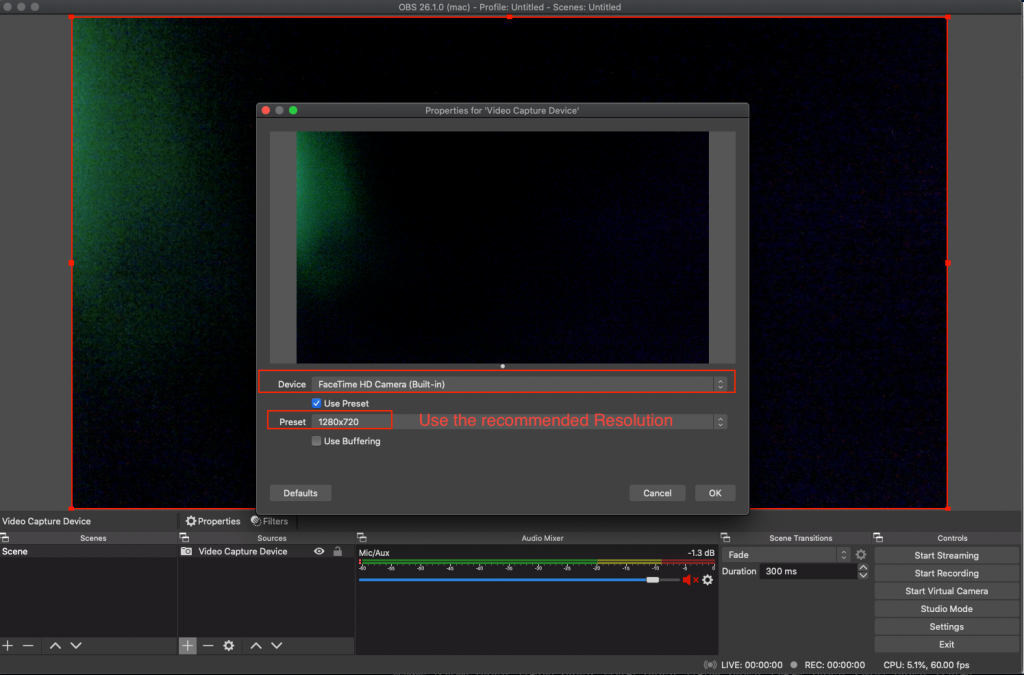
  • Device: Select desired Webcam (ex: Logitech C920)
  • Check “Use Preset
  • Resolution: Select the Recommended resolution based on the speed test
  • Frame rate: 30
  • Click OK
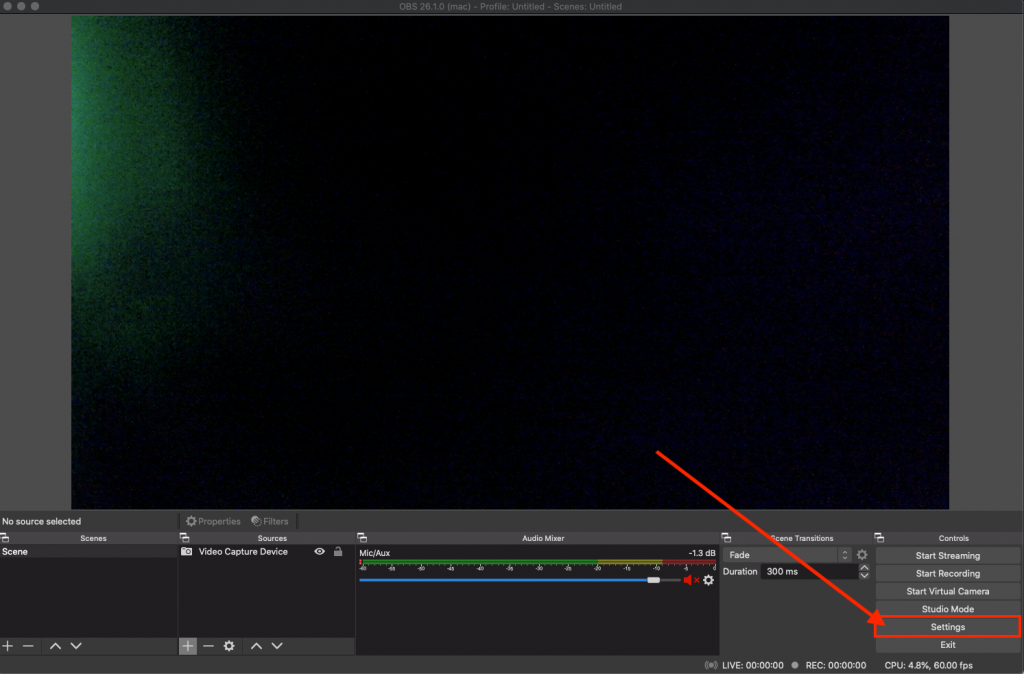
  1. Click On SETTINGS
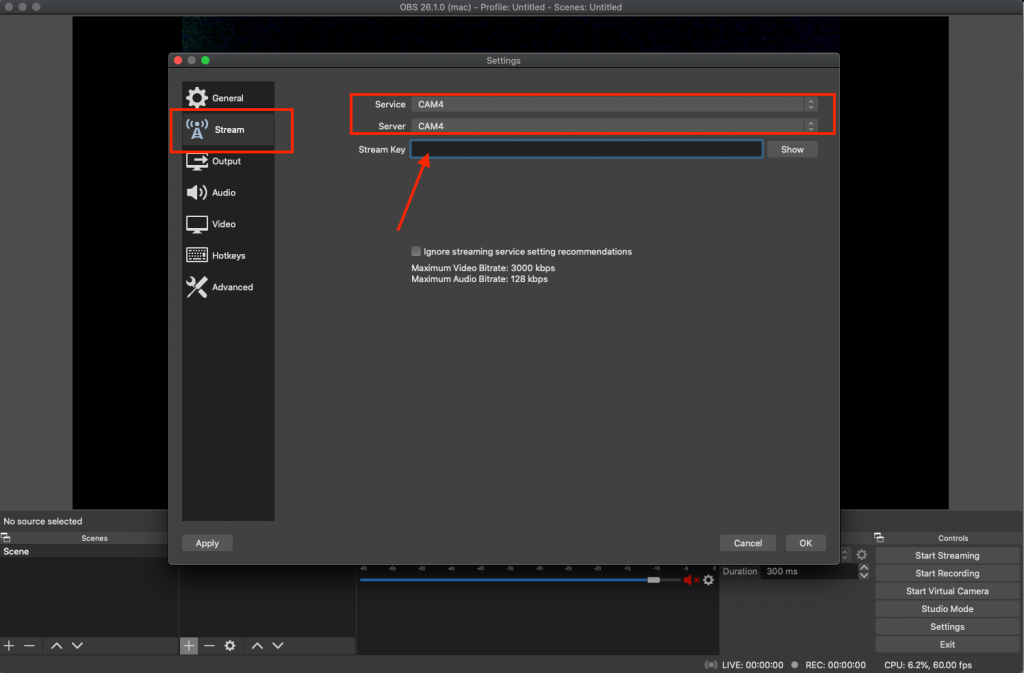
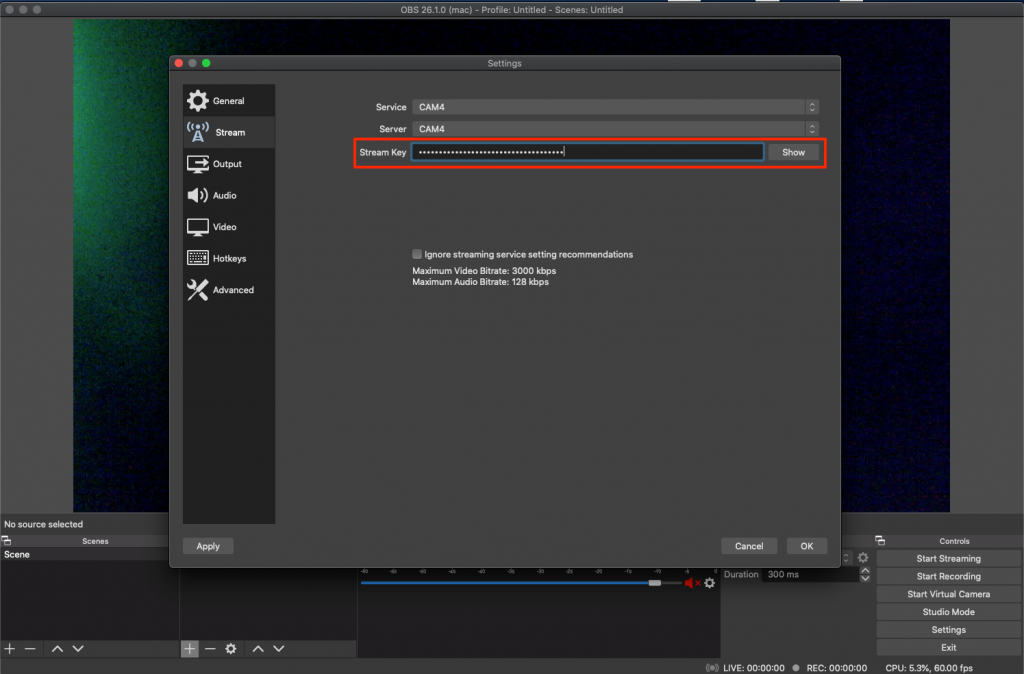
  • Choose the STREAM TAB
  • Select Service → Show All… → CAM4

  • Select Server → CAM4

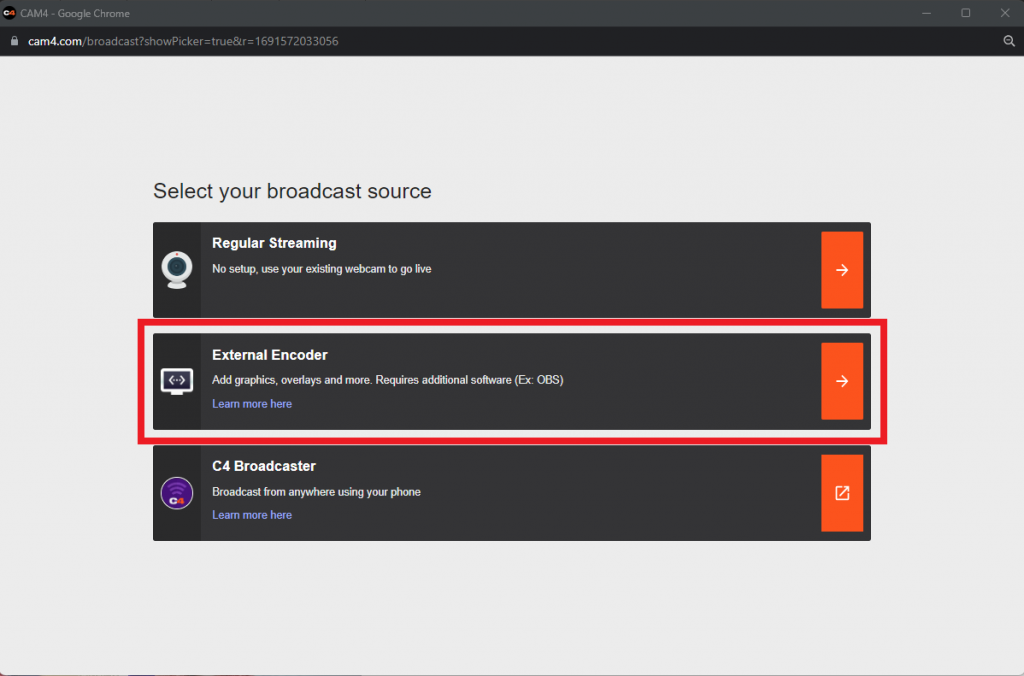
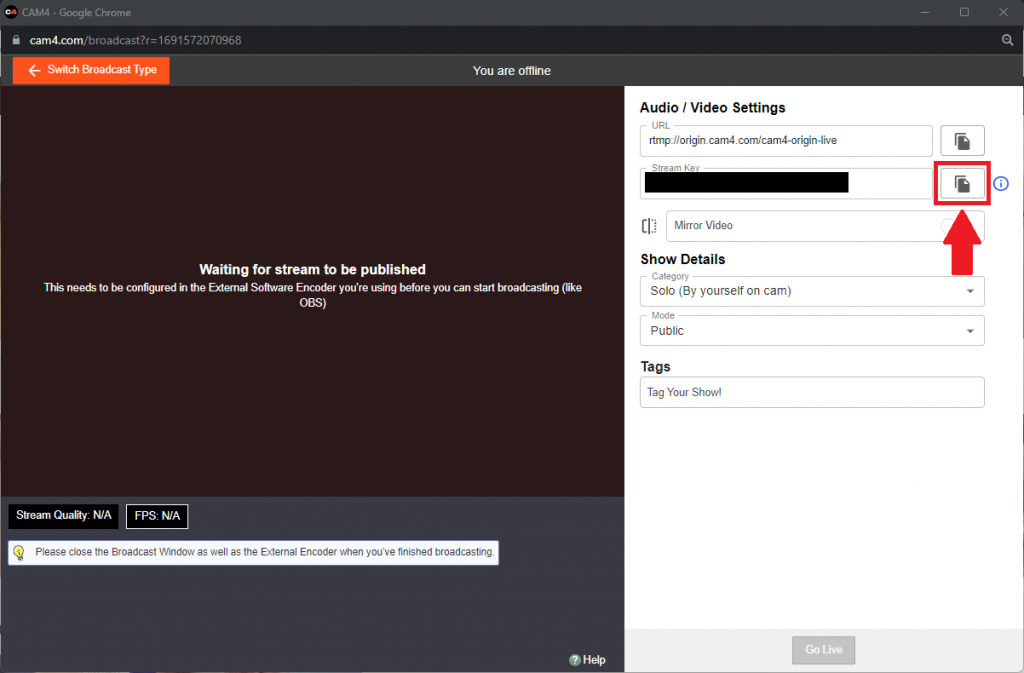
  • In order to get the Stream Key you need to open the Broadcast Window on Cam4
  • Choose External Encoder
  • Choose Get Stream Key
  • Copy the Stream Key

  • Choose External Encoder
  • Choose Get Stream Key

  • Copy Stream Key
  • Paste the Stream Key from cam4 into the input field
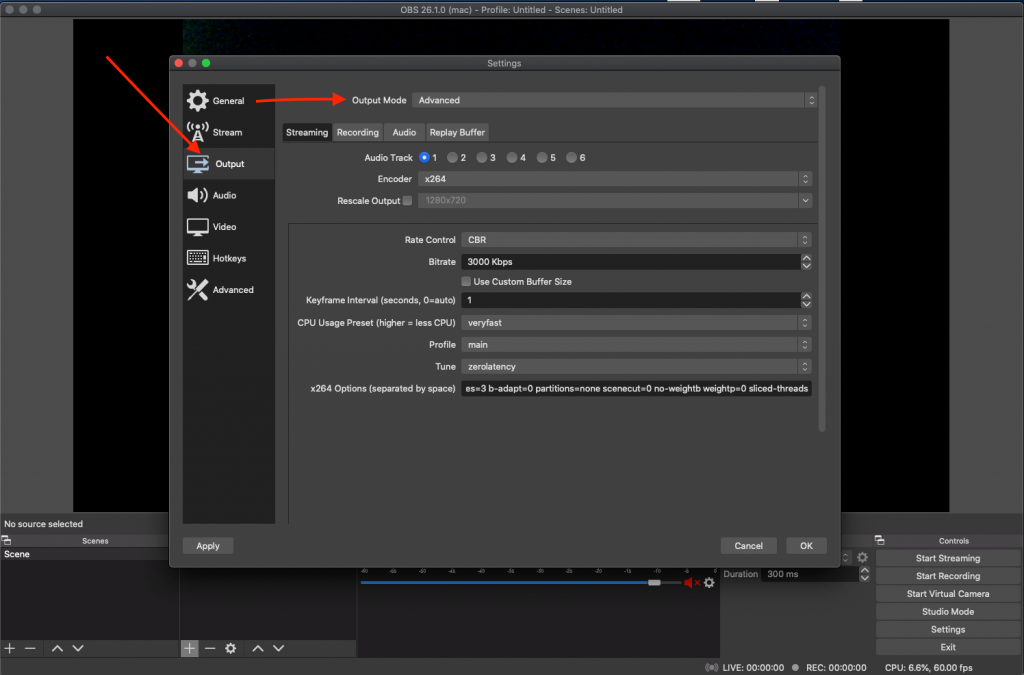
  • Choose the OUTPUT TAB
  • Go to Output Mode – Select Advanced from the dropdown list


IF Encoder is x264 use the following settings:

  • Rate Control: CBR
  • Bitrate: Based on internet speed (see above table)
  • Keyframe Interval (seconds, 0=auto): 1 CPU Usage Preset (higher=less CPU): veryfast or superfast (depending on hardware)
  • Profile: main
  • Tune: zerolatency x264 Options (separated by space): bframes=0
  • Note: For x264 options you need to copy+paste the values manually

IF Encoder is QuickSync use the following settings:

  • Check the box for Enforce streaming service encoder settings
  • Target usage: balanced
  • Profile: main
  • Keyframe Interval (seconds, 0=auto): 1
  • Async Depth: 1
  • Rate Control: CBR
  • Bitrate: The one recommended (see above table)
  • B frames: 0
  • Check the box for Content Adaptive Quantization
  1. Choose the VIDEO TAB
  • Base (Canvas) Resolution: Use the recommended resolution based on the speed test (ex: 1280×720)
  • Output (Scaled) Resolution: Use the same resolution as the Base (Canvas) Resolution
  • Downscale Filter: Bilinear
  • Common FPS Values: 30
  1. Choose the ADVANCED TAB
  • Scroll down to Network Area and check the following box: “Dynamically change bitrate to manage congestion”
  1. Click OK
  2. Click Start Streaming
  1. Open Broadcast window on CAM4 → Select External Encoder
  2. Allow flash (if it asks for it 1.1)
  3. Click Start Broadcast (1.2)

Related Articles